


































Understanding the Sage HR Leave Import in Go2Clock
Before using the Sage HR Holiday Import, ensure that the Sage HR API connection has been set up in Go2Clock and employees are linked to their Sage HR ID. If the API connection has not yet been configured, please refer to this knowledge base article: How to Connect Sage HR to Go2Clock.
Section 1 | Employee Link to Sage HR
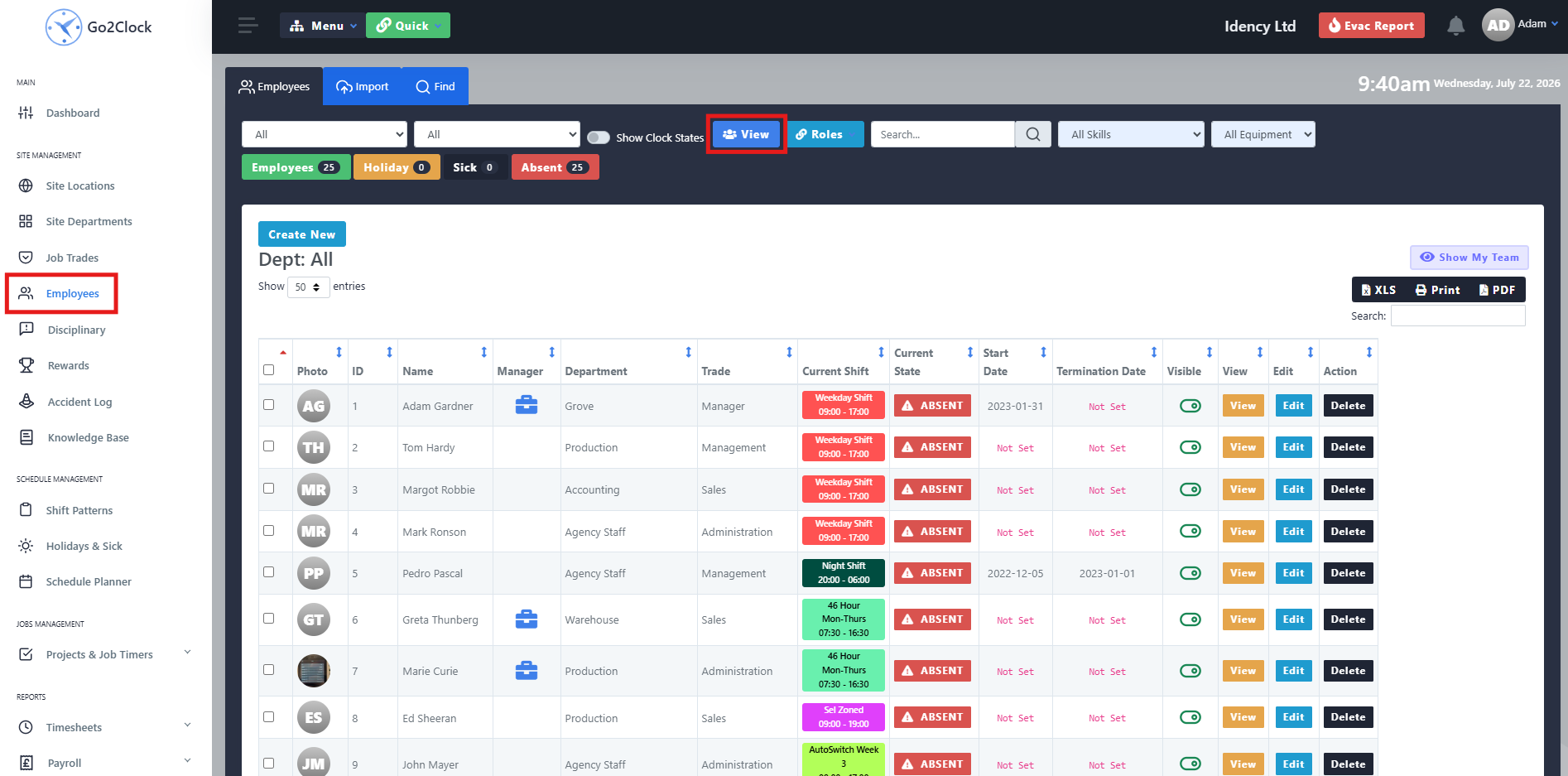
Navigate to the Employee Dashboard and select View. Find the employee you want to check and select Edit.
Step 2: Check the Sage HR Employee ID
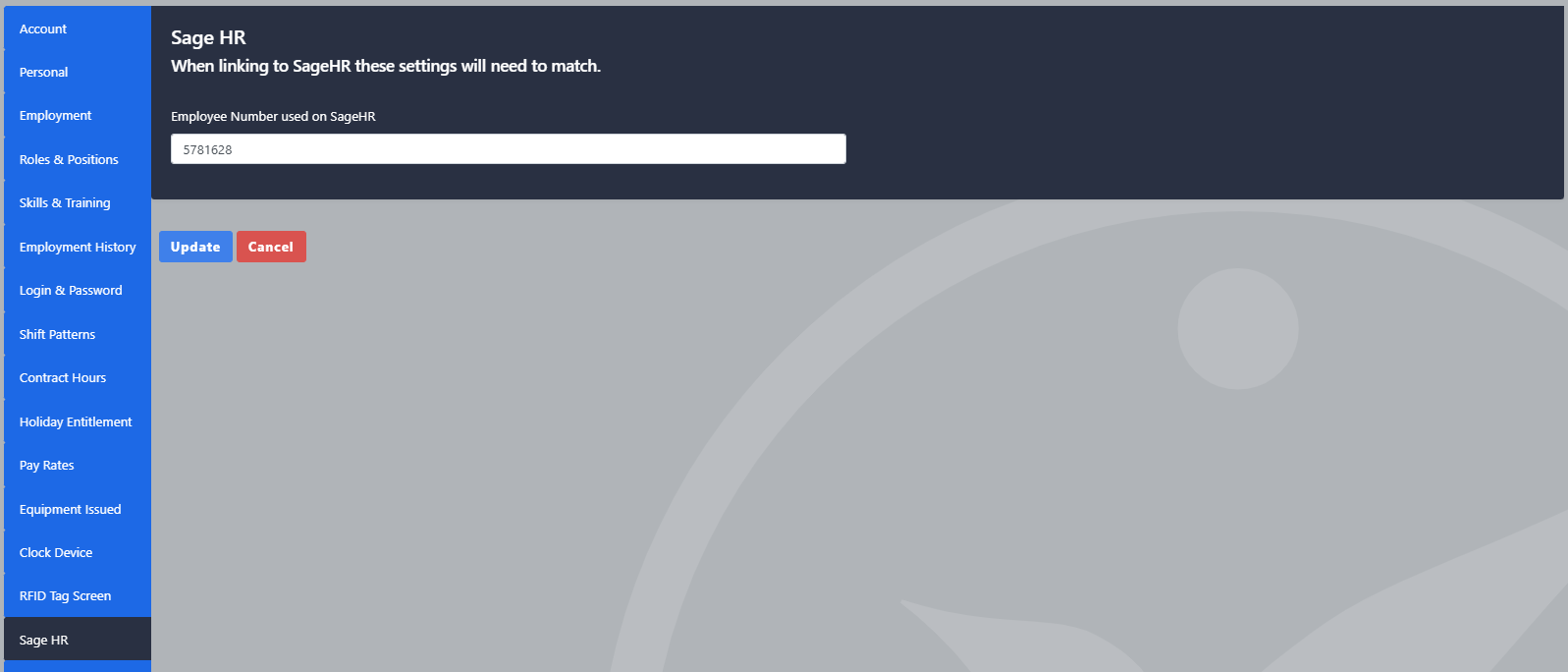
In the employee options navigate to the Sage HR tab. Ensure the Sage HR Employee ID field contains the correct ID from Sage HR. If the field is blank, enter the correct Employee ID and update the employee.
Step 3: Locate the Employee ID in Sage HR
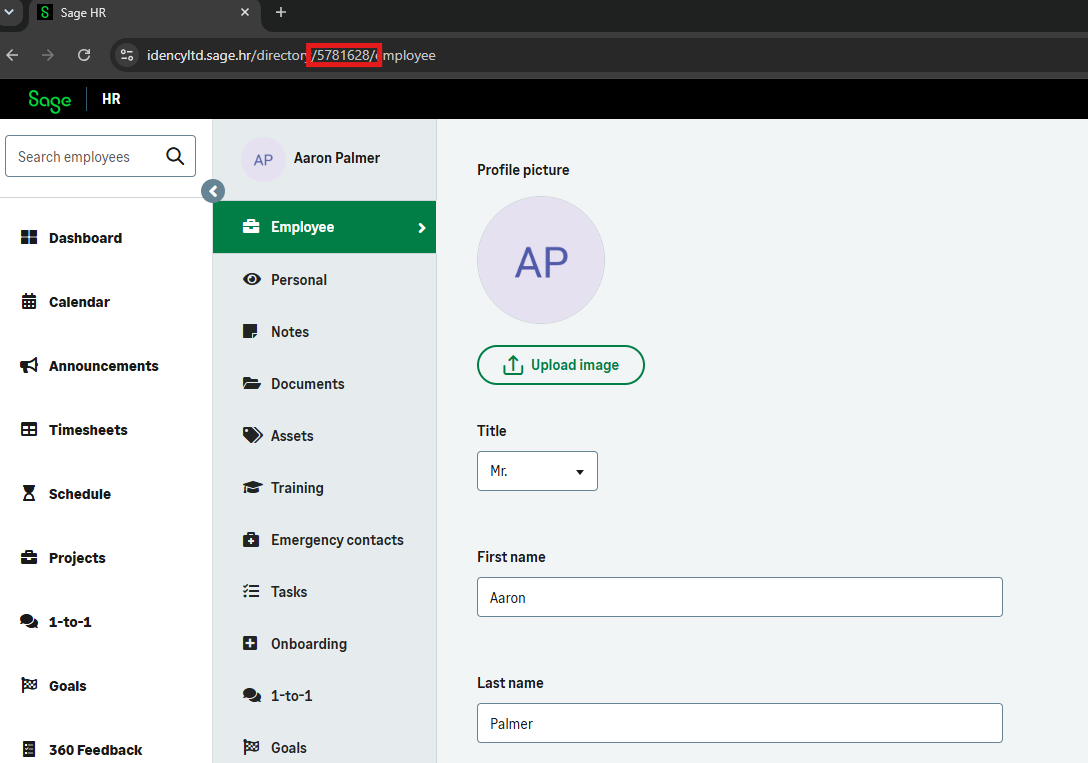
If the Employee ID is missing, open Sage HR and login. Navigate to Company and select the employee. The six digit ID will be visible in the URL, please copy this into the Go2Clock Sage HR Employee ID field.
Section 2 | Importing Leave into Go2Clock
Step 1: Import Sage HR Leave
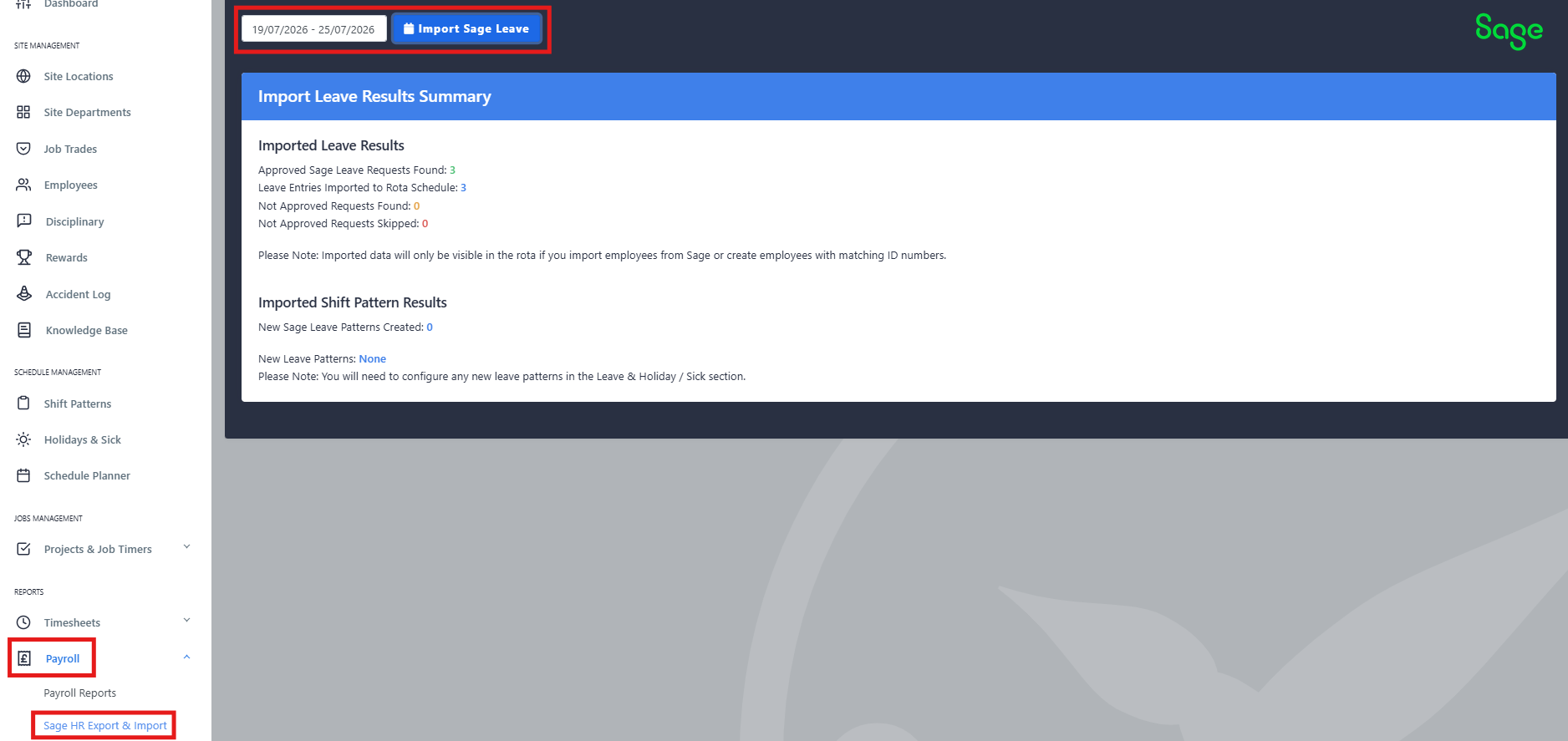
Navigate to Payroll and select Sage HR Import & Export. At the top of the page select Sage HR Import Leave
Select the date range you want to pull leave from Sage HR. Note that leave can only be imported one month at a time. Once selected, click Import Sage HR Leave.
Once complete you will see the number of successfully imported leave records, a list of non-approved leave for reference, and the number of new leave patterns created. Any new leave patterns will need to be reviewed and corrected.
Section 3 | Setting up Full Day Leave
Navigate to the Holiday & Sick tab and select Setup | Leave, Holiday & Sick Patterns. Find the leave pattern that was created and select Update.
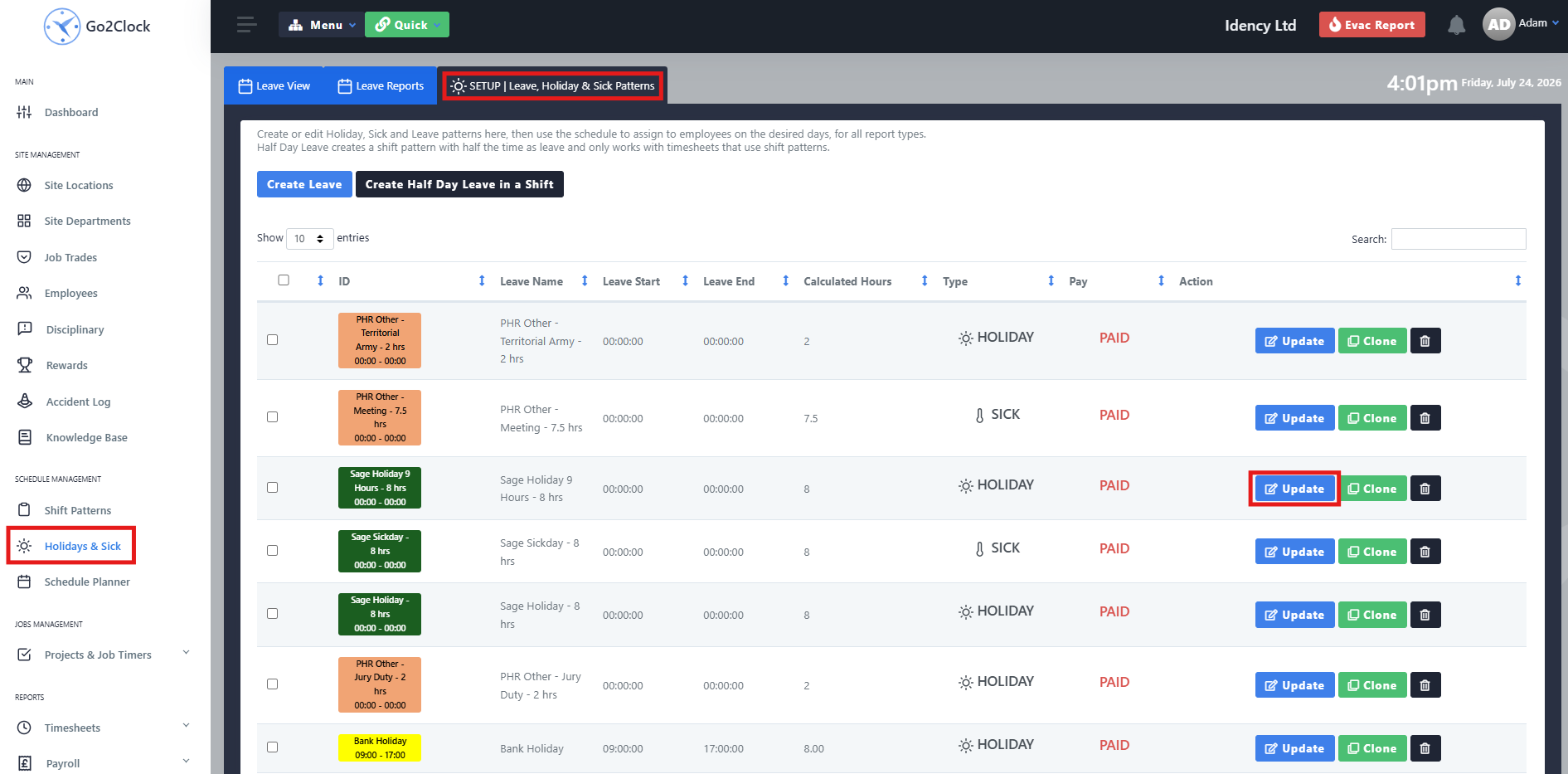
Step 2: Configure the Full Day Leave Pattern
Do not change the pattern name as this can cause unintended issues. Select the Shift Times tab and verify the shift times. Select the Leave Type tab and confirm whether the leave should be Paid or Unpaid, and ensure the correct leave type (Holiday or Sick) has been selected.

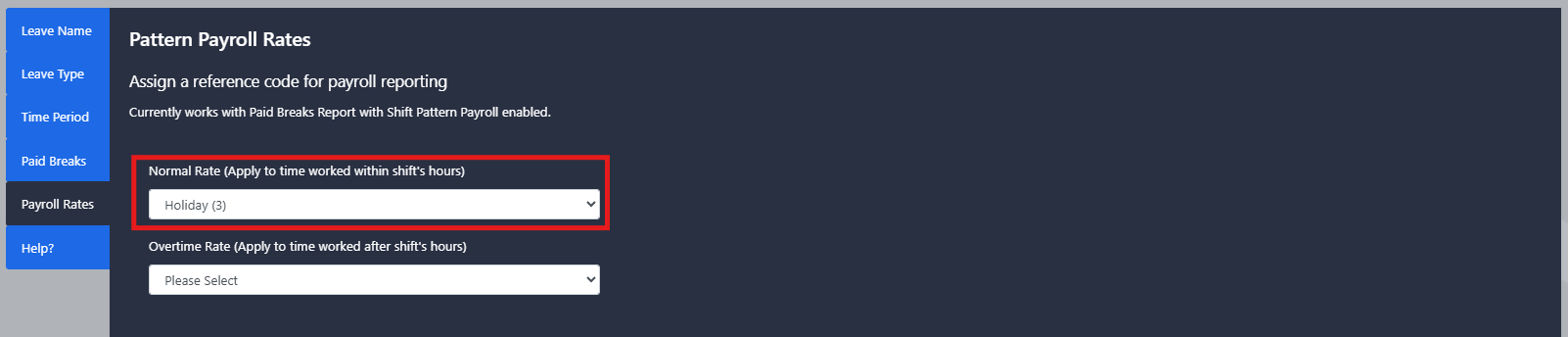
Step 3: Set the Full Day Payroll Rate
If using Sage Payroll, select the Payroll Rate tab. Under the normal rate, select the appropriate Pay Rate Code to be applied.
Section 4 | Setting up Half Day Leave
Navigate to Shift Patterns and select Setup Shift Patterns. Find the Holiday or Sick shift pattern that was created and select Update.
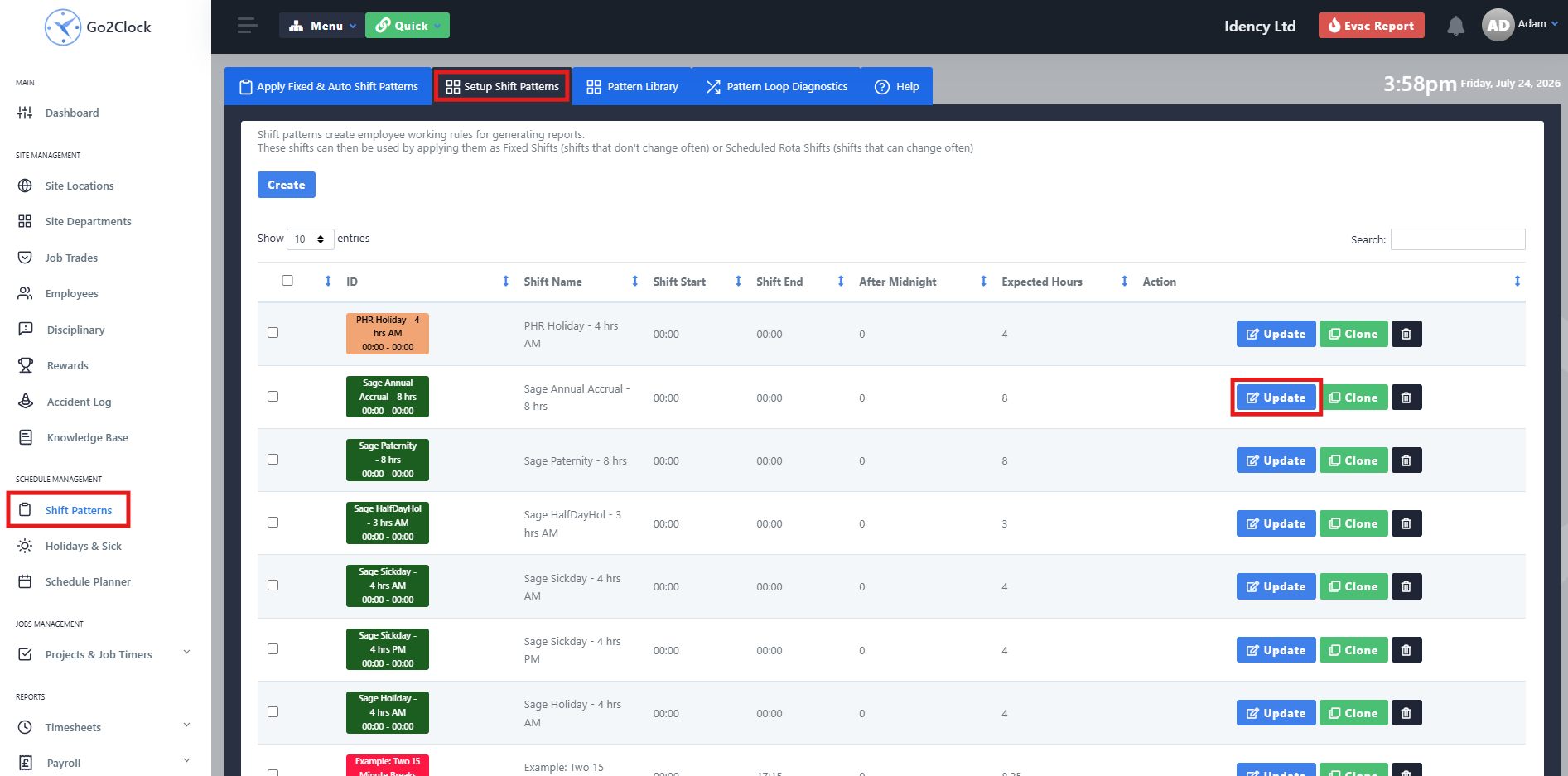
Step 2: Configure the Half Day Holiday & Sick Rules
Do not change the pattern name. Open the Holiday & Sick rules tab, enter the appropriate leave hours, enable whether it is Sick or Holiday, and specify whether the leave is Paid or Unpaid.
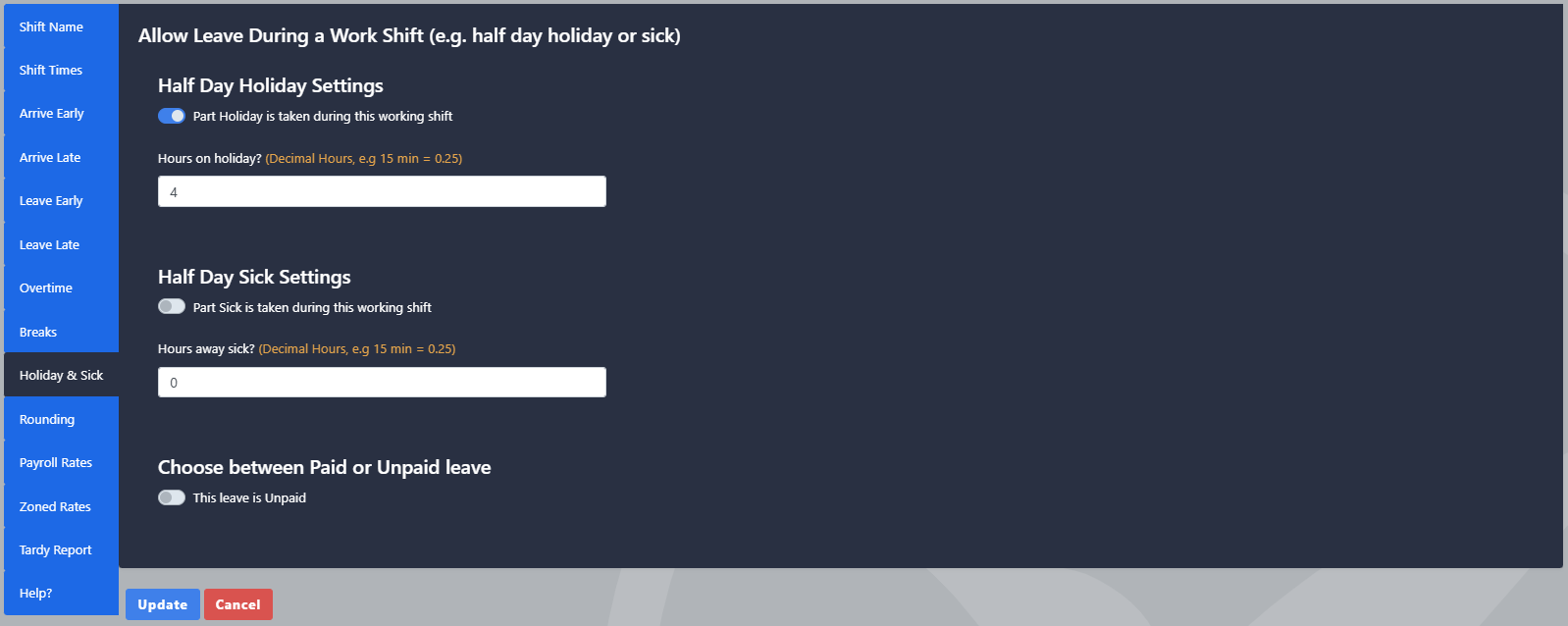
Step 3: Set the Half Day Payroll Rates
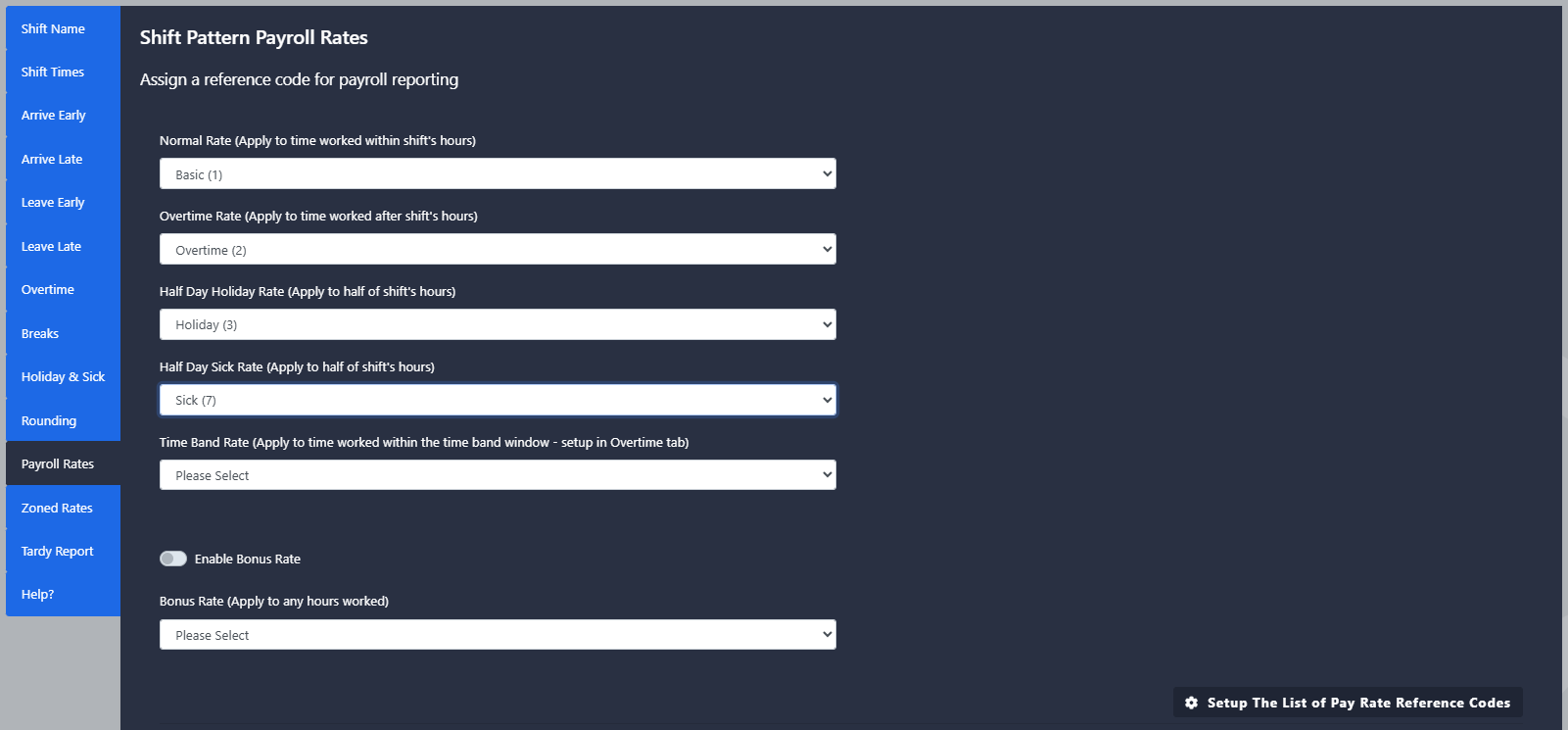
If using Sage Payroll, navigate to the Payroll Rates rules tab. Select the half day holiday or sick rate and apply the correct Pay Rate Code.
Please note: Imported leave will only be created for employees if they have been imported from Sage HR or manually updated with their Sage HR ID. If leave is still not importing correctly, ensure the Sage HR Remote Server Address and API Key are correct.

Go2Clock Cloud Hosted Time & Attendance System

















 English (UK)
  English
  English (Canada)
  Français du Canada
  Svenska
  Português
  Nederlands
  Italiano
  Français
  Español
  Deutsch