


































Go2Clock: Upload Clock Records to Sage HR
This article explains how to upload clock records from Go2Clock into Sage HR timesheets, either manually or automatically.
Before using the Sage HR Timesheet Export, make sure the Sage HR API connection has been set up in Go2Clock. If it hasn’t, please refer to: How to Connect Sage HR to Go2Clock
Employees also need to be linked to their Sage HR ID, so their clock records are exported against the correct person. If they were originally imported into Go2Clock using the Sage HR integration, this link is already in place. If you added them manually, follow Steps 1 to 3 to check it.
Step 1: Open the Employee Record
- Navigate to the Employee Dashboard
- Select View
- Find the employee and select Edit
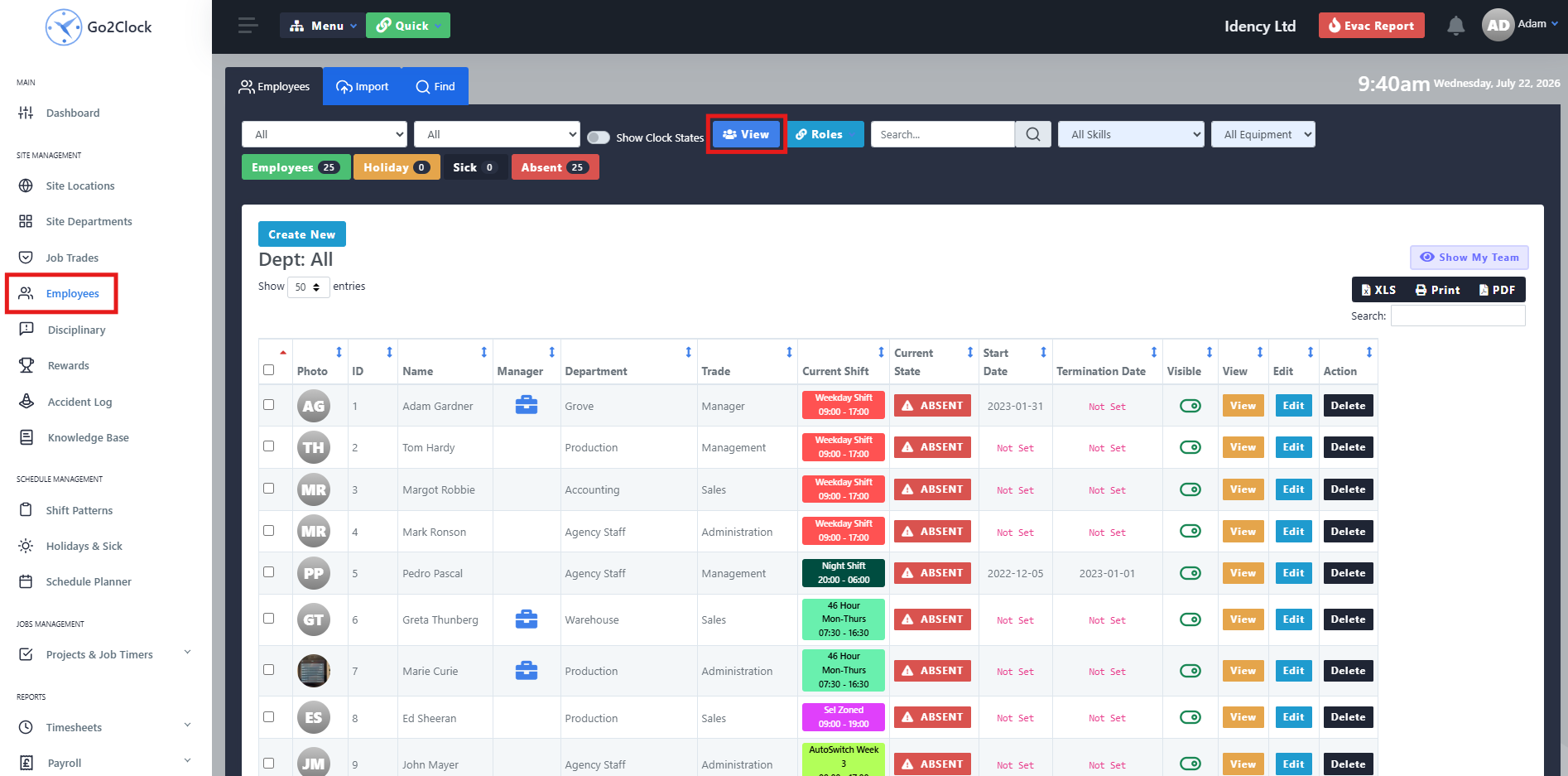
Step 2: Check the Sage HR Employee ID
In the employee options, go to the Sage HR tab and check the Sage HR Employee ID field contains the correct ID from Sage HR. If the field is blank, enter the correct Employee ID and update the employee.
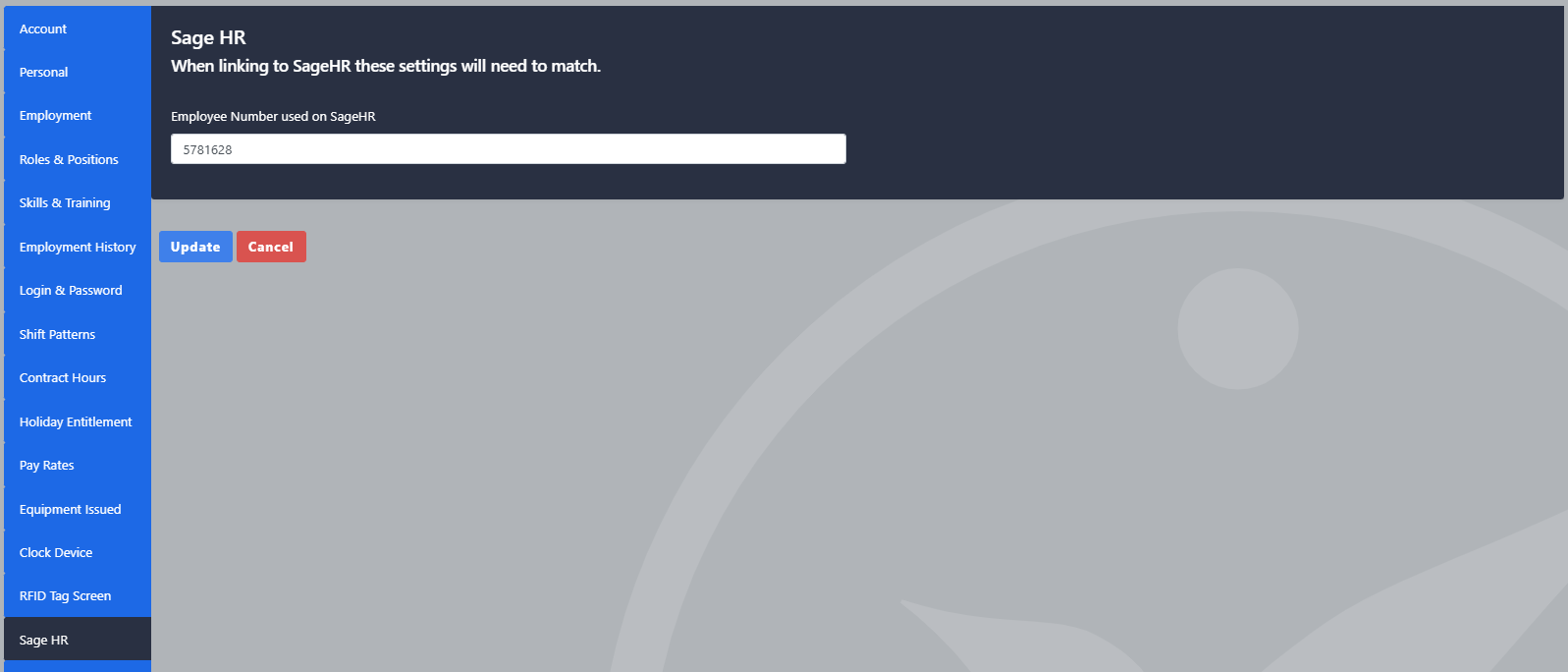
Step 3: Find the Employee ID in Sage HR
If an ID is missing, you can find it in Sage HR.
- Log into Sage HR
- Navigate to Company and select the employee you want to check
- Look in the URL for a 6 digit number, which is the employee’s ID
- Enter this into the Sage HR field in Go2Clock
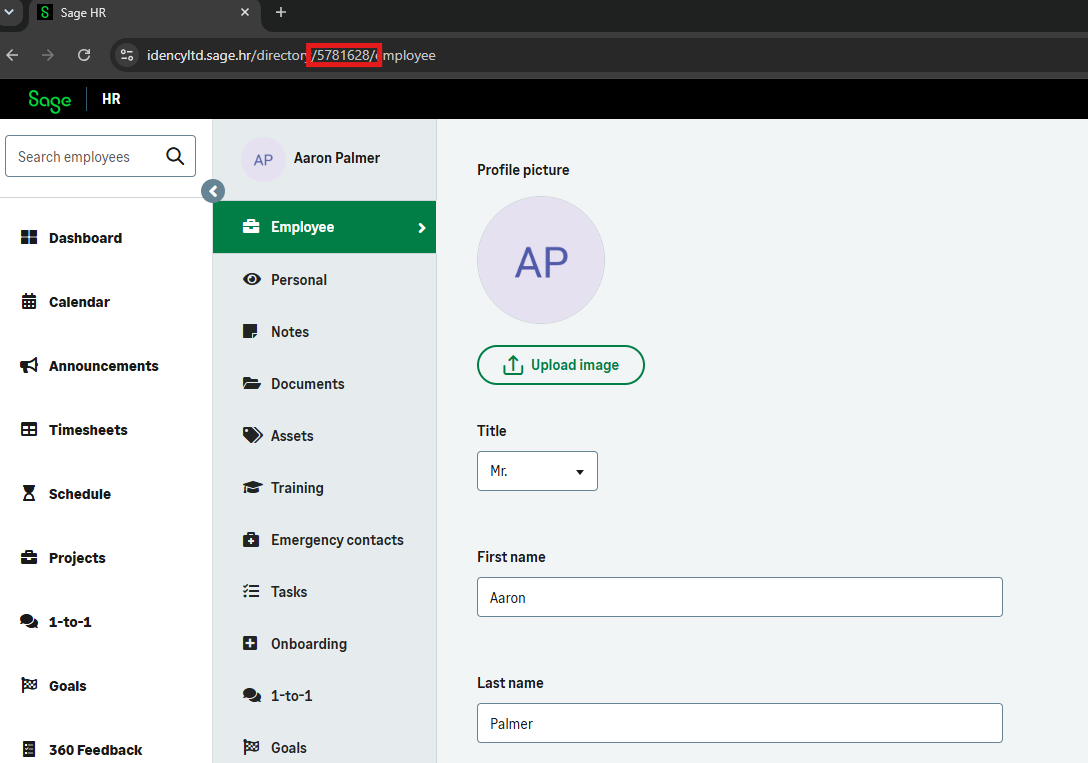
Step 4: Find the Employee ID in Sage HR
Once the API connection is configured and employees are linked to their Sage HR IDs, you can export clock records into Sage HR timesheets.
- Navigate to Payroll
- In the dropdown, select Sage HR Export & Import
- At the top, set the date range you want to export
- Select View
- Select Export Timesheet To Sage
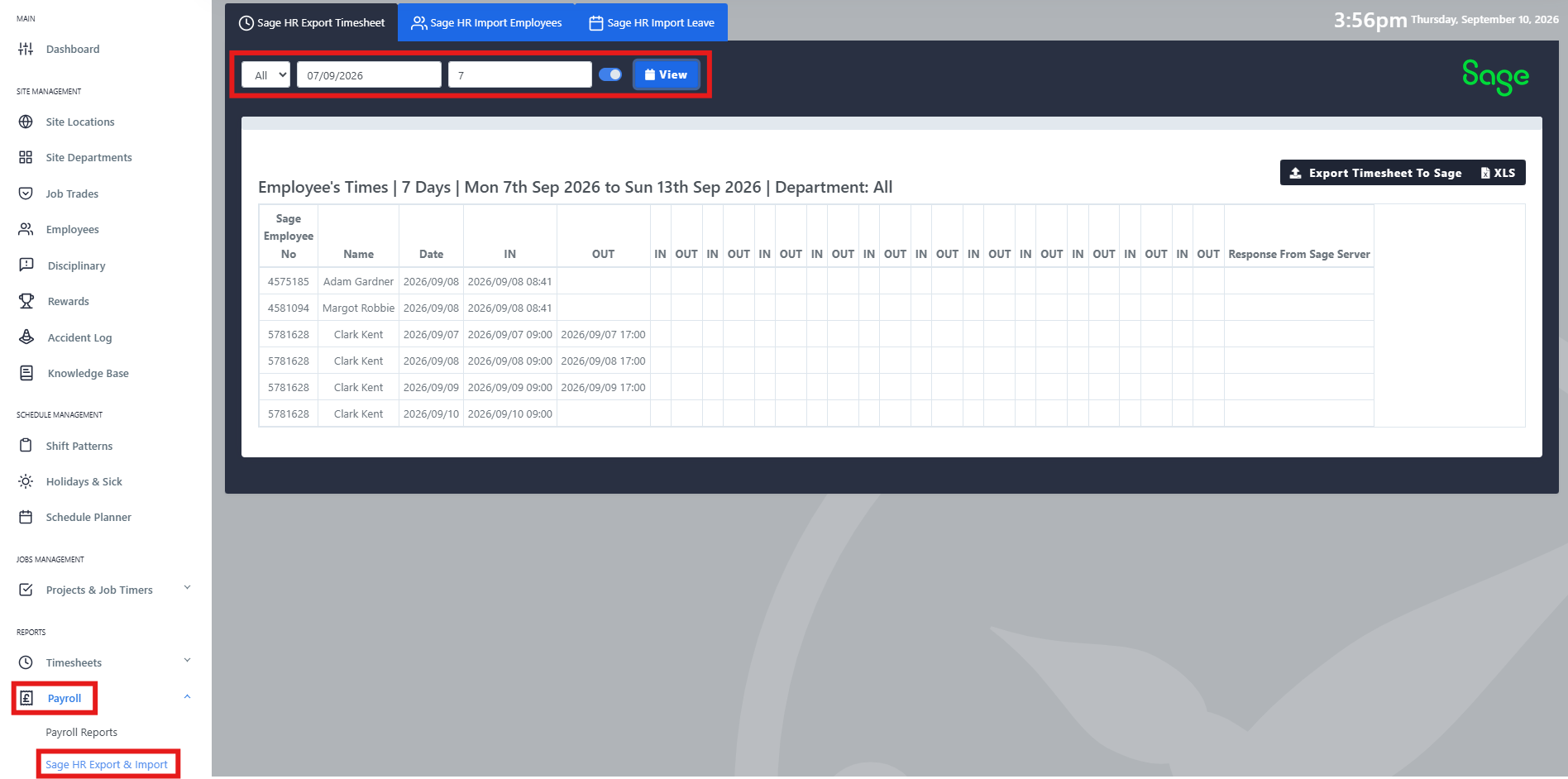
Step 5: Check the Export Results
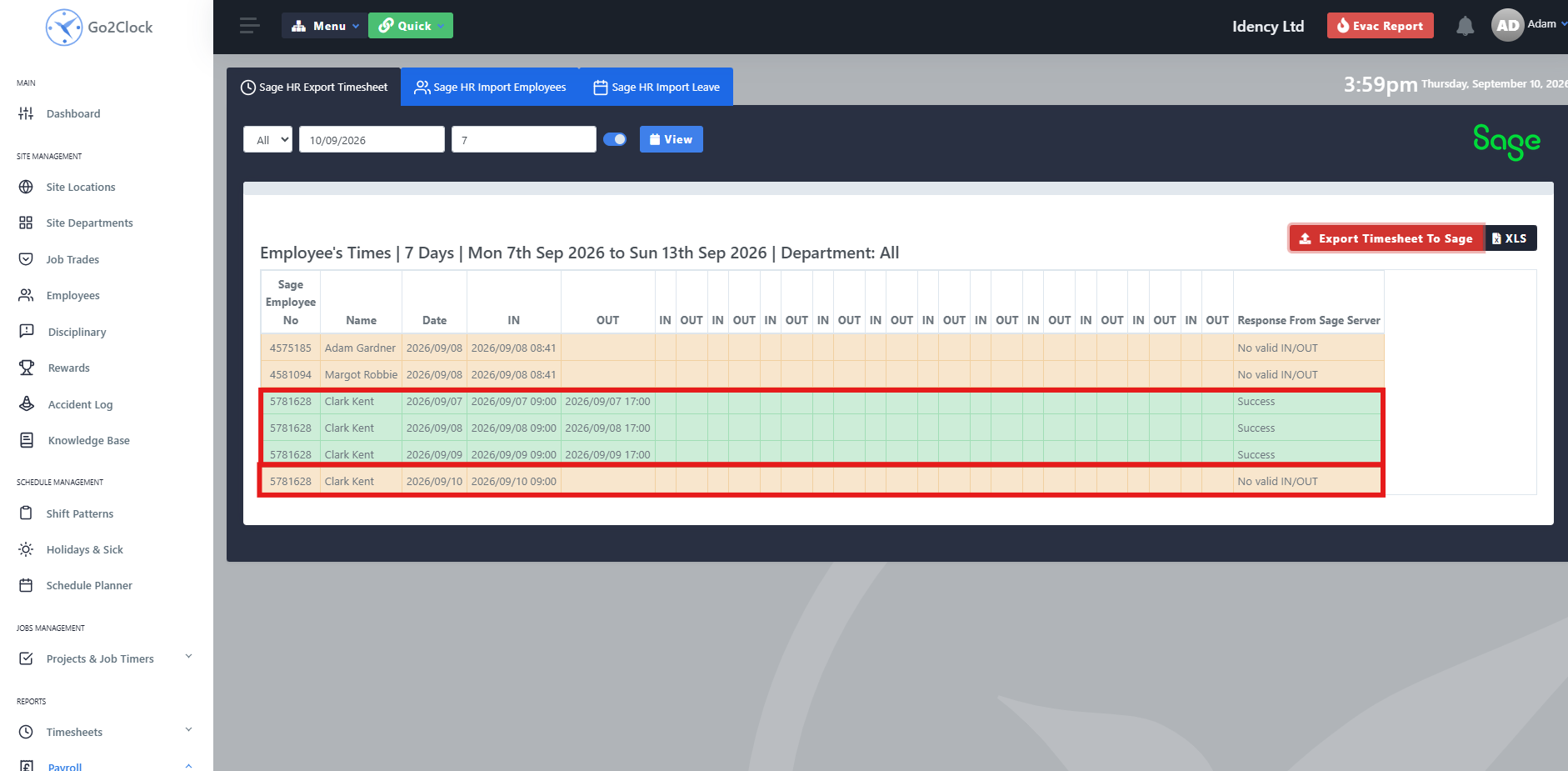
Go2Clock uploads the clock records in the selected date range to each employee’s Sage HR timesheet. Each employee’s records show separately for each day.
After the export, each row shows a status:
- Green: the clock records were exported to Sage HR successfully
- Pale orange: the records couldn’t be exported because there’s an odd number of clocks for that day
- At the top, set the date range you want to export
Sage HR requires complete IN and OUT pairs. If a row is pale orange, correct the employee’s clock records in Go2Clock and run the export again.
The Sage HR export does not support night shifts, due to limitations with the Sage HR API.
Step 6: Ignore Clocked Breaks (Optional)
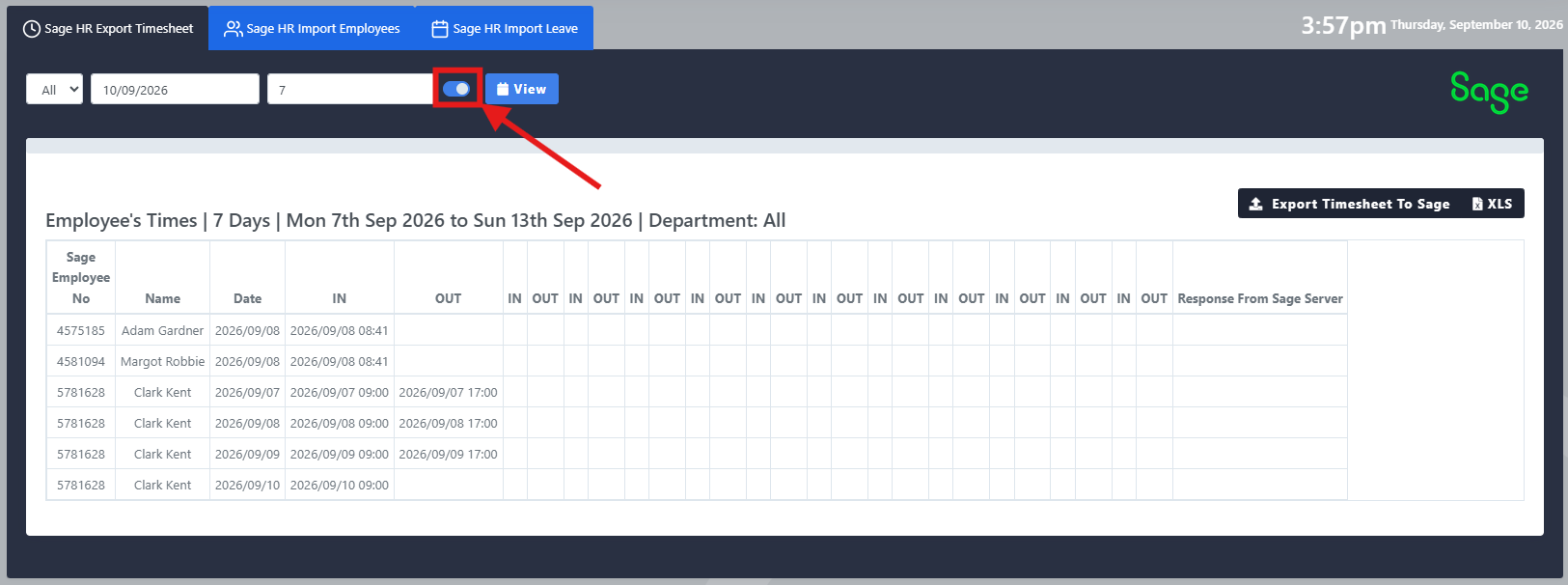
If you only want to export an employee’s first and last clocks, enable Ignore Clocked Breaks next to the View button. This ignores any clock records between the first and final clock.
Step 7: Upload Clock Records Automatically (Optional)
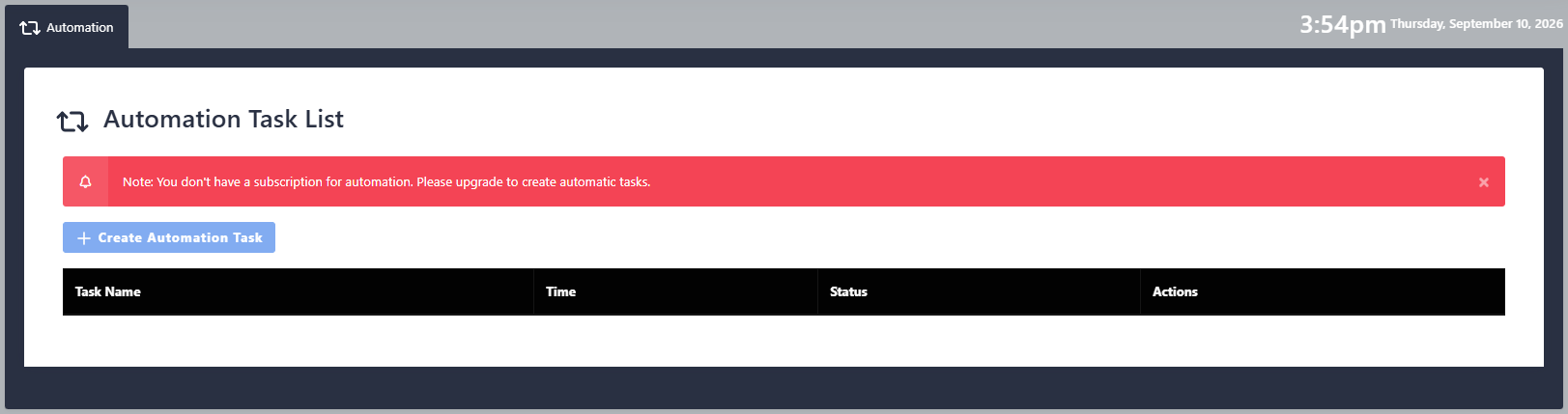
If you want clock records uploaded to Sage HR without exporting them yourself, you can set this up as an Automation Task. The Sage HR timesheet upload then runs automatically for each day, every 24 hours, at a scheduled time.
Automation Tasks are an additional cost and aren’t included in the standard Go2Clock subscription. Please contact finance@idency.com if you’d like to discuss this option. For more on how they work, see: Go2Clock: Automation Tasks
The same rules apply to automatic uploads. Employees must have a complete pair of IN and OUT clock records, or Sage HR will reject them. Sage HR doesn’t notify managers when it rejects records.
Need a hand setting uploading clock records to Sage HR in Go2Clock?
If you run into any issues with the export or linking employees, our support team is happy to help.

Go2Clock Cloud Hosted Time & Attendance System

















 English (UK)
  English
  English (Canada)
  Français du Canada
  Svenska
  Português
  Nederlands
  Italiano
  Français
  Español
  Deutsch