


































Go2Clock: How to Import PeopleHR Staff
Before using the PeopleHR staff import, ensure that the PeopleHR API connection has been set up in Go2Clock. If the API connection has not yet been configured, please refer to this knowledge base article: How to Connect PeopleHR to Go2Clock
Step 1: Create a New Department
Before importing employees directly from PeopleHR into Go2Clock, you’ll first ned to make sure all of your PeopleHR departments have been created in Go2Clock. This ensures employees are automatically assigned to the correct department when they’re imported.
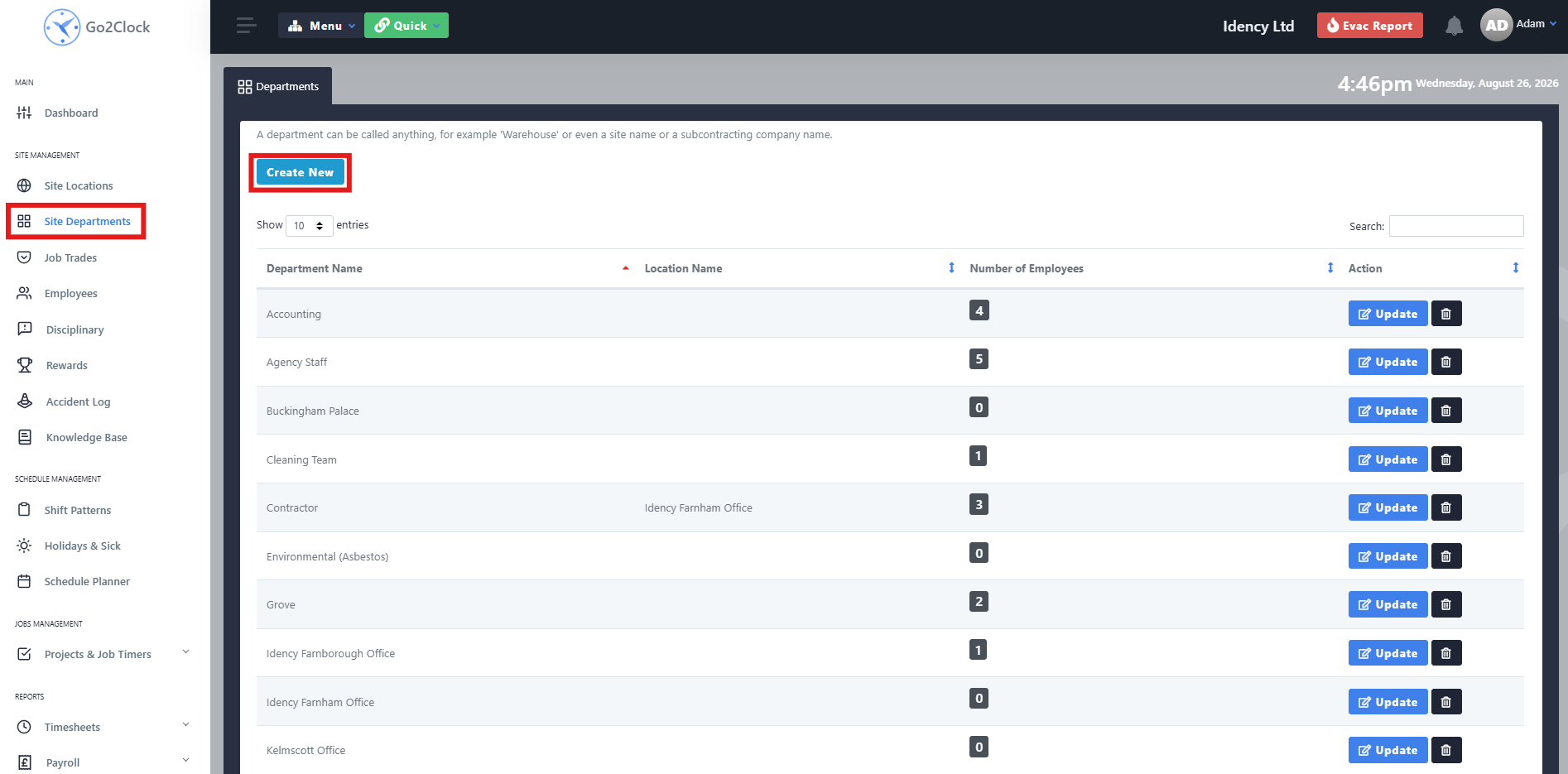
- Navigate to Site Departments
- Select Create New
Step 2: Name and Create the Department
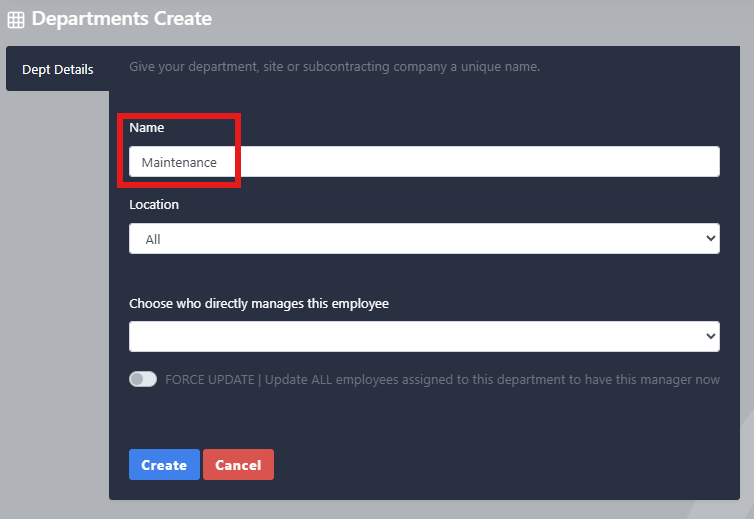
- Enter the department name
- Select Create
Repeat this process until all of your PeopleHR departments have been created in Go2Clock
Step 3: Import PeopleHR Employees
Once the PeopleHR API connection has been established and the required departments have been created, you can import your employees from PeopleHR.
- Navigate to Payroll
- Select PeopleHR Import & Import
- At the top of the screen, select PeopleHR Import Employees
From this tab, you can view the PeopleHR employees that will be brought across into Go2Clock before importing them, showing all the information that will transfer over. Once you’re ready, select Import Employees. Go2Clock will then retrieve the employee information from PeopleHR and create the employees.
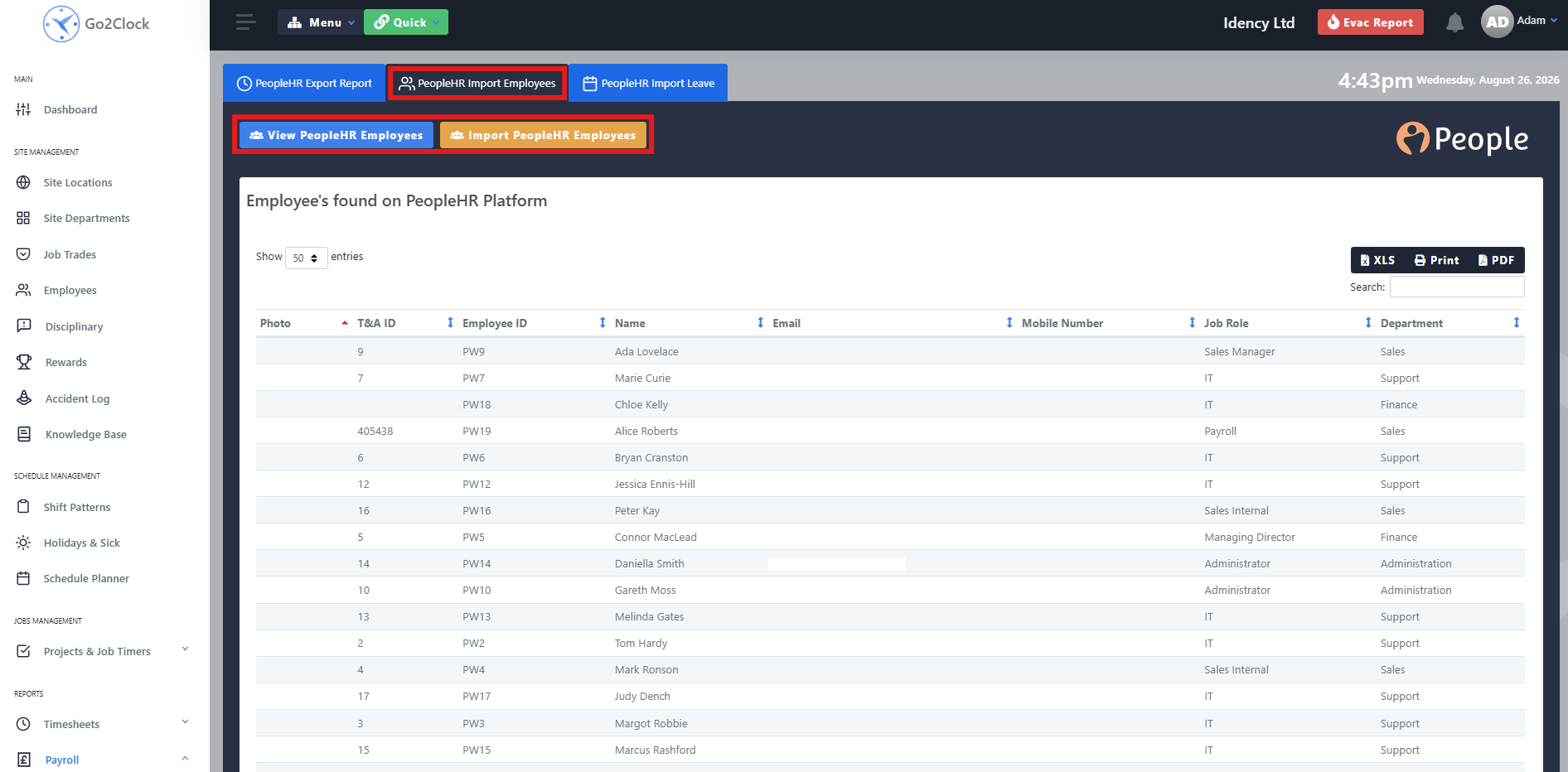
Employees are automatically linked to their corresponding PeopleHR Employee ID, allowing Go2Clock to identify them when using other PeopleHR integration functions, such as importing leave and exporting clock records. You can run the import again at any time a new employee has been added to PeopleHR — only employees not already present in Go2Clock will be added.
Need a hand importing your PeopleHR staff?
If you run into any issues connecting PeopleHR or importing employees, our support team is happy to help.

Go2Clock Cloud Hosted Time & Attendance System

















 English (UK)
  English
  English (Canada)
  Français du Canada
  Svenska
  Português
  Nederlands
  Italiano
  Français
  Español
  Deutsch