


































Go2Clock: Tracking Employee Disciplinaries
Employee disciplinary records are critical for maintaining a clear history of formal or informal disciplinary actions taken by managers. They provide a record of the circumstances surrounding a disciplinary and allow previous actions to be reviewed when required in Go2Clock.
Step 1: Create a Disciplinary Record
The Disciplinaries feature in Go2Clock allows managers to record and track disciplinary actions against employees.
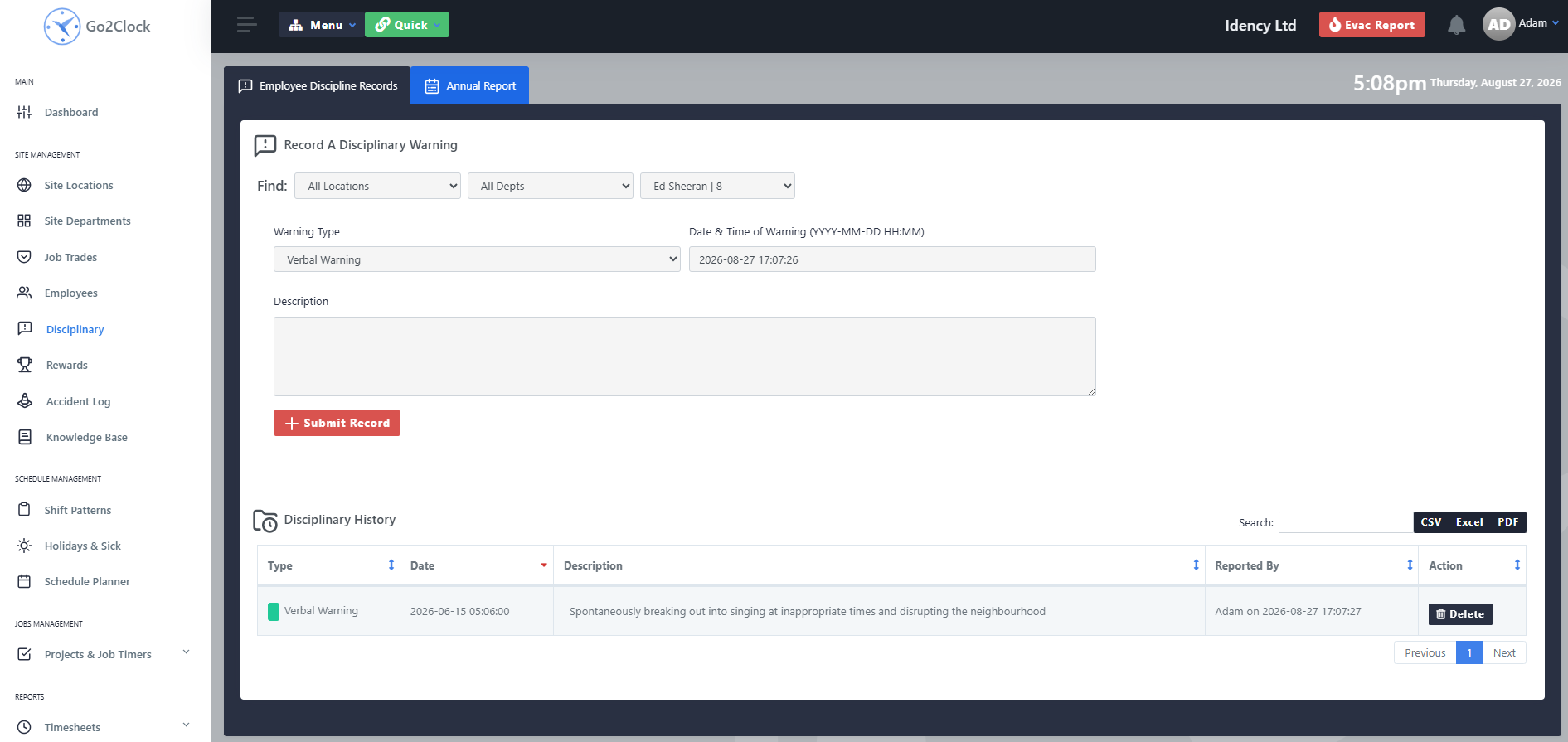
- Navigate to Disciplinary
- Use the filters to find an employee
- Fill out the Disciplinary Warning
Select the appropriate Disciplinary Type from the dropdown, then enter the date and time the disciplinary occurred.
Use the Description field to give additional details about the incident or circumstances. This should clearly explain why the disciplinary was issued and provide useful information for future reference.
Step 2: Run a Disciplinary Report
Go2Clock can generate a report of the disciplinary records created during a specified period.
- Navigate to Disciplinary
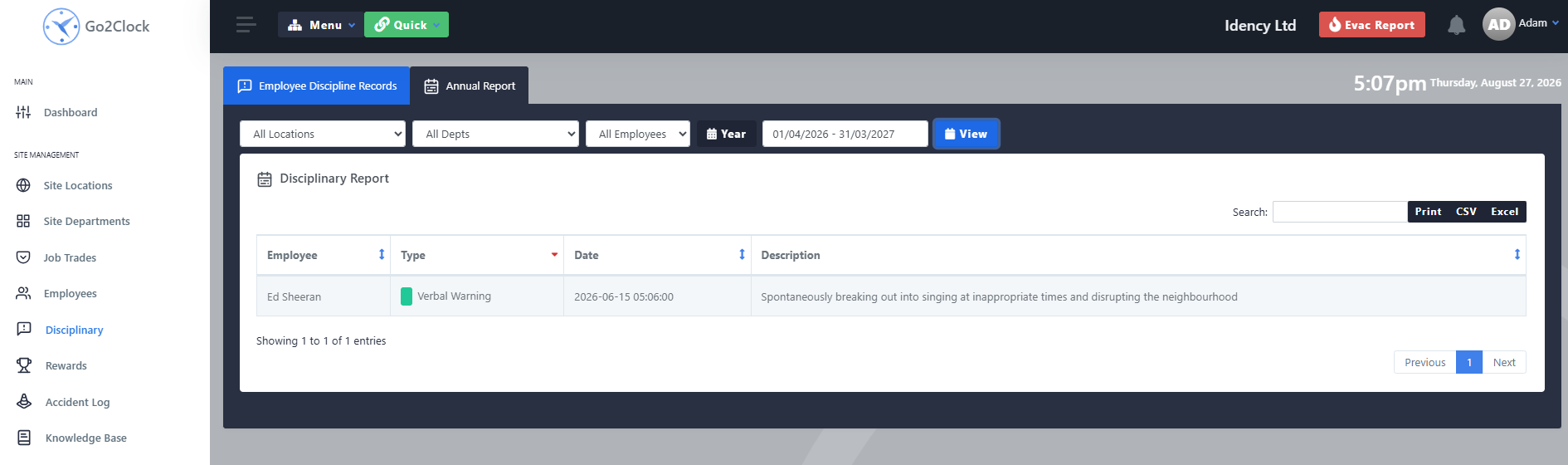
- Select Annual Report
- Set the filters and choose the date range
- Select View
The report displays the disciplinary records created within the specified period and can be exported for use in company records and internal HR processes.
Need a hand tracking disciplinaries in Go2Clock?
If you have any questions about creating or reporting on disciplinary records, our support team is happy to help.

Go2Clock Cloud Hosted Time & Attendance System

















 English (UK)
  English
  English (Canada)
  Français du Canada
  Svenska
  Português
  Nederlands
  Italiano
  Français
  Español
  Deutsch