


































Go2Clock: Sage HR-medewerkers importeren
In dit artikel wordt uitgelegd hoe u werknemers van Sage HR kunt importeren naar Go2Clock. Voordat u de Sage HR Import gebruikt, moet u ervoor zorgen dat de Sage HR API-verbinding in Go2Clock is ingesteld. Als deze nog niet is ingesteld, raadpleeg dan: Hoe Sage HR te koppelen aan Go2Clock
Stap 1: Maak een nieuwe afdeling aan
Sage HR biedt geen afdelingen aan die kunnen worden geïmporteerd in Go2Clock. Daarom kunnen de benodigde afdelingen worden aangemaakt voordat of nadat werknemers zijn geïmporteerd.
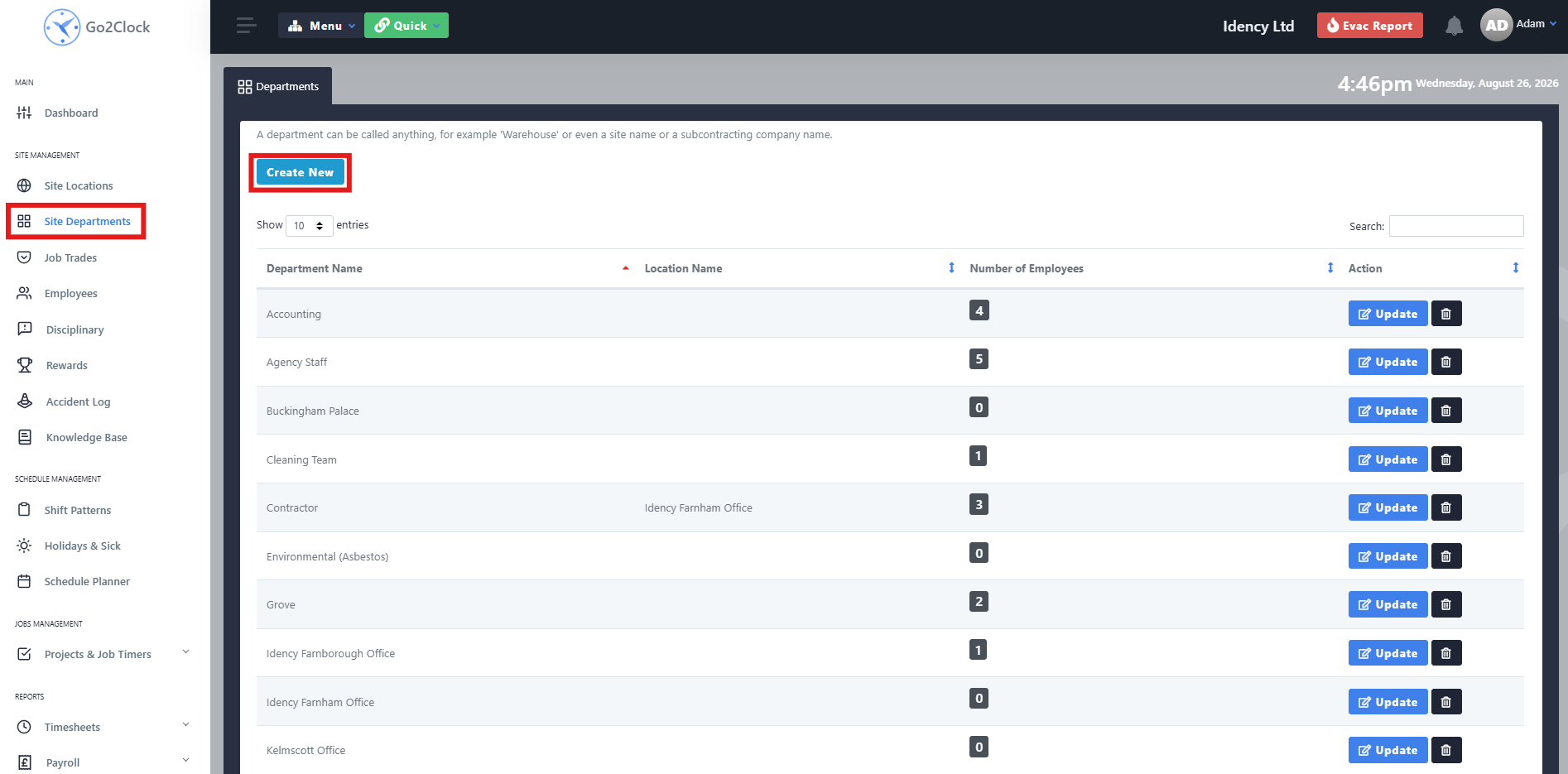
- Navigeer naar Siteafdelingen
- Selecteer Nieuw maken
Stap 2: Geef de afdeling een naam en maak deze aan
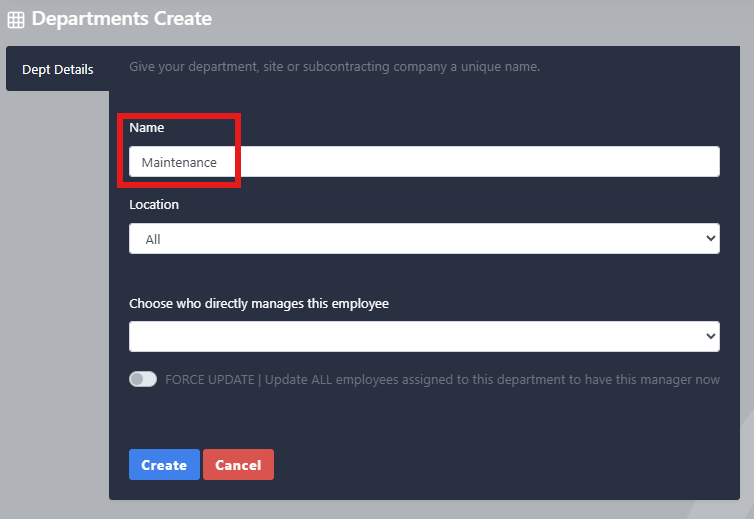
- Voer de naam van de afdeling in
- Selecteer Maken
Herhaal dit proces totdat alle Sage HR-afdelingen zijn gecreëerd in Go2Clock.
Stap 3: Sage HR-medewerkers importeren
Zodra de PeopleHR API-verbinding is ingesteld, kunt u uw medewerkers importeren vanuit PeopleHR.
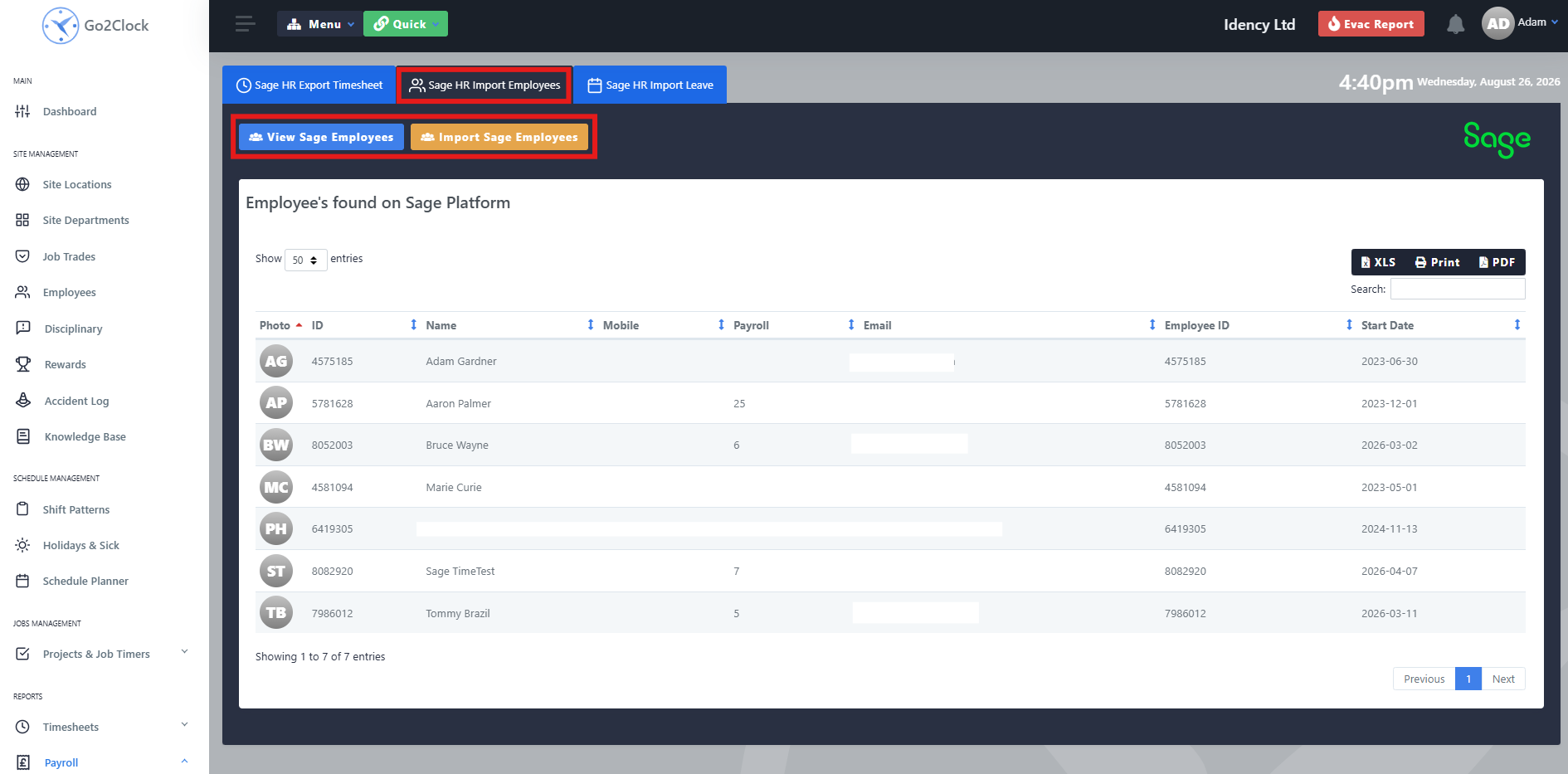
- Ga naar Salarisadministratie
- Selecteer Sage HR Import & Import
- Selecteer bovenaan het scherm Sage HR importeert werknemers
Vanuit dit tabblad kunt u de PeopleHR-medewerkers bekijken die naar Go2Clock worden gehaald voordat u ze importeert. Alle informatie die wordt overgedragen, wordt weergegeven. Zodra u er klaar voor bent, selecteert u Medewerkers importeren. Go2Clock zal vervolgens de informatie over de medewerkers uit Sage HR ophalen en de medewerkers aanmaken.
Medewerkers worden automatisch gekoppeld aan hun corresponderende Sage HR-medewerkersidentificatiecode, waardoor Go2Clock deze kan identificeren wanneer ze andere integratiefuncties van Sage HR gebruiken, zoals het importeren van verlof en het exporteren van klokgegevens. U kunt de import op elk moment opnieuw uitvoeren als een nieuwe medewerker is toegevoegd aan Sage HR — alleen medewerkers die nog niet in Go2Clock aanwezig zijn, worden toegevoegd.
Hebt u hulp nodig bij het importeren van uw personeelsbestand van Sage HR?
Als u problemen ondervindt bij het verbinden van Sage HR of bij het importeren van werknemers, staat ons supportteam u graag te woord.

Go2Clock Cloud Gehost Tijdregistratiesysteem

















 English (UK)
  English
  English (Canada)
  Français du Canada
  Svenska
  Português
  Nederlands
  Italiano
  Français
  Español
  Deutsch