


































Go2Clock: Hur man importerar Sage HR-personal
Den här artikeln förklarar hur du importerar anställda från Sage HR till Go2Clock. Innan du använder Sage HR-importen måste du se till att Sage HR API-anslutningen har konfigurerats i Go2Clock. Om detta inte har konfigurerats ännu, se: Hur man ansluter Sage HR till Go2Clock
Steg 1: Skapa en ny avdelning
Sage HR tillhandahåller inte avdelningar som kan importeras till Go2Clock. På grund av detta kan de obligatoriska avdelningarna skapas antingen före eller efter att anställda har importerats.
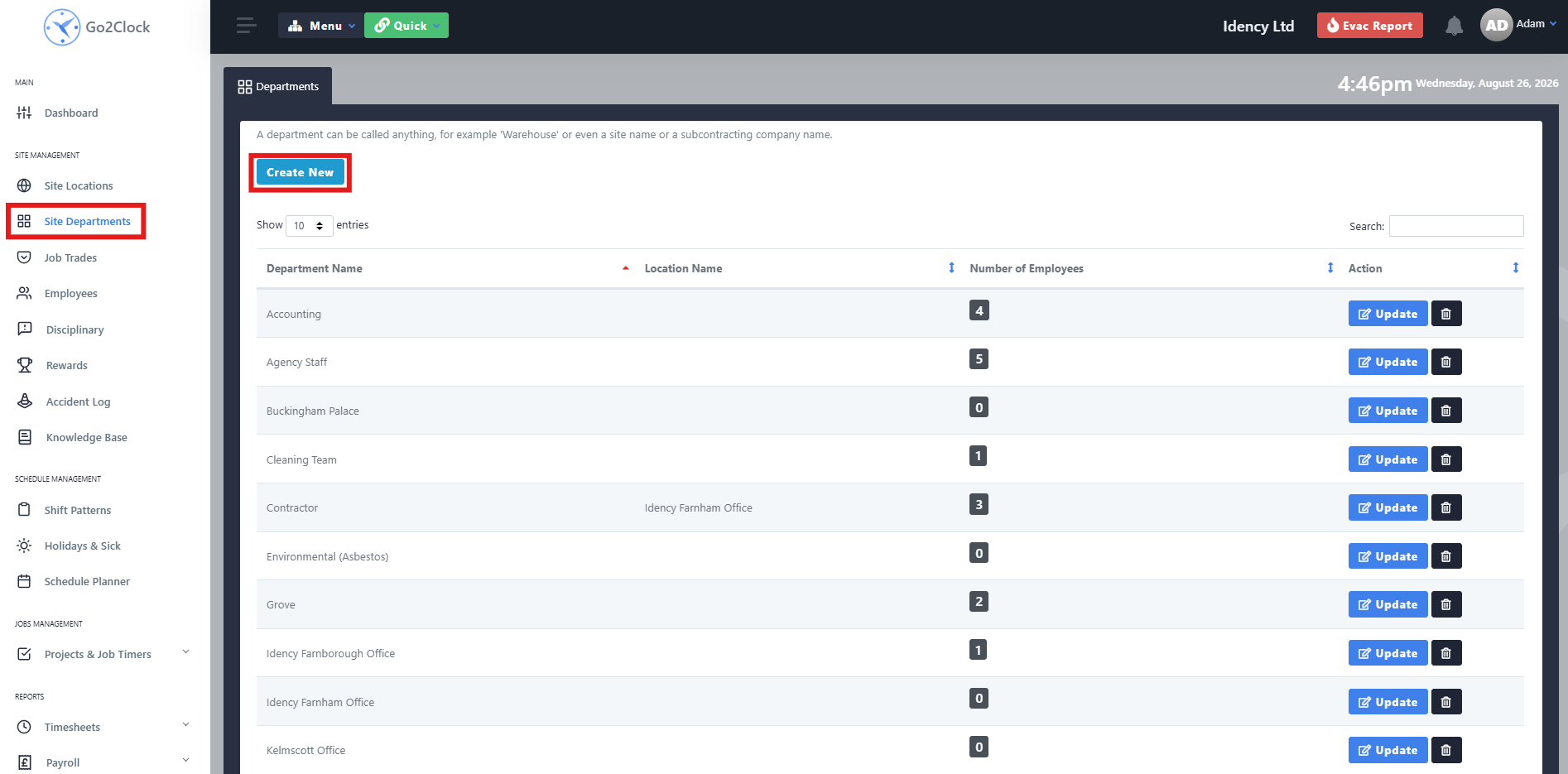
- Navigera till webbplatsens avdelningar
- Välj Skapa nytt
Steg 2: Namnge och skapa avdelningen
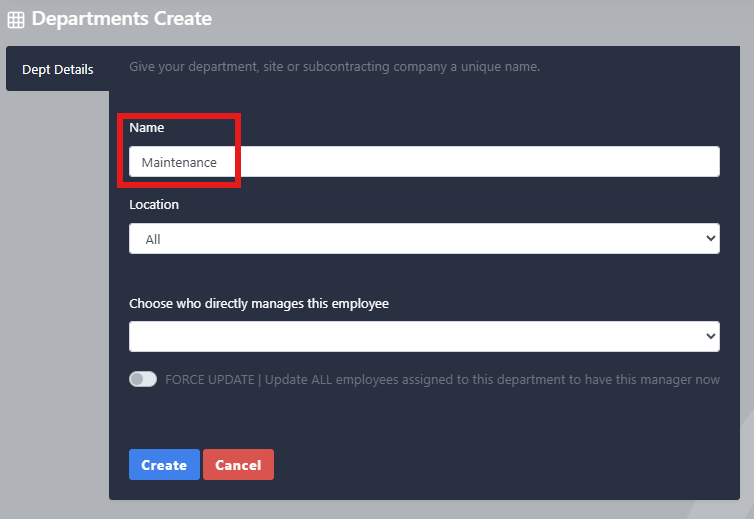
- Ange avdelningsnamn
- Välj Skapa
Upprepa denna process tills alla dina Sage HR-avdelningar har skapats i Go2Clock
Steg 3: Importera Sage HR-anställda
När PeopleHR-API-anslutningen har upprättats kan du importera dina anställda från PeopleHR.
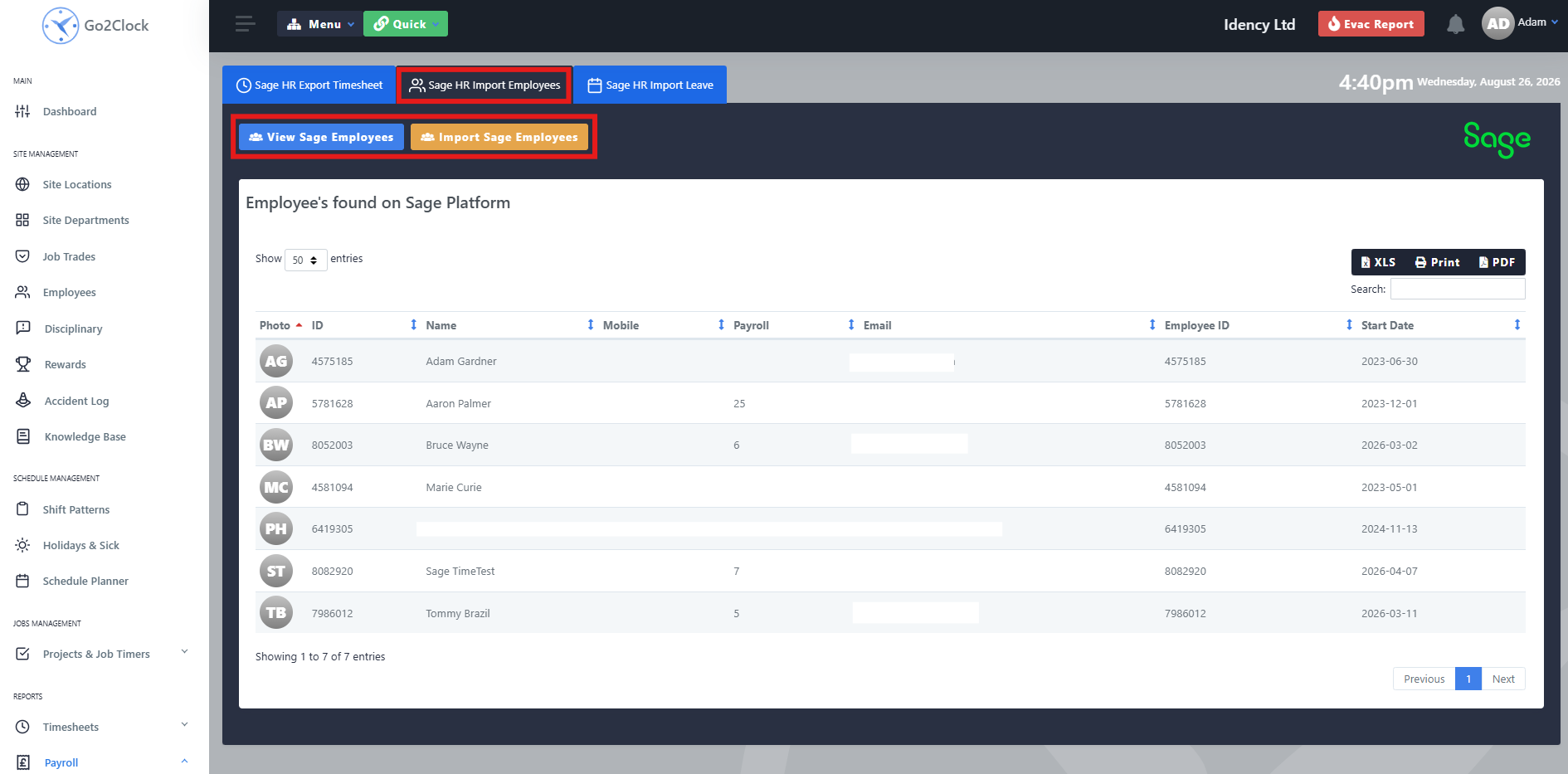
- Gå till Lönehantering
- Välj Sage HR Import & Import
- Längst upp på skärmen väljer du Sage HR Importera anställda
Från den här fliken kan du granska de PeopleHR-anställda som kommer att tas över till Go2Clock innan du importerar dem, och se all information som kommer att överföras. När du är redo väljer du Importera anställda. Go2Clock hämtar sedan anställinformationen från Sage HR och skapar de anställda.
Anställda länkas automatiskt till sina motsvarande Sage HR-medarbetar-ID:n, vilket gör att Go2Clock kan identifiera dem när de använder andra integrationstjänster för Sage HR, såsom att importera ledighet och exportera stämplingar. Du kan köra importen igen när som helst en ny anställd har lagts till i Sage HR — endast anställda som inte redan finns i Go2Clock kommer att läggas till.
Behöver du hjälp med att importera din personal från Sage HR?
Om du stöter på några problem med att ansluta Sage HR eller importera anställda hjälper vårt supportteam gärna till.

Go2Clock Cloud Hosted Time & Attendance System

















 English (UK)
  English
  English (Canada)
  Français du Canada
  Svenska
  Português
  Nederlands
  Italiano
  Français
  Español
  Deutsch