


































Go2Clock : Comment importer le personnel de Sage HR
Cet article explique comment importer les employés de Sage HR dans Go2Clock. Avant d’utiliser l’importation de Sage HR, assurez-vous que la connexion à l’API de Sage HR a été configurée dans Go2Clock. Si cette connexion n’a pas encore été configurée, veuillez consulter la section suivante : Comment connecter Sage HR à Go2Clock
Étape 1 : Créer un nouveau département
Sage HR ne fournit pas les départements qui peuvent être importés dans Go2Clock. Par conséquent, les départements requis peuvent être créés avant ou après l’importation des employés.
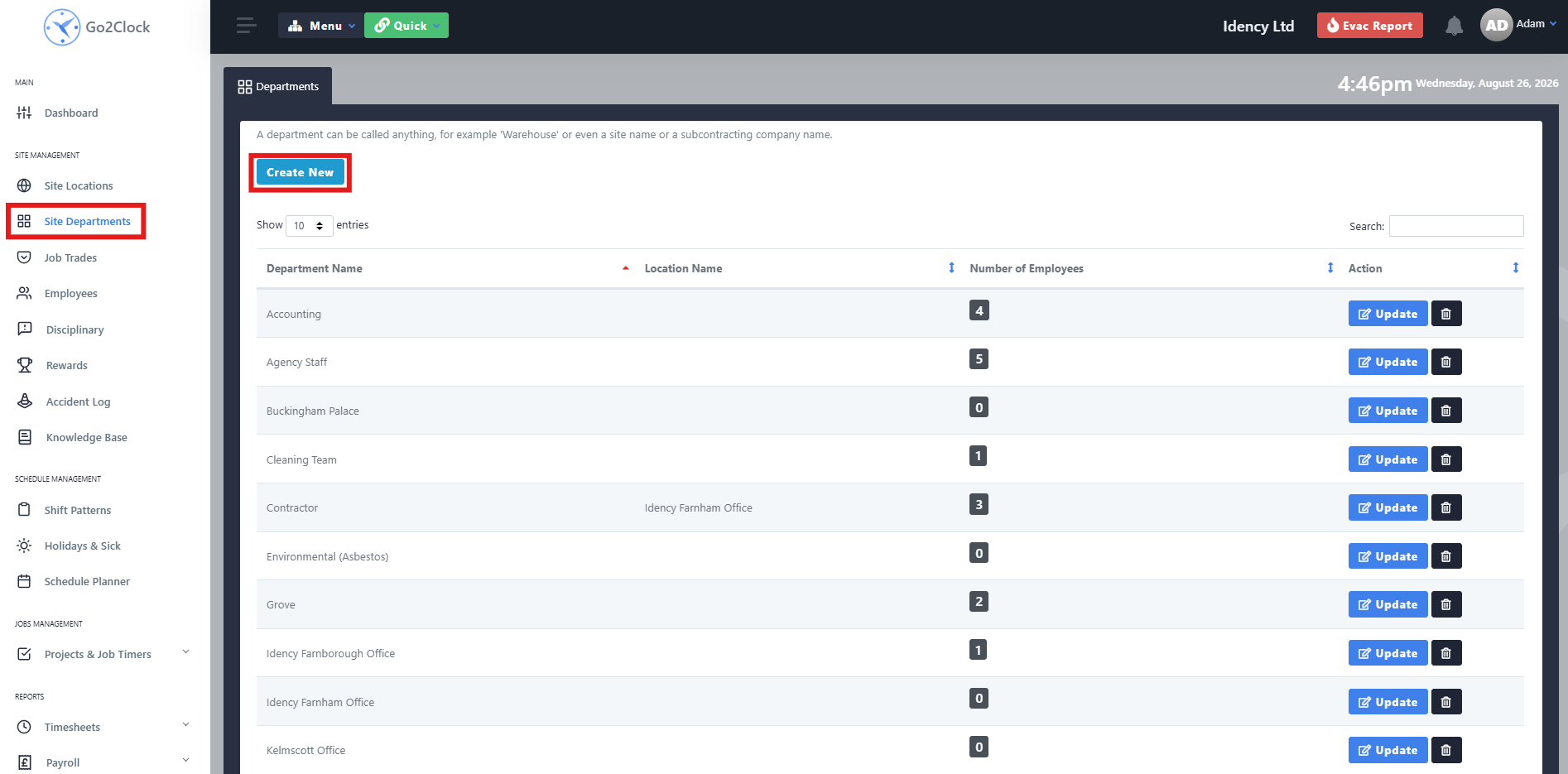
- Naviguez jusqu’aux Départements du site
- Sélectionner Créer un nouveau
Étape 2 : Nommer et créer le département
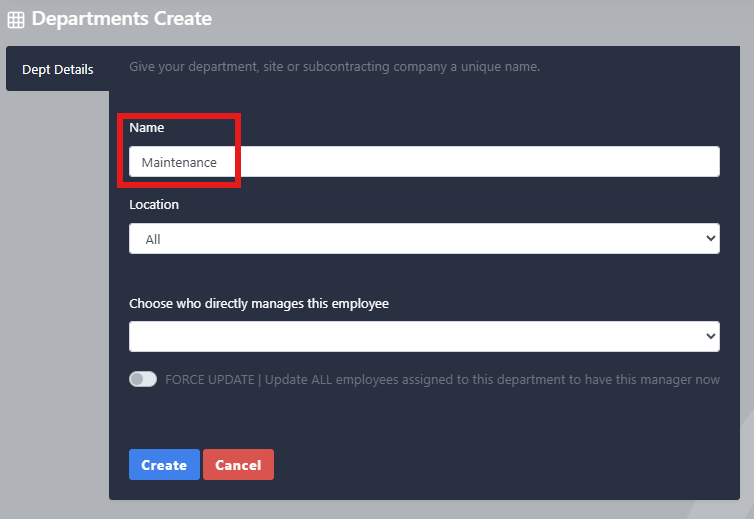
- Tapez le nom du département
- Sélectionner Créer
Repetons ce processus jusqu'à ce que tous vos départements HR de Sage soient créés dans Go2Clock.
Étape 3 : Importer les employés de Sage HR
Une fois la connexion de l’API PeopleHR établie, vous pouvez importer vos employés depuis PeopleHR.
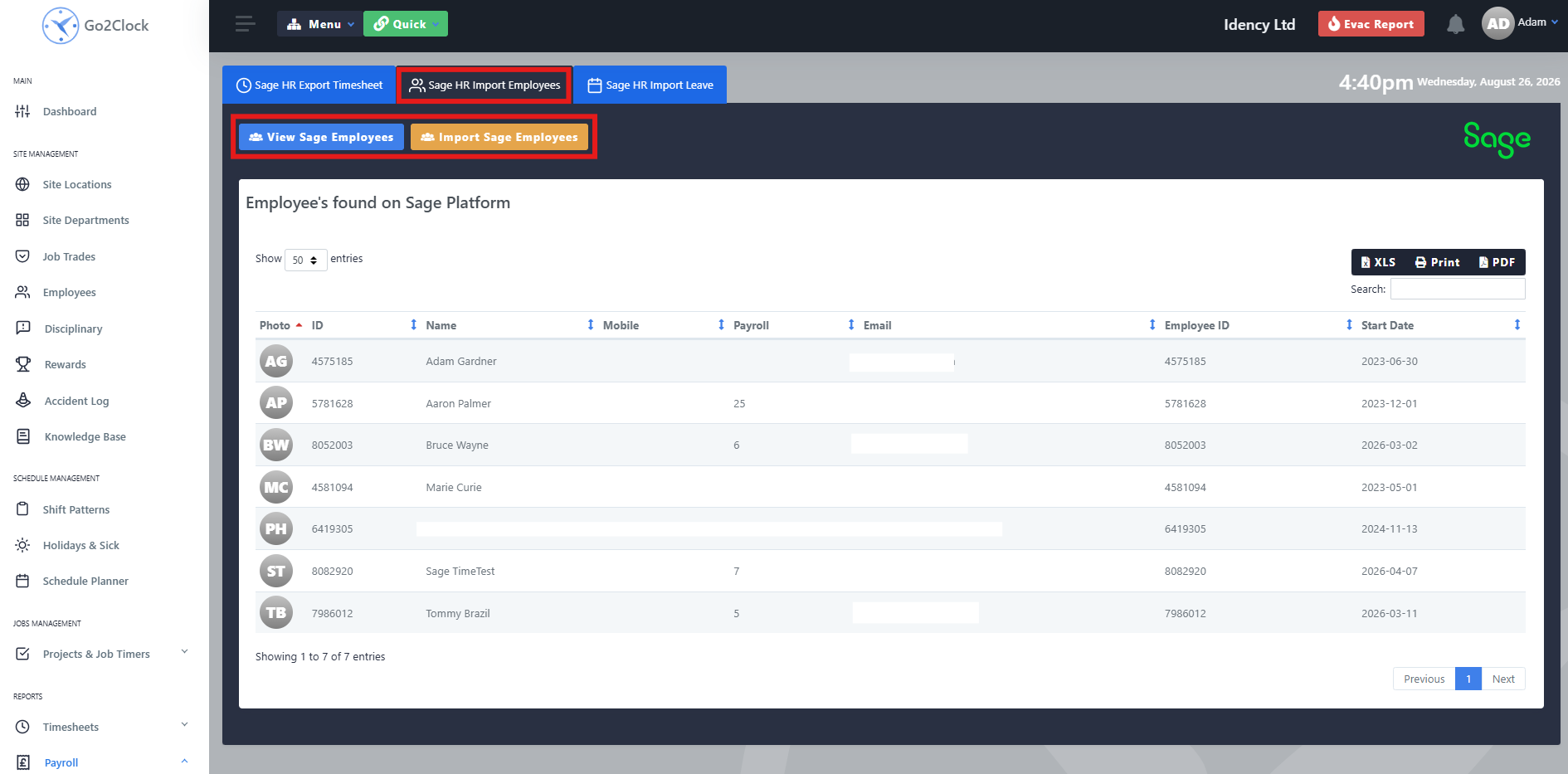
- Naviguez jusqu’à la rubrique Paiements
- Sélectionner Sage HR Import & Import
- En haut de l’écran, sélectionnez Sage HR Import des employés
À partir de cette rubrique, vous pouvez consulter les employés de PeopleHR qui seront importés dans Go2Clock avant leur importation, et vous pourrez ainsi voir toutes les informations qui seront transférées. Une fois que vous serez prêt, sélectionnez Importation d'employés. Go2Clock va alors récupérer les informations des employés dans Sage HR et créer les employés.
Les employés sont automatiquement liés à leur identifiant Sage HR correspondant, ce qui permet à Go2Clock de les identifier lors de l’utilisation d’autres fonctions d’intégration de Sage HR, telles que l’importation des congés et l’exportation des relevés de présence. Vous pouvez réexécuter l’importation à tout moment après l’ajout d’un nouveau collaborateur à Sage HR — seuls les employés qui n’existent pas déjà dans Go2Clock seront ajoutés.
Avez-vous besoin d'aide pour importer vos employés de Sage HR ?
Si vous rencontrez des problèmes pour connecter Sage HR ou importer des employés, notre équipe d’assistance est à votre disposition.

Go2Clock Système de gestion du temps et des présences hébergé dans le nuage

















 English (UK)
  English
  English (Canada)
  Français du Canada
  Svenska
  Português
  Nederlands
  Italiano
  Français
  Español
  Deutsch