


































Apparatuur van medewerkers beheren in Go2Clock
In dit artikel wordt uitgelegd hoe u de apparatuur van uw medewerkers kunt beheren Go2Clock. Uitrusting kan aan medewerkers worden toegewezen voor eenvoudiger beheer en tracking. Dit geeft managers een duidelijk overzicht van welke medewerkers momenteel beschikken over specifieke uitrusting, wanneer deze werd verstrekt, wie deze heeft verstrekt en eventuele aanvullende opmerkingen die hierover zijn gemaakt. Hierdoor is het bijzonder nuttig voor het bijhouden van uitrusting die moet worden geretourneerd, vervangen of teruggevorderd van medewerkers.
Stap 1: Open het apparaatendossier van de werknemer
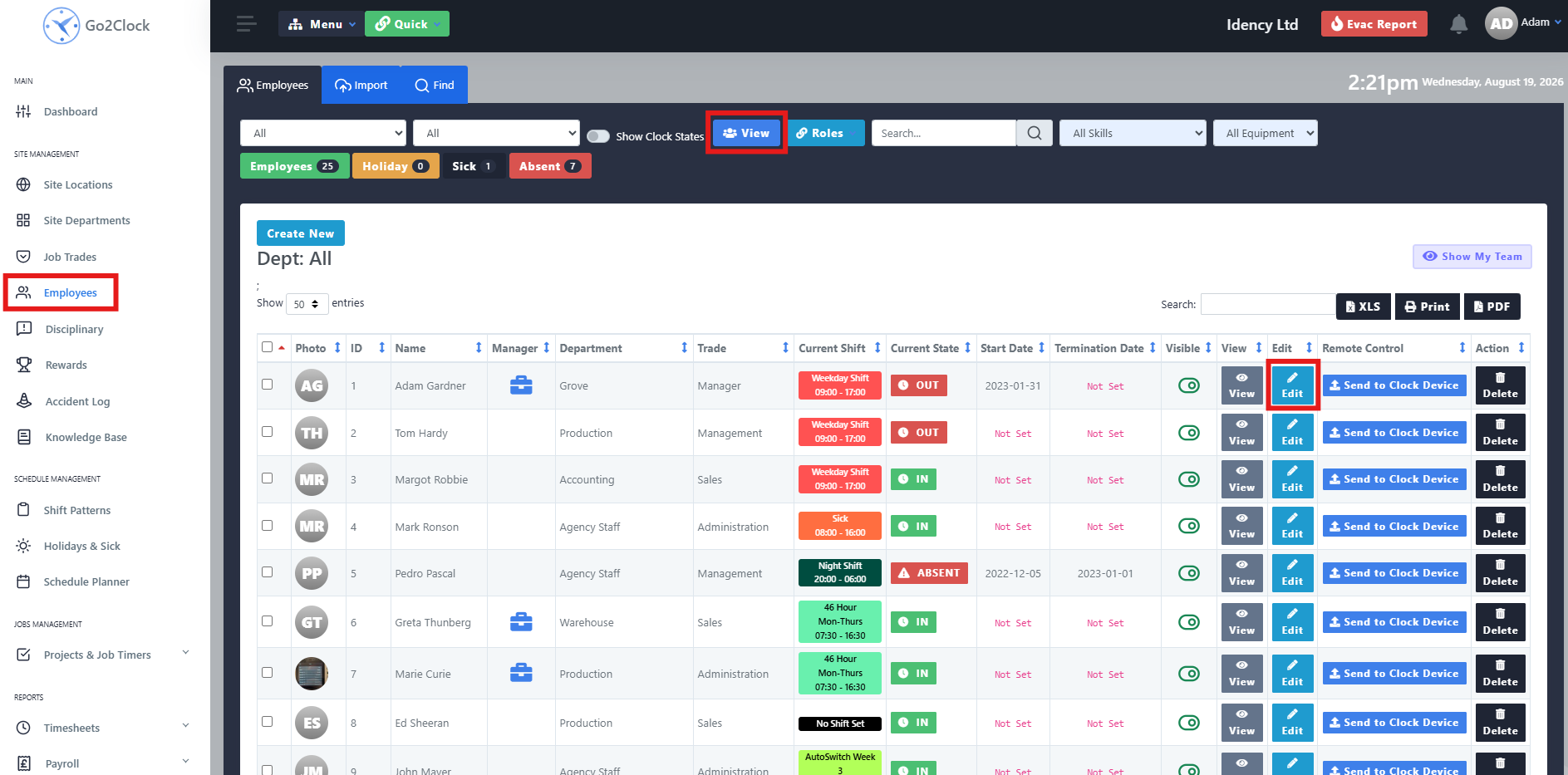
- Navigeer naar het tabblad Medewerker
- Selecteer Bekijk
- Selecteer Bewerk tegen de werknemer
- Navigeer naar Uitgerust materiaal
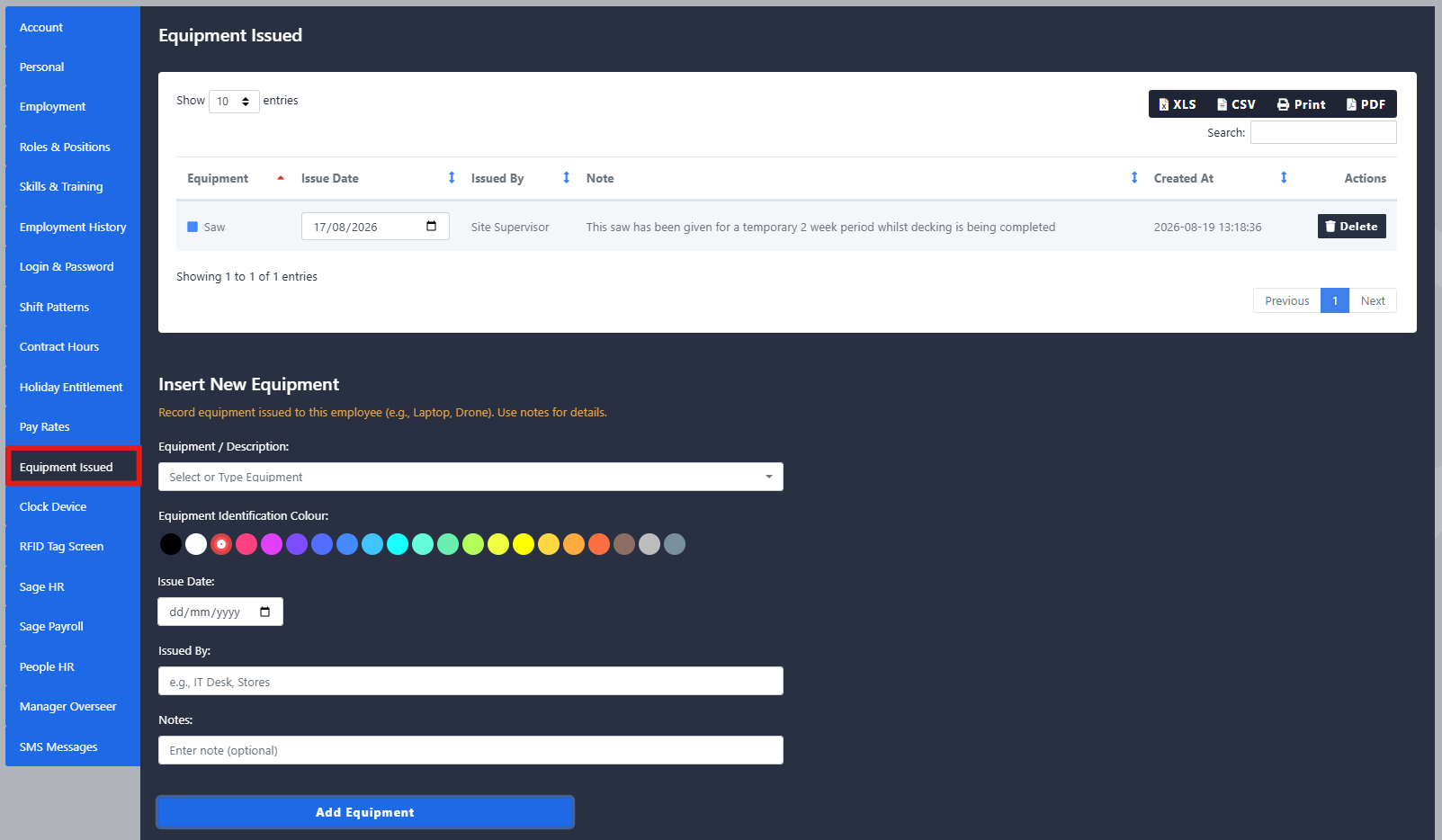
Bovenin kunt u alle apparatuur bekijken die momenteel aan de medewerker is verstrekt. Zodra een apparaat is geretourneerd, kan het worden verwijderd uit het profiel van de medewerker.
Stap 2: Nieuw materiaal aanleveren
Om nieuwe apparatuur aan de werknemer te verstrekken, vul je de volgende velden in:
- Uitrusting/Beschrijving: de naam of beschrijving van het toegezonden materiaal
- Kleur: Een kleur waarmee de apparatuur gemakkelijk te identificeren is
- Datum van uitgifte: de datum waarop het materiaal werd verstrekt
- Verstrekt door: de naam van de persoon die het materiaal heeft uitgegeven
- Opmerkingen: alle aanvullende informatie die nuttig kan zijn bij het beheren of terugvinden van de apparatuur
Stap 3: Een apparatuurrapport uitvoeren
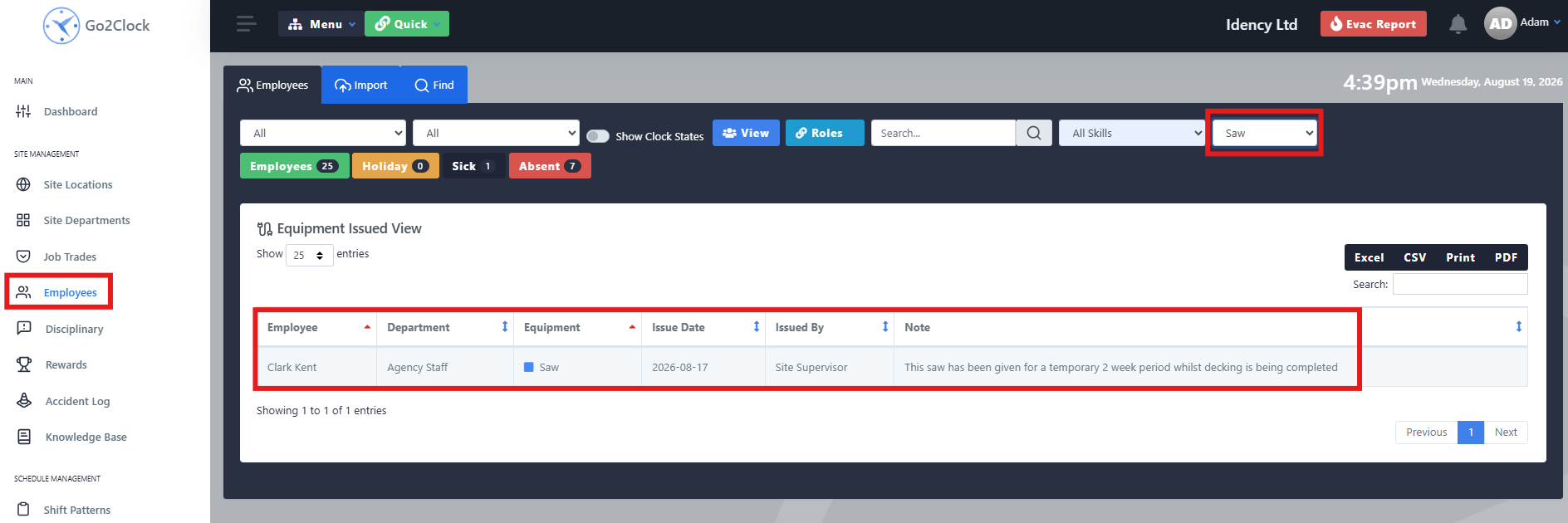
- Navigeer naar het tabblad Medewerker
- Selecteer de Uitrusting dropdown in de rechterbovenhoek
- Selecteer de apparatuur die u wilt rapporteren, of het nu gaat om een individueel item of alle items.
Dit maakt het eenvoudig om apparatuur te controleren binnen uw hele team of om een specifiek item te vinden dat moet worden geretourneerd.
Hulp nodig bij het beheren van medewerkeruitrusting?
Als u problemen ondervindt bij het toewijzen of rapporteren over apparatuur, staat ons supportteam u graag te helpen.

Go2Clock Cloud Gehost Tijdregistratiesysteem

















 English (UK)
  English
  English (Canada)
  Français du Canada
  Svenska
  Português
  Nederlands
  Italiano
  Français
  Español
  Deutsch