













Have someone monitor Go2Clock (‘Systeem‘ > ‘Time Clock Devices‘) to see if the device comes online.
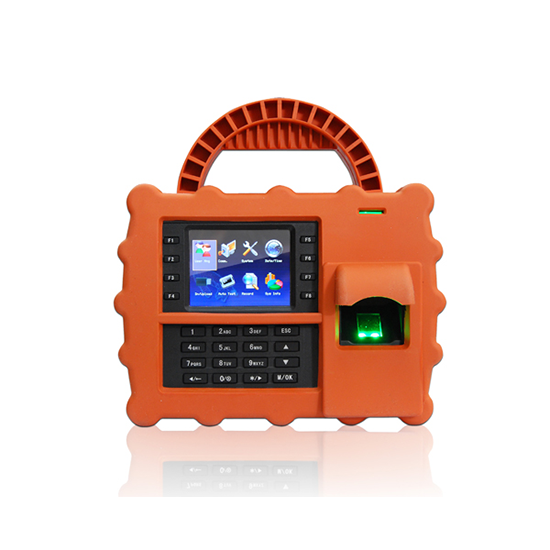
To turn the device on / off, hold the ‘O‘ button.
After the restart, have someone check Go2Clock (‘Systeem‘ > ‘Time Clock Devices‘) to see if the device comes online.
Check the mobile account that the device SIM card is managed under (e.g. check the SIM card has credit).
This is one of the most common reasons the ZKTeco S922 may not connect to Go2Clock. Idency advises a per annum contract for SIM cards used within an ZKTeco S922.
After making any changes to the SIM-kaart, have someone check Go2Clock (‘Systeem‘ > ‘Time Clock Devices‘) to see if the device comes online.
In Go2Clock, navigate to ‘Systeem‘ > ‘Time Clock Devices‘ and select the purple ‘Delete‘ button next to the device that is not connecting.
Now in the same part of the dashboard, click the blue ‘Create New‘ button and fill in the device details (device serial number, location name, device name, etc…).
Once added, restart the device by holding the ‘O‘ button. After the restart, have someone check Go2Clock (‘Systeem‘ > ‘Time Clock Devices‘) to see if the device comes online.
If you have tried the above four steps, then you may want to contact us at Idency so that we can investigate what is causing the connection issues and solve it quickly for you.
For us to remotely support you, you must have purchased our setup and support package which can be found hier.
Heb je meer ondersteuning nodig?
Alles zoeken Kennisbank artikelen
Stuur een Ondersteuningsverzoek naar het Idency-ondersteuningsteam