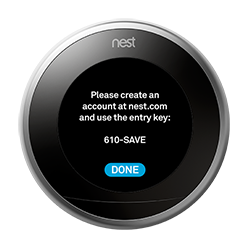
Je moet je thermostaat kunnen aanraken om hem toe te voegen aan je Nest-account. Dit betekent dat je hem niet kunt toevoegen als je niet thuis bent.
Om je Nest Thermostat te verbinden met je Nest Account, krijg je een toegangscode van je thermostaat en voer je deze in met de Nest app.
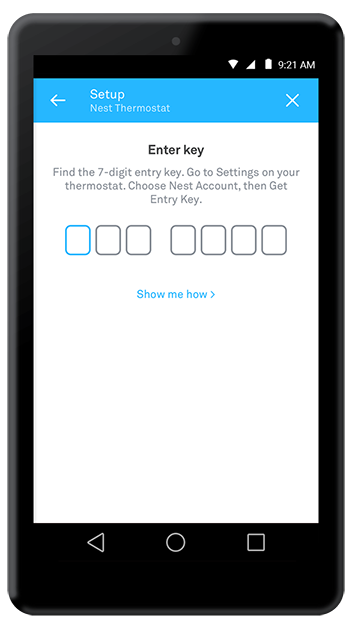
Tip:Als je problemen hebt met het verkrijgen van een toegangscode, kan er een probleem zijn met je Wi-Fi-thuisnetwerk.
Je ziet je thermostaat verschijnen op het startscherm van de Nest app. Tik op het pictogram van je thermostaat om deze te bedienen en instellingen te wijzigen.
Voor meer informatie en algemeen advies over onze producten en diensten kunt u terecht op contact met ons opnemen.
Heb je meer ondersteuning nodig?
Alles zoeken Kennisbank artikelen
Stuur een Ondersteuningsverzoek naar het Idency-ondersteuningsteam














 English (UK) English (UK)
  English
 English (Canada)
 Français du Canada
 Nederlands
 Svenska