



































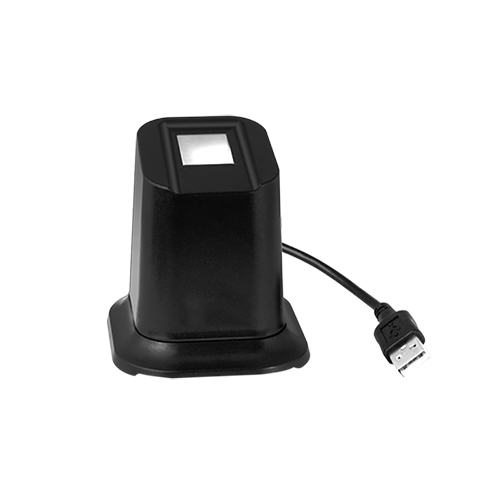
Ajout d'empreintes digitales d'utilisateurs à ClockReports ou Anviz CrossChex à l'aide de l'Anviz U-Bio
Comment ajouter une empreinte digitale dans Anviz CrossChex avec l'Anviz U-Bio
- Connectez l'appareil au PC
- Ouvrir Anviz CrossChex
- Accédez à l'onglet Utilisateurs
- Si vous ajoutez un nouvel utilisateur, cliquez sur ajouter.
- Remplissez les informations pertinentes pour l'utilisateur
- Ensuite, accédez à l'onglet Enregistrement des empreintes digitales
- Vous devez sélectionner l'Anviz U-Bio dans le menu déroulant
- Cliquez sur S'enrôler sur Fingerprint1
- Placez deux fois un doigt sur l'appareil et cela enregistrera l'empreinte digitale pour l'utilisateur que vous avez créé dans Anviz CrossChex.
Comment ajouter une empreinte digitale dans ClockReports avec l'Anviz U-Bio
- Connectez l'appareil au PC
- Ouvrir ClockReports
- Sélectionner le badgeuse d'empreintes digitales de bureau
- Cela affichera ensuite l'écran et indiquera si l'appareil est connecté ou recherche le lecteur d'empreintes digitales USB de bureau, cela s'affichera au-dessus de l'heure.
- Pour ajouter des utilisateurs, allez dans l'onglet Utilisateurs et ajoutez un Nouvel utilisateur.
- Entrez le numéro d'identifiant et le nom de l'utilisateur
- Sélectionnez l'onglet Enregistrer l'empreinte
- Cliquez sur Enregistrer le doigt 1
- Placez le doigt sur l'appareil deux fois et cela enregistrera l'empreinte digitale sur l'identifiant et le nom que vous avez ajoutés
Pour plus d'informations et des conseils généraux sur nos produits et services, veuillez Contactez-nous.
Besoin d'aide supplémentaire ?
Tout rechercher Base de connaissances articles
Envoyer un Demande d'assistance À l'équipe de support d'Idency

















 English (UK)
  English
  English (Canada)
  Français du Canada
  Svenska
  Português
  Nederlands
  Italiano
  Français
  Español
  Deutsch