



































Adding User Fingerprints to ClockReports or Anviz CrossChex using the Anviz U-Bio
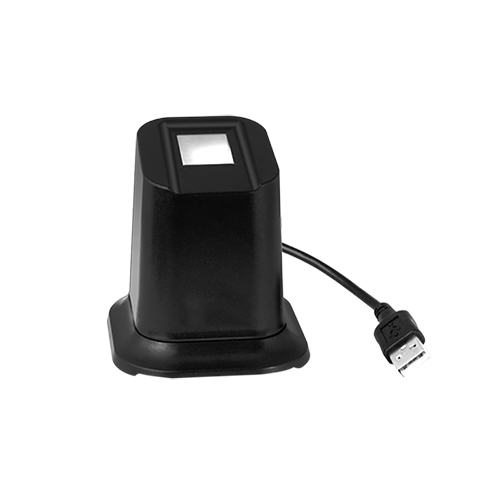
How to Add a Fingerprint into Anviz CrossChex with the Anviz U-Bio
- Connect the device to the PC
- Open up Anviz CrossChex
- Navigate to the Users tab
- If you are adding a new user click on add
- Fill in the relevant information for the user
- Then navigate to the Fingerprint Registration tab
- You should the Anviz U-Bio in the drop down menu
- Click Enrol on Fingerprint1
- Place a finger on the device twice and this will record the fingerprint to the User you have created in Anviz CrossChex
How to Add a Fingerprint into ClockReports with the Anviz U-Bio
- Connect the device to the PC
- Open ClockReports
- Select Desktop Fingerprint Punch
- This will then bring up the screen and show if the device is connected or is looking for the desktop USB finger scanner it will show above the time
- To add users go to the Users tab and add a New User
- Type in the User ID Number and Name
- Select the Enrol Finger tab
- Click on Enrol Finger 1
- Place finger on device twice and this will record the fingerprint to the ID and name you have added
For more information and general guidance on our products & services, please contact us.
Require further support?
Search all Knowledgebase articles
Send a Support Request to The Idency Support Team

















 English (UK)
  English
  English (Canada)
  Français du Canada
  Svenska
  Português
  Nederlands
  Italiano
  Français
  Español
  Deutsch