


































Go2Clock: Så här skapar och tillämpar du roterande skiftscheman
Rotationsscheman gör det möjligt för medarbetare att automatiskt byta mellan olika scheman med återkommande veckovisa intervall. Innan du börjar ska du se till att de individuella schevmöjligheterna du behöver har skapats.
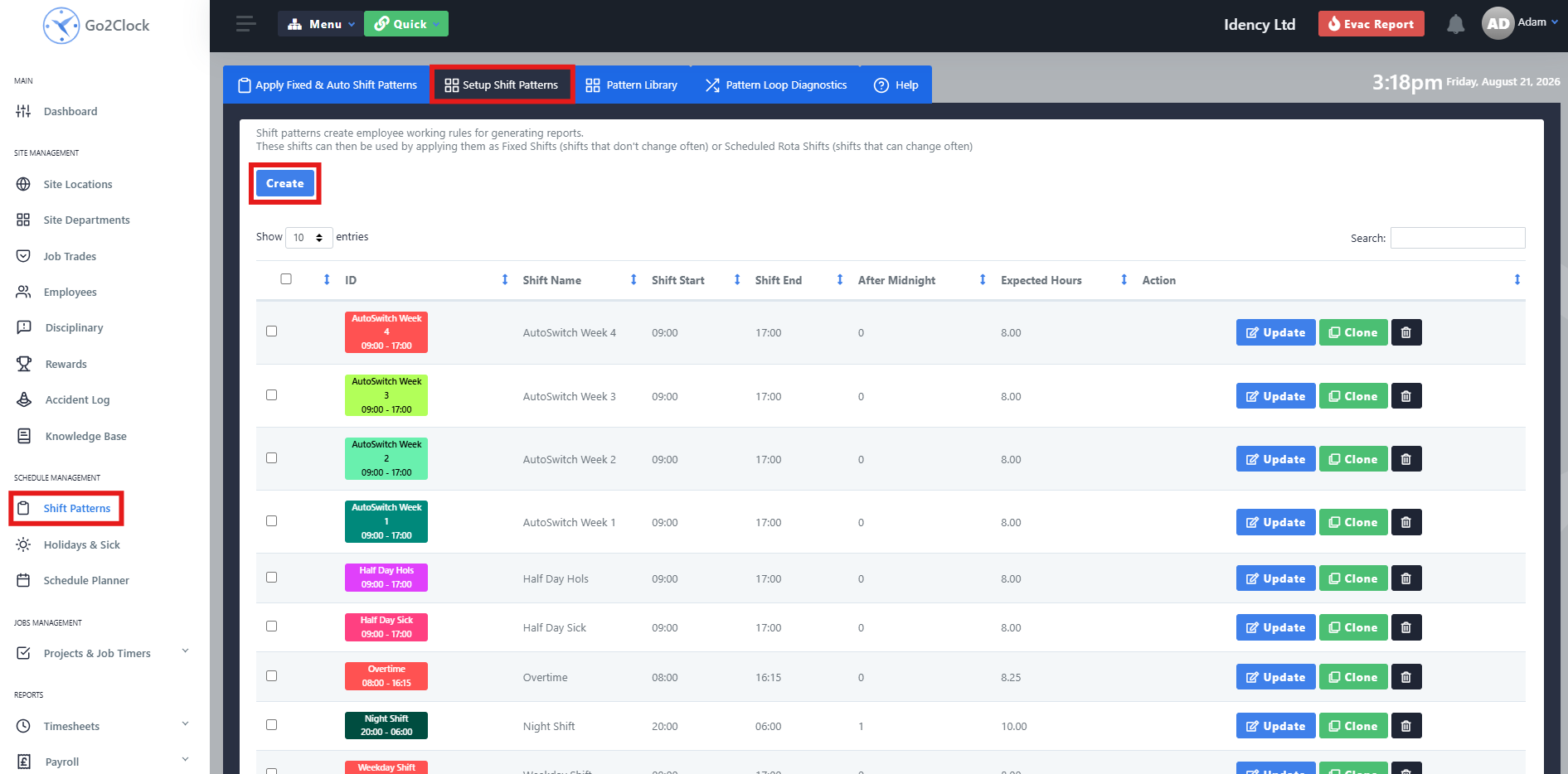
Steg 1: Skapa ett skiftmönster
Varje typ av skiftmönster måste skapas innan det roterande skiftmönstret kan ställas in. Skiftmönstret bestämmer vilka regler som tillämpas på de arbetade timmarna.
- Gå till skiftmönster
- Välj Konfigurera skiftmönster
- Välj Skapa
- Konfigurera skiftschemat enligt önskemål
- Välj Skapa för att spara den
Upprepa denna process tills du har skapat alla skiftmönster som krävs för mönsterbiblioteket.
Steg 2: Starta en ny mönsterbibliotek
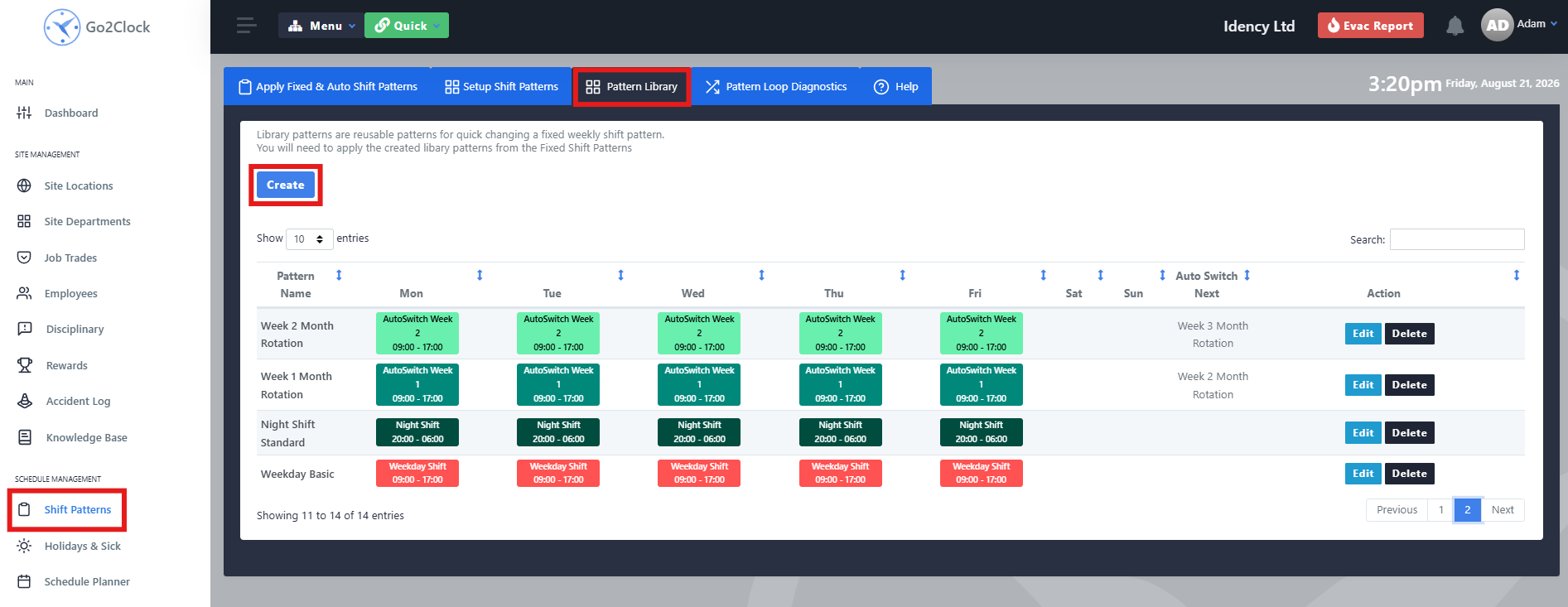
När alla individuella skiftmönster har skapats kan du ställa in mönsterbiblioteket. Mönsterbiblioteket bestämmer vilket skiftmönster som tilldelas varje dag i den anställdes arbetsschema.
- Gå till skiftmönster
- Välj Mönster Bibliotek
- Välj Skapa
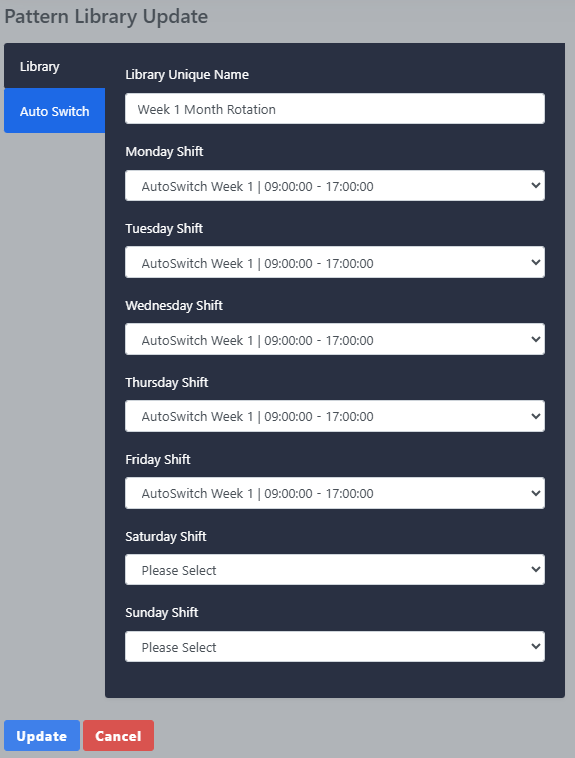
Steg 3: Använd Shift-mönster och namn veckan
Skapa den första veckan i rotationen genom att tilldela lämpliga skiftmönster till varje dag och namnge dem tydligt så att de kan identifieras enkelt. Upprepa detta för att skapa varje kvarvarande vecka som krävs för rotationen.
Steg 4: Koppla samman en vecka med nästa
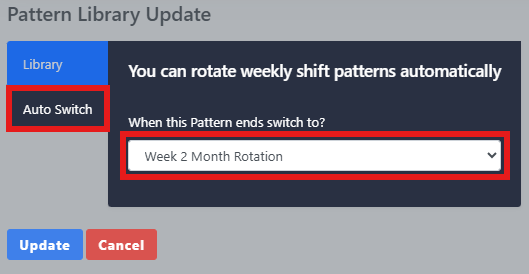
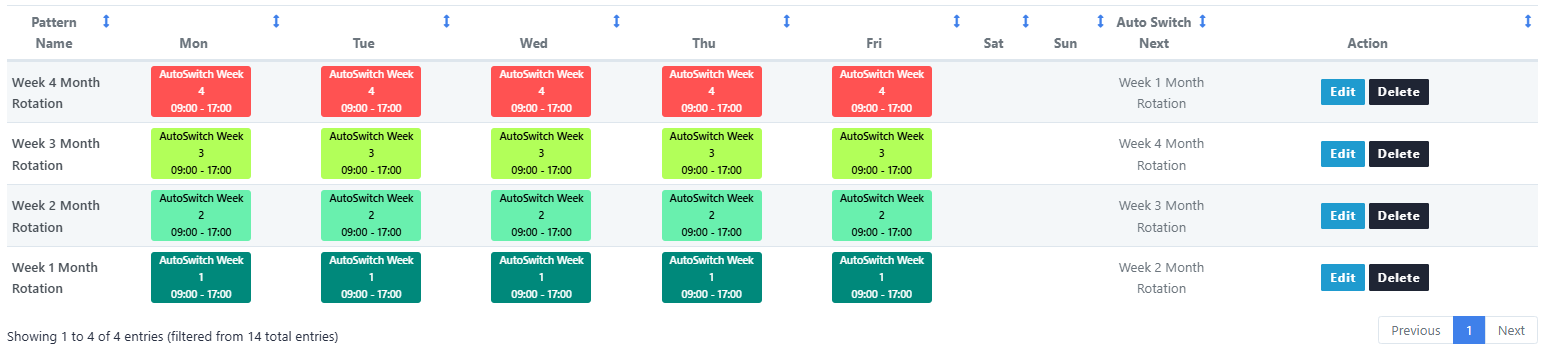
Efter att ha skapat varje vecka måste du koppla samman dem med hjälp av Auto Switch. Detta meddelar Go2Clock vilken mönsterbibliotek som ska användas när den aktuella veckan är slut.
- Välj Redigera mot den första veckan av Pattern Library.
- Välj Automatisk övergång
- Välj nästa veckas mönsterbibliotek i rullgardinsmenyn.
- Spara ändringarna
Steg 5: Upprepa och stänga upploppet
Upprepa denna process för varje vecka i rotationen. Den sista veckan bör ställas in så att man återgår till den första veckan, vilket skapar en kontinuerlig cykel. När alla veckor har kopplats samman är biblioteket över rotationen redo att tilldelas medarbetare.
Steg 6: Använd den roterande skiftmönstret
När mönsterbiblioteket har skapats och veckorna kopplats samman med hjälp av Auto Switch kan du tilldela rotationen till de relevanta medarbetarna.
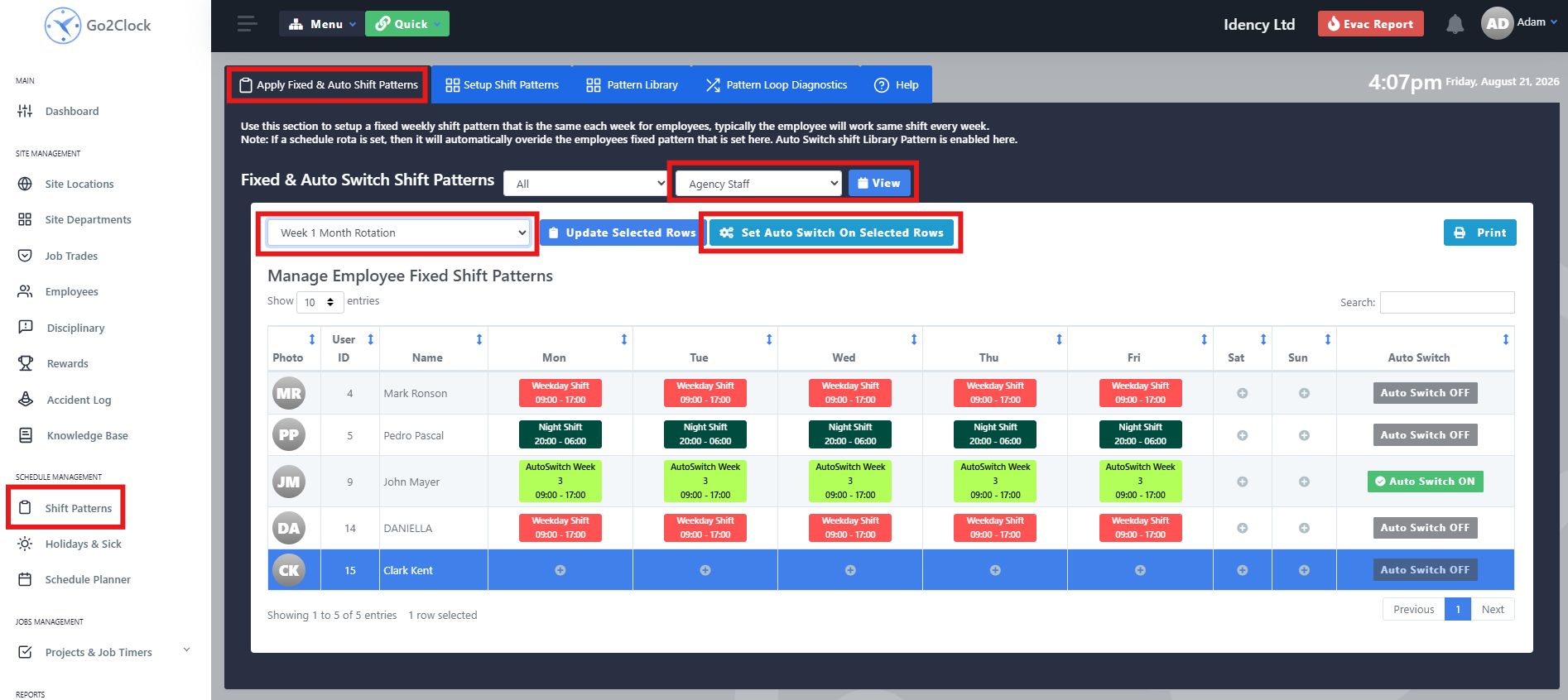
- Gå till skiftmönster
- Välj Tillämpa fasta och automatiska skiftmönster
- Använd avdelningsfiltret för att hitta de medarbetare som ska tilldelas den roterande skiftplanen.
- Välj Utsikt — Den markerade raden blir blå, och flera anställda kan väljas samtidigt
- Välj i dropdown-menyn längst upp till vänster den mönsterbibliotek som medarbetarna ska börja använda den aktuella veckan.
- Välj Ställ in automatisk omkoppling på markerade rader
Steg 7: Bekräfta att rotationen har tillämpats
Kontrollera raden med medarbetare för att bekräfta att rotationen har genomförts framgångsrikt. Medarbetaren ska visas med Auto Switch På och de relevanta skiftmönstren visas för den aktuella veckan. De kommer automatiskt att flyttas genom de länkades veckor i mönsterväxlaren enligt den rotation du har konfigurerat.

Behöver du hjälp med att konfigurera rotationer av arbetsdagar?
Om du stöter på problem när du skapar eller tillämpar din rotation finns vår supportgrupp till hands för att hjälpa dig.

Go2Clock Cloud Hosted Time & Attendance System

















 English (UK)
  English
  English (Canada)
  Français du Canada
  Svenska
  Português
  Nederlands
  Italiano
  Français
  Español
  Deutsch