


































Go2Clock: Cómo crear y aplicar patrones de turnos rotativos
Los patrones de rotación de turnos permiten que los empleados puedan cambiar automáticamente entre los diferentes patrones de turno según un horario semanal repetitivo. Antes de comenzar, asegúrese de que se hayan creado las reglas de turno individuales que necesita.
Paso 1: Crea un patrón de desplazamiento
Cada tipo de patrón de rotación debe crearse antes de que pueda configurarse el patrón de rotación. El patrón de rotación determina las reglas aplicadas a las horas trabajadas.
- Navegar a Patrones de turnos
- Seleccionar Configurar turnos de trabajo
- Seleccionar Crear
- Configurar el patrón de turnos según sea necesario
- Seleccionar Crear para guardarlo
Repita este proceso hasta que haya creado todos los patrones de desplazamiento necesarios para la biblioteca de patrones.
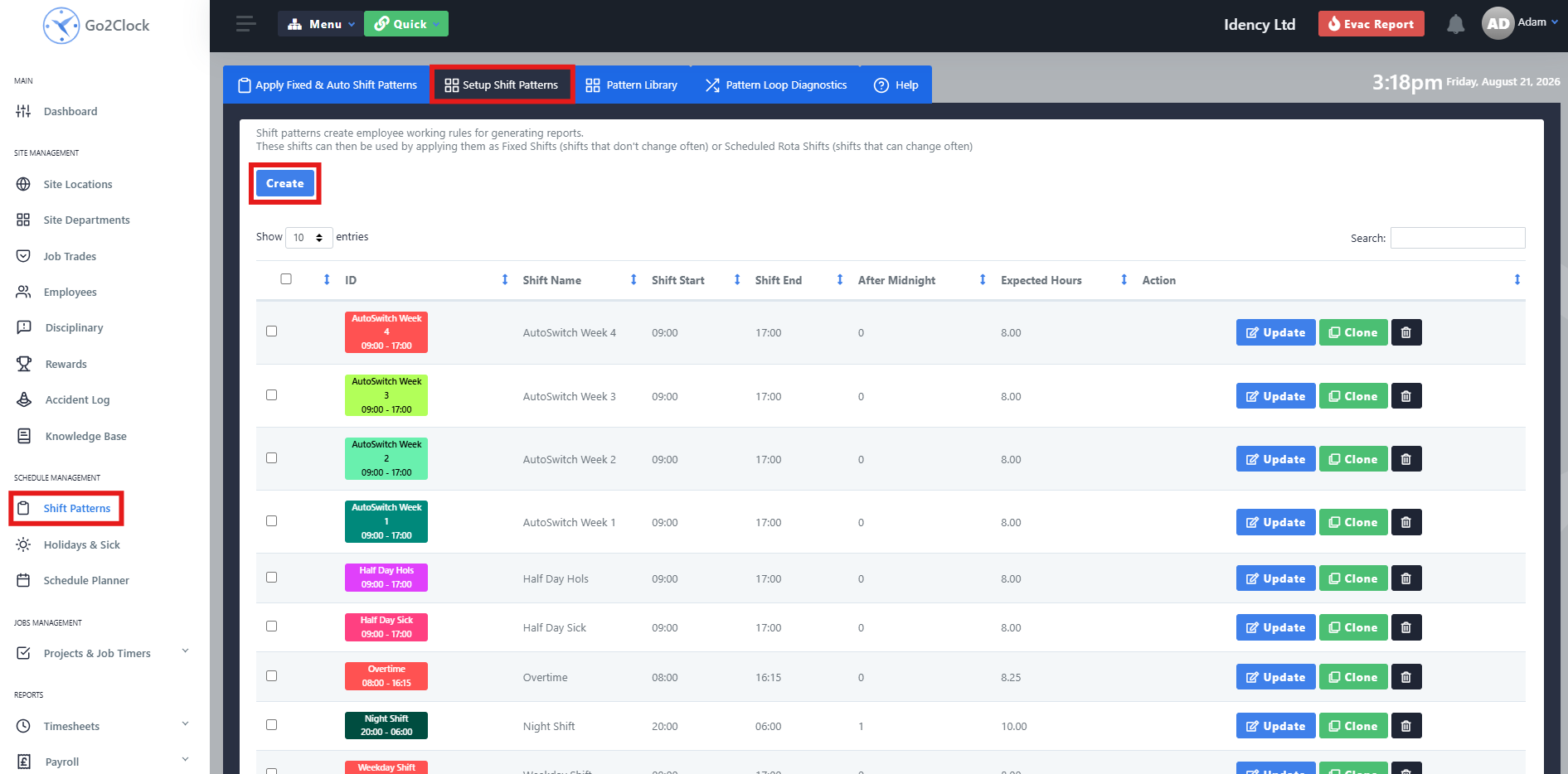
Paso 2: Inicie una nueva biblioteca de patrones
Una vez que se hayan creado todos los patrones individuales de rotación, se puede configurar la biblioteca de patrones. La biblioteca de patrones determina qué patrón de rotación se asigna a cada día del horario de trabajo del empleado.
- Navegar a Patrones de turnos
- Seleccionar Patrón Biblioteca
- Seleccionar Crear
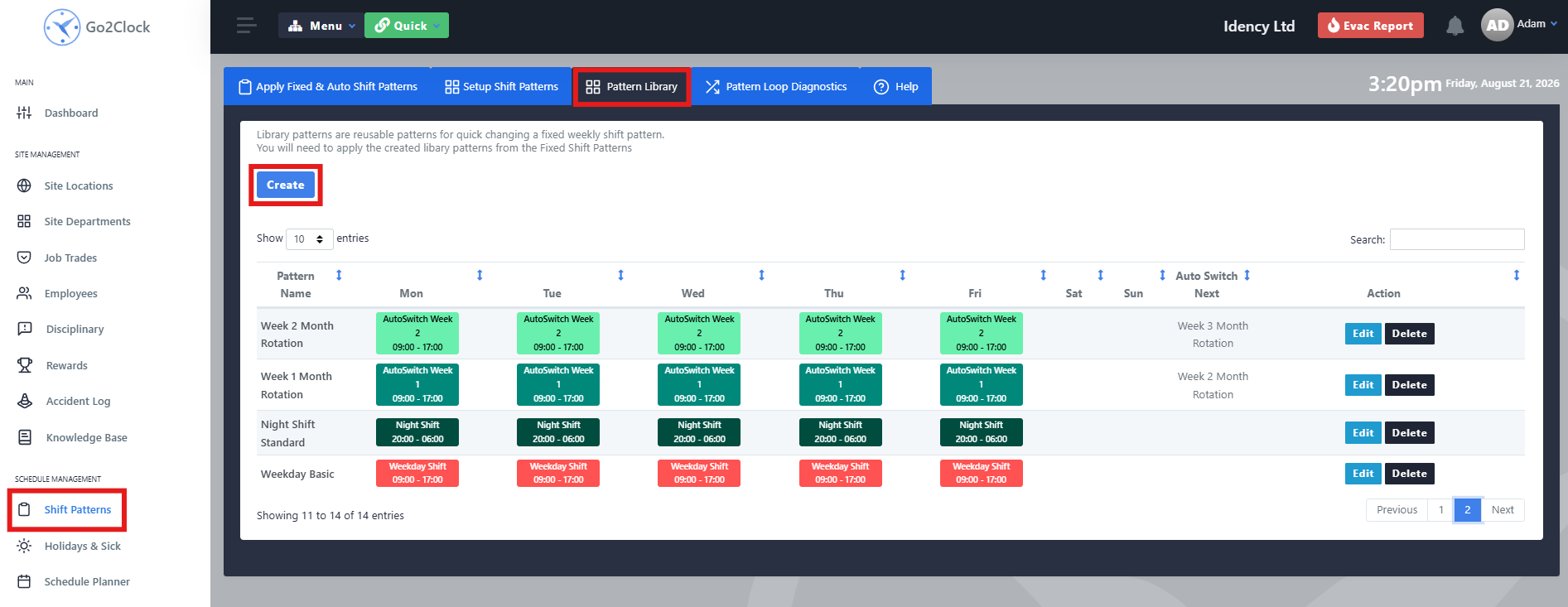
Paso 3: Asigne patrones de cambio de posición y nombre la semana
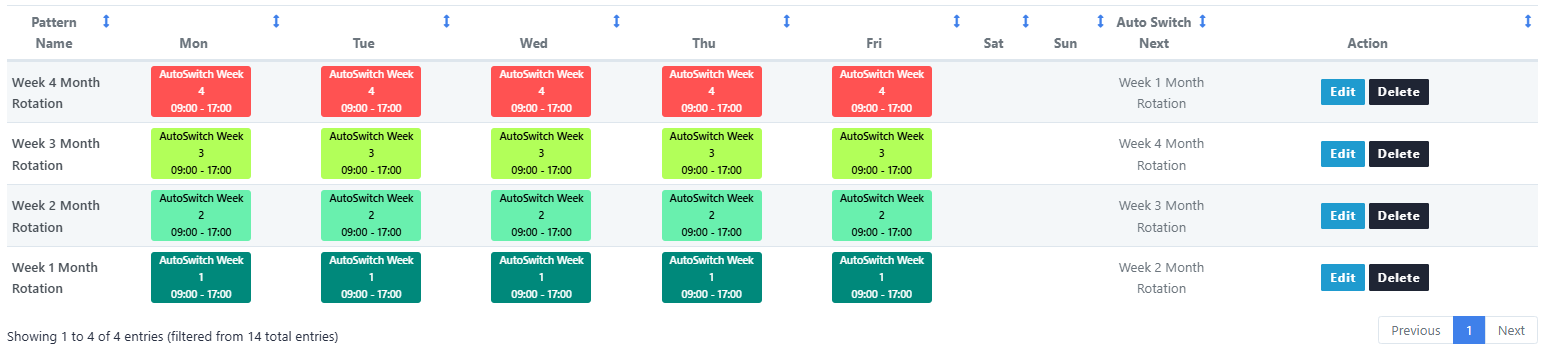
Cree la primera semana de la rotación asignando los patrones de turnos correspondientes a cada día y nombre la semana claramente para que pueda identificarse fácilmente. Repita este proceso para crear cada semana restante necesaria para la rotación.
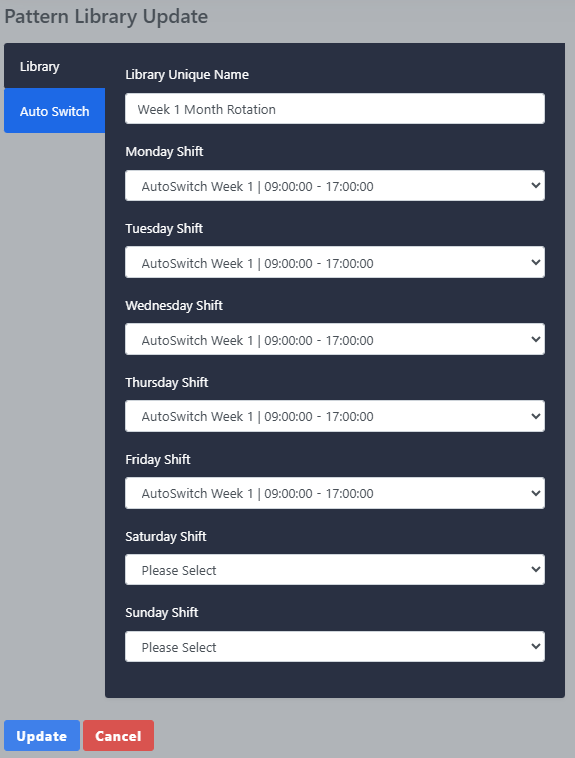
Paso 4: Enlace una semana con la siguiente
Después de crear cada semana, debes enlazarlas utilizando Auto Switch. Esto indica a Go2Clock qué Biblioteca de Patrones debe aplicarse una vez finalizada la semana actual.
- Seleccionar Editar Contra la primera semana de la Biblioteca de Patrones.
- Seleccionar Auto Switch
- En el menú desplegable, seleccione la biblioteca de patrones de la semana siguiente.
- Guardar los cambios
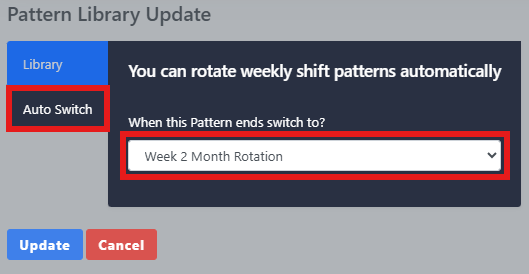
Paso 5: Repita y cierre el ciclo
Repita este proceso para cada semana de la rotación. La última semana debería ser la que permita volver al primer ciclo, creando así un ciclo continuo. Una vez vinculadas todas las semanas, la biblioteca de patrones de rotación ya está lista para asignarse a los empleados.
Pas 6: Aplique el patrón de desplazamiento giratorio
Una vez que se haya creado la biblioteca de patrones y se hayan vinculado las semanas mediante el cambio automático, podrá asignar la rotación a los empleados correspondientes.
- Navegar a Patrones de turnos
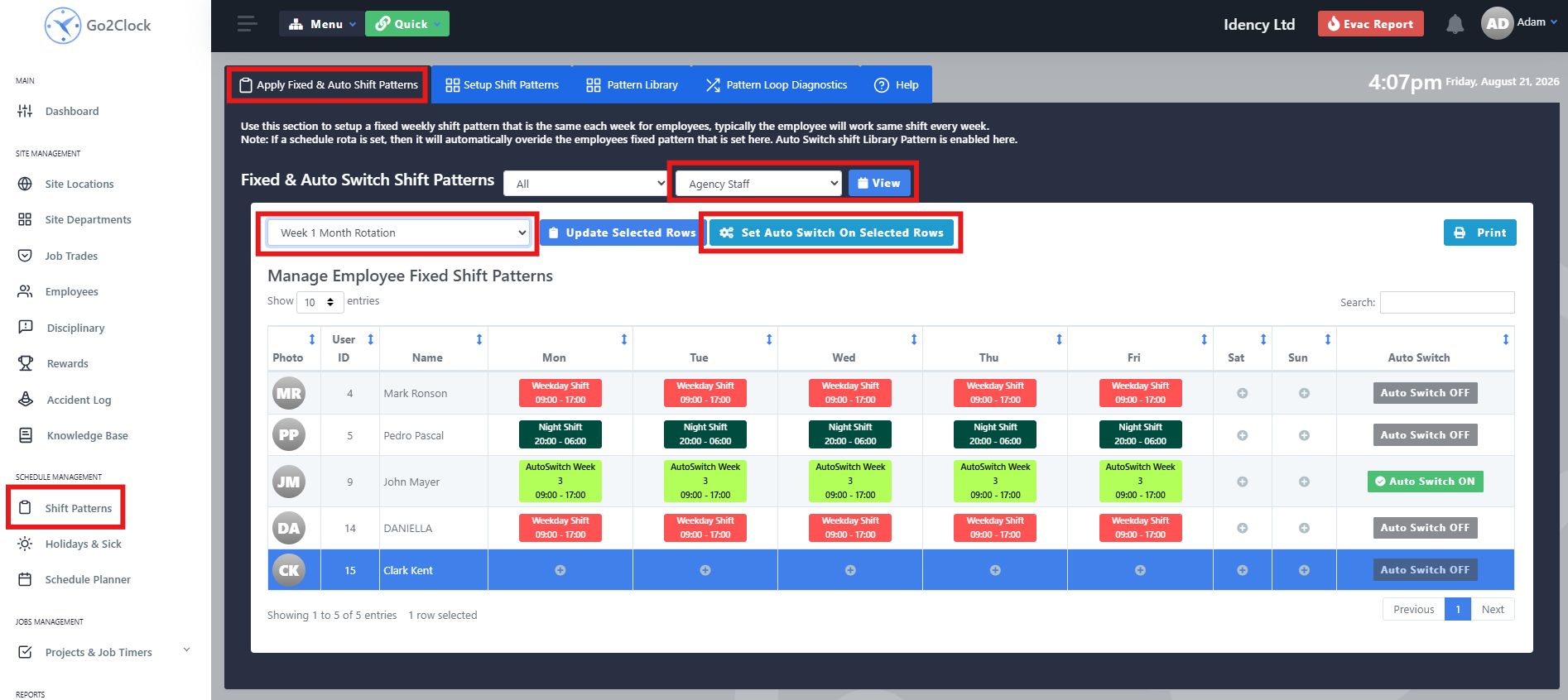
- Seleccionar Aplicar Patrones de Turnos Fijos y Automáticos
- Utilice el filtro de departamento para encontrar a los empleados que deberían ser asignados al turno rotativo.
- Seleccionar Ver — la fila seleccionada se convertirá en azul, y se pueden seleccionar varios empleados al mismo tiempo
- Desde el menú desplegable en la parte superior izquierda, seleccione la Biblioteca de patrones en la que deben comenzar los empleados para la semana actual.
- Seleccionar Configurar el encendido automático de las filas seleccionadas
Paso 7: Confirma que se ha aplicado la rotación
Compruebe la fila del empleado para confirmar que la rotación se ha aplicado correctamente. El empleado debería mostrarse con el cambio automático. ENCENDIDO y los patrones de cambio relevantes que se muestran junto a ellos para la semana actual. Se moverán automáticamente a través de las semanas de la Biblioteca de Patrones vinculadas según la rotación que haya configurado.

¿Necesita ayuda para configurar los patrones de rotación de los turnos de trabajo?
Si encuentras algún problema al crear o aplicar tu rotación, nuestro equipo de soporte estará encantado de ayudarte.

Sistema de control de presencia y fichaje en la nube Go2Clock

















 English (UK)
  English
  English (Canada)
  Français du Canada
  Svenska
  Português
  Nederlands
  Italiano
  Français
  Español
  Deutsch