


































Configuración de funciones especiales en Go2Clock
Una vez que los terminales se hayan añadido a tu cuenta Go2Clock, podrás activar funciones adicionales como la eliminación automática y la plantilla automática para automatizar la gestión de los datos de los empleados en todos tus dispositivos.
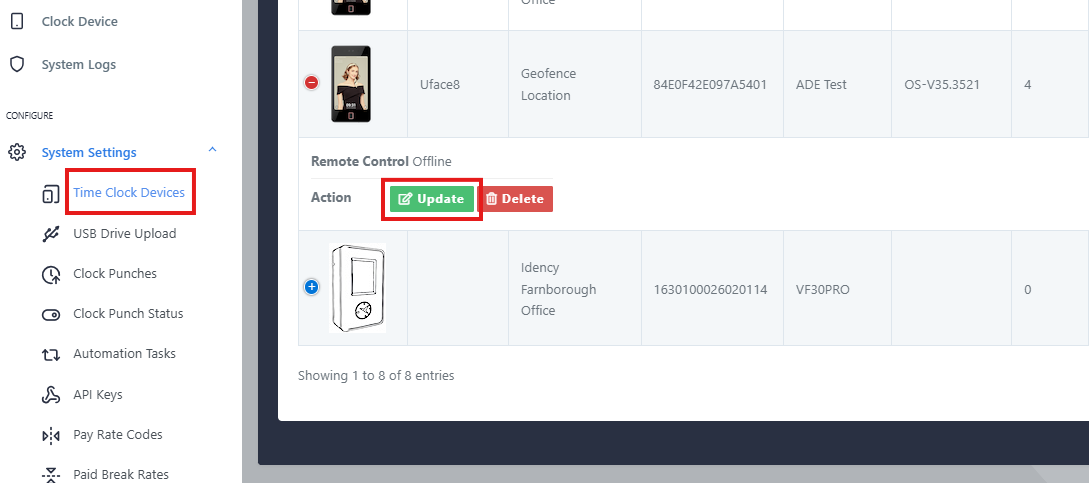
Seleccione "Actualizar contra el terminal correspondiente". Si la opción "Actualizar" no está visible, seleccione el icono azul del plus para mostrarla. Navegue hasta "Funciones especiales".
Paso 2: Activa la función de eliminación automática y la plantilla automática
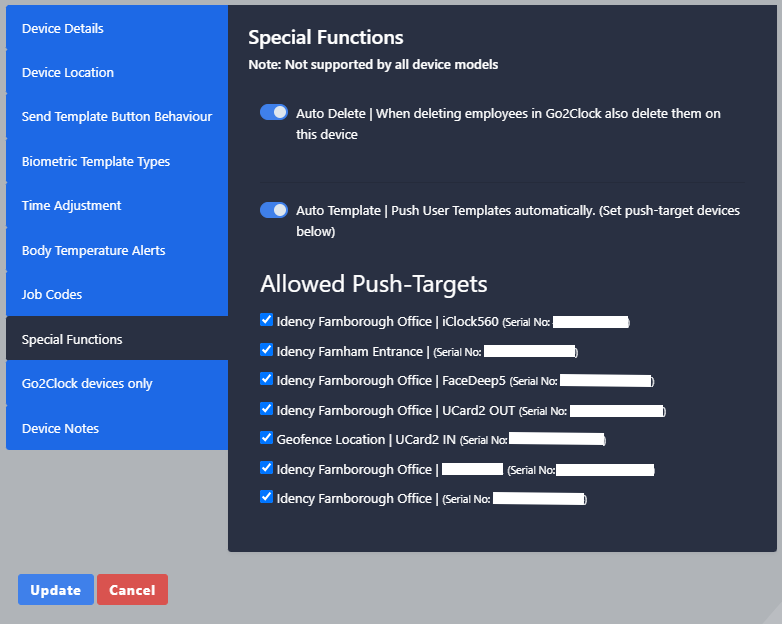
Verá dos opciones disponibles:
- Eliminar automáticamente Cuando está activado, cualquier empleado eliminado de Go2Clock también será eliminado automáticamente del terminal, siempre que el dispositivo esté conectado en el momento de la eliminación.
- Plantilla automática: cuando está habilitado, los empleados añadidos al terminal se enviarán automáticamente a los terminales seleccionados en la sección «Meta de envío permitido».
Active las funciones que necesite. Si activa la opción «Plantilla automática», seleccione los terminales relevantes en «Objetivos de envío permitidos». Una vez configurado, seleccione «Actualizar» para guardar los cambios.
¿No estás seguro de cómo configurar las funciones especiales?
Nuestro equipo está disponible para ayudarle. Póngase en contacto y le explicaremos todo el proceso.

Sistema de control de presencia y fichaje en la nube Go2Clock

















 English (UK)
  English
  English (Canada)
  Français du Canada
  Svenska
  Português
  Nederlands
  Italiano
  Français
  Español
  Deutsch