



































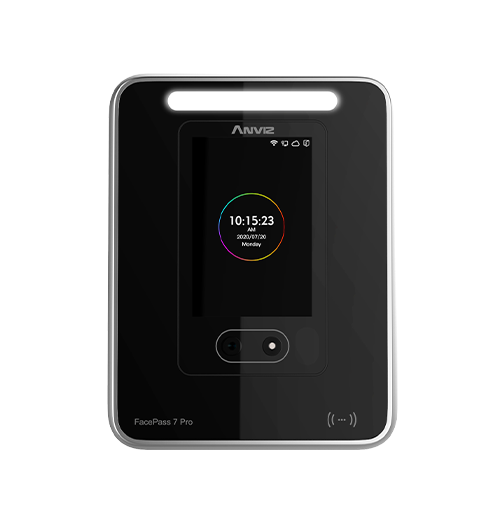
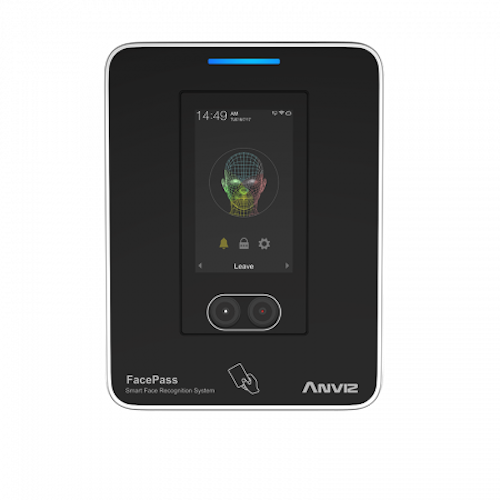
Anviz FacePass 7: El nuevo número de ID de dispositivo no se guarda
¿Por qué no se actualiza el identificador del dispositivo?
A veces después de cambiar una ID del dispositivo Al otro número (por ejemplo, 2, 3) el dispositivo puede cambiar automáticamente de nuevo al número predeterminado. ID del dispositivo 1 – Aquí está cómo garantizar que ID del dispositivo guarda el número al que se ha actualizado y no vuelve al número anterior. ID predeterminado.
Por favor, tenga en cuenta: Esta guía está diseñada específicamente para actualizar el ID del dispositivo en el Anviz FacePass 7. Muchos Anviz Los dispositivos seguirán este mismo proceso. Sin embargo, si estás intentando lograrlo con otro dispositivo y te pierdes, por favor Contáctenos para soporte.
Cómo actualizar el ID del dispositivo
- En el dispositivo, inicie sesión en el Menú de administración.
- Esto se puede hacer haciendo clic en el El icono de cog
 En pantalla.
 - El dispositivo luego te pedirá que ingreses la contraseña del administrador. Nombre de usuario y contraseña. Si ya se ha configurado un administrador, necesitarás que él o ella se registre. Si no, tendrás que introducir los datos de acceso. predeterminado Datos de inicio de sesión del administrador… ONU: 0 / PW: 12345
- Una vez en el menú, vaya a Configuración > Dispositivo
- Se te mostrará una serie de campos. Haz clic en ‘ID del dispositivo’ campo y Ingrese el número de identificación deseado.
- Ahora tendrá que reiniciar el dispositivo. NO Reinicie el dispositivo utilizando los botones que se encuentran debajo de los campos de la misma página, ya que el ID del dispositivo aún no se ha guardado.
- Para guardar el ID del dispositivo actualizado, haga clic en flechas hacia atrás En la esquina inferior izquierda. Manténgase haciendo clic en la flecha hasta que haya completado el proceso. Salga del menú de administración. Esto guardará el ID del dispositivo actualizado.
- Ahora el ID del dispositivo se ha guardado, Para ello, necesitarás reiniciar el dispositivo.
- Para hacerlo, vaya a la Menú de administración De nuevo, como se ha indicado anteriormente.
- Una vez en el menú, vaya a Configuración > Dispositivo
- Ahora haz clic en el botón de reinicio En la parte inferior de la página.
- El ID de su dispositivo ya ha sido actualizado con éxito.
Para obtener más información y orientación general sobre nuestros productos y servicios, por favor Contáctenos.
Buscar todo Base de conocimiento artículos
Enviar un Solicitud de asistencia Al equipo de soporte de Idency


















 English (UK)
  English
  English (Canada)
  Français du Canada
  Svenska
  Português
  Nederlands
  Italiano
  Français
  Español
  Deutsch