



































How to Use The IdencyTime Evacuation Report
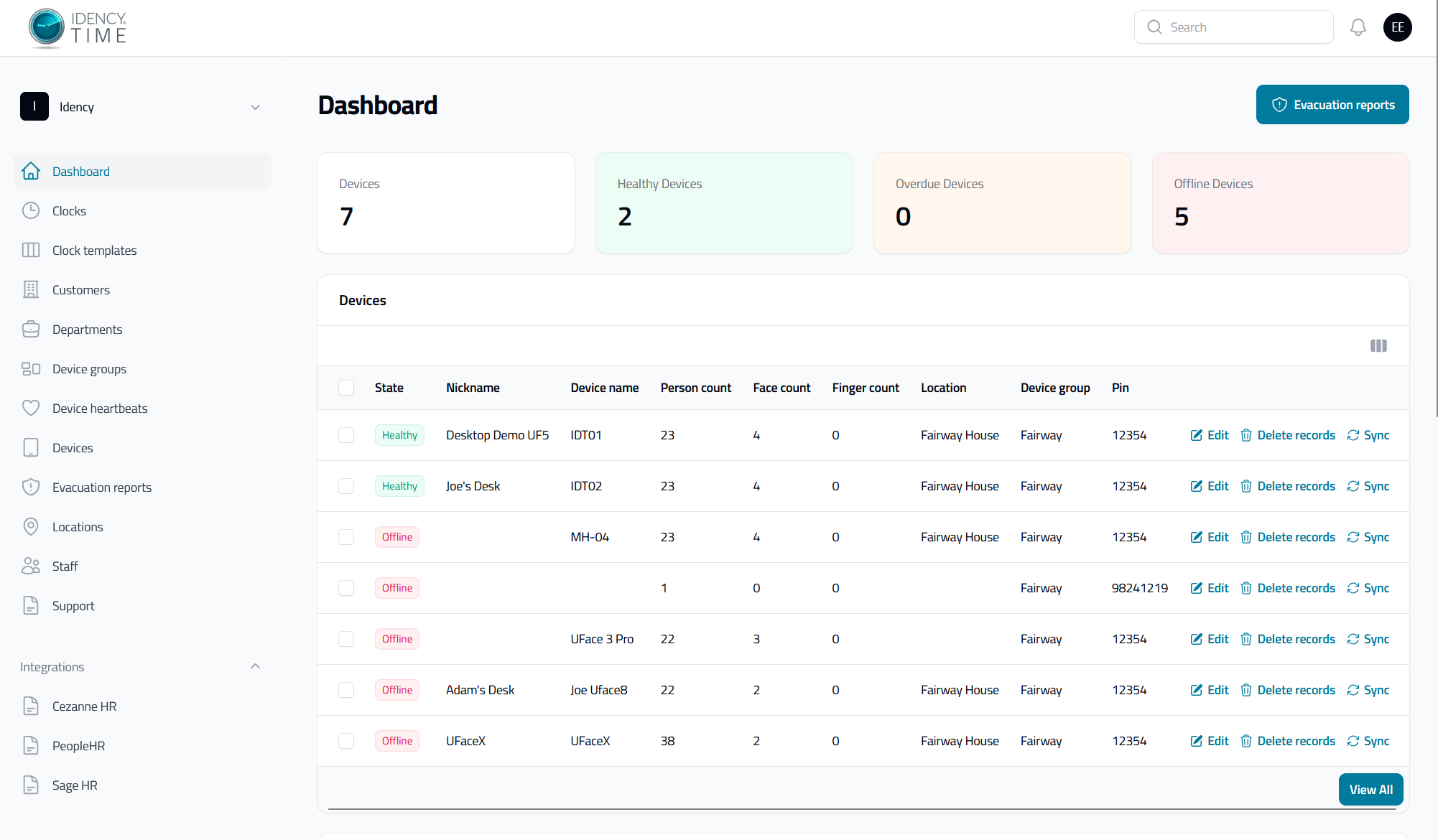
There are two ways to get to the evacuation module within IdencyTime. These are by pressing the Evacuation report button on the dashboard or the Evacuation reports menu on the left-hand side.
Step 1: Select Correct Location
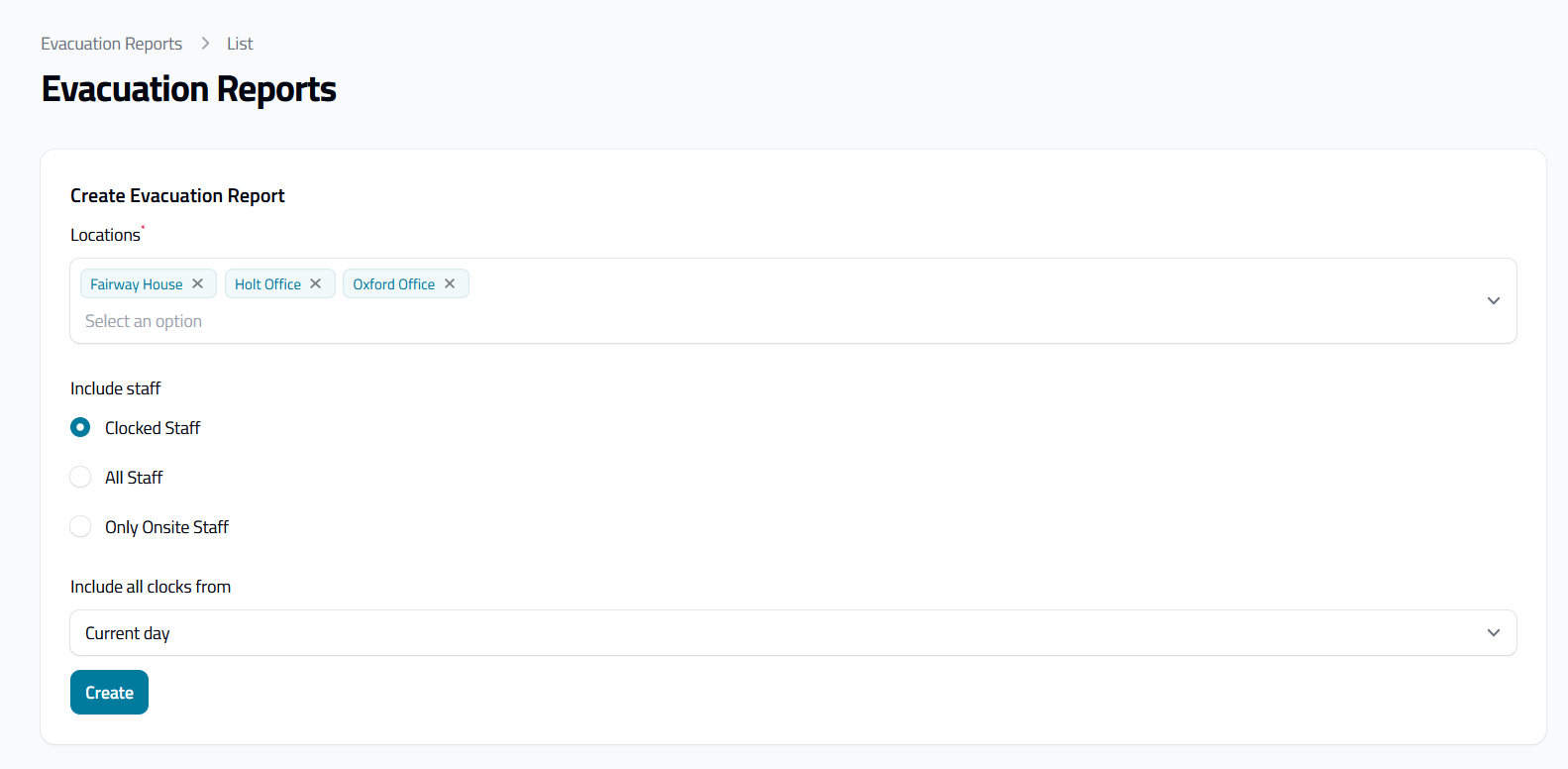
Firstly you need to select one or more locations from the Locations drop down menu. You then need to select an option from the included staff radio buttons:
- Clocked Staff: will show all staff that have clocked in for the given period
- All staff: will show all staff that exist within IdencyTime regardless of if they have clocked in or not
- Only Onsite Staff: will only show staff who have clocked IN on the device
Step 2: Select Correct Staff
Once you have selected the staff you want to include lastly you need to select the time period, we have 3 options to cover all situations such as night shifts these are:
- Current Day: 00:00-23:59 on the current day
- 24 hours: the last 24 hours from the time you run the evacuation report to cover the previous night
- 48 hours: the last 48 hours from the time you run the evacuation report to cover the previous 2 nights
Step 3: Creating and Understanding the Evacuation Report
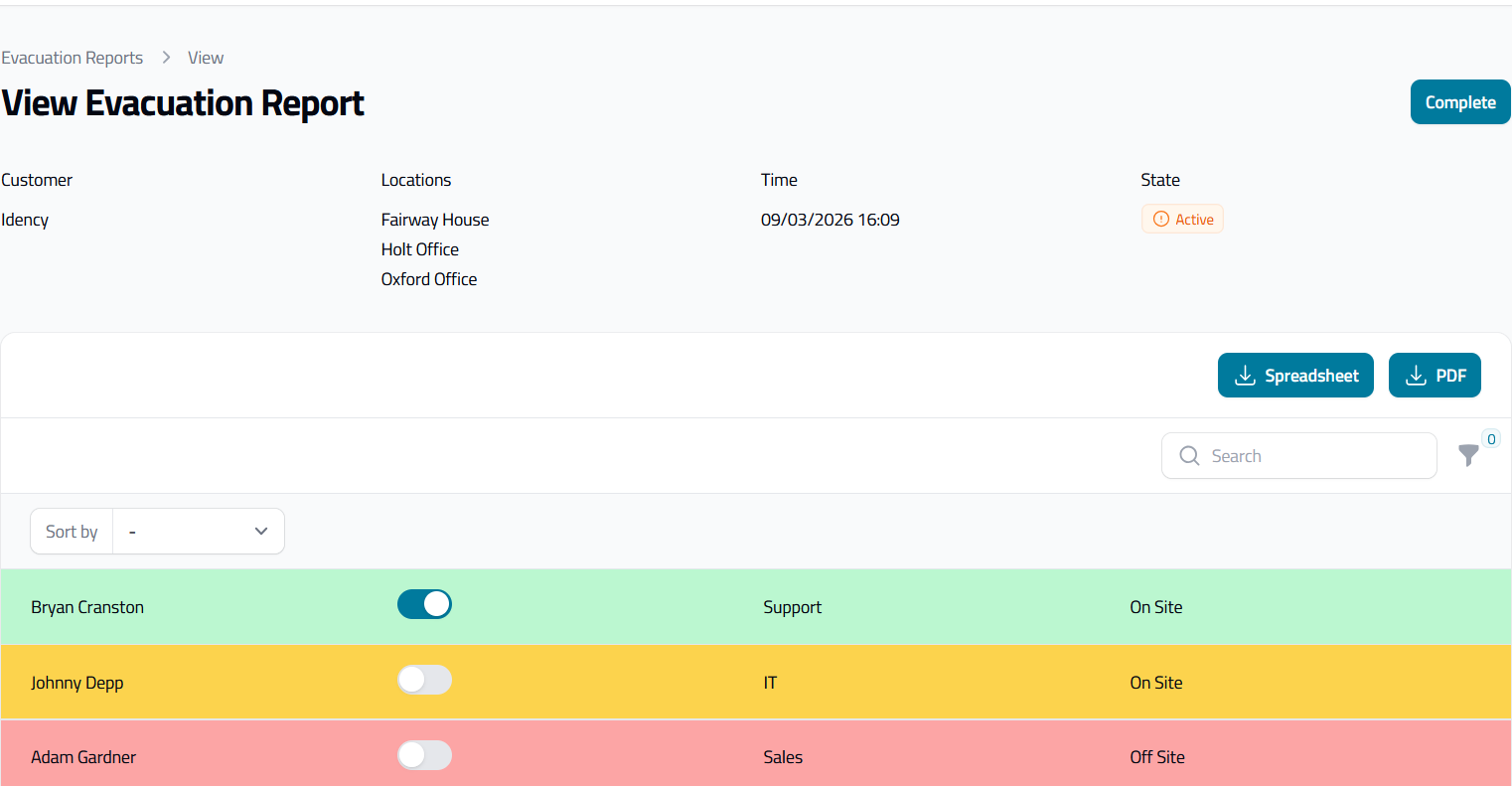
Now that the settings are selected you can create the evacuation report, once opened you will see a list of your staff, you can mark them as safe by pressing the switch next to their name. We run a traffic light system in our Evacuation report:
- Green: Found/Marked as safe
- Amber: Clocked IN/Onsite not marked as safe
- Red: Clocked OUT/Offsite Not marked as safe
The report can be worked on by multiple people at the same time and will dynamically update when someone is marked as safe. When you have finished marking people as safe you can complete the evacuation report by clicking the complete button in the top right. This only needs to be done by one person per location.
Step 4: How to View Active/Completed Evacuation Reports
These can be viewed and printed off if needed by viewing and downloading as Spreadsheet or PDF. These will be kept in IdencyTime for seven days and then deleted.
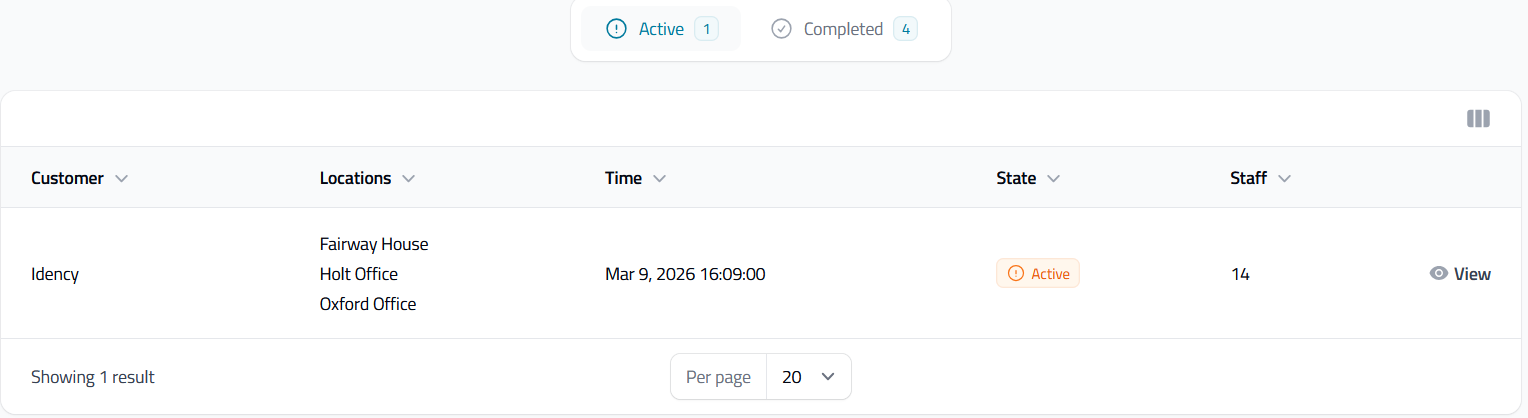
Evacuation reports are stored in IdencyTime for seven days before being automatically deleted. We recommend downloading a copy as a spreadsheet or PDF for your records if needed.

IdencyTime – Time & Attendance API and T&A Integrations

















 English (UK)
  English
  English (Canada)
  Français du Canada
  Svenska
  Português
  Nederlands
  Italiano
  Français
  Español
  Deutsch