






























IdencyTime: Understanding Inactive and Deleted Staff
The staff menu in IdencyTime includes a staff selector that gives you a clear overview of what’s happening with your staff. Staff can be set as inactive, so you only sync the people who need to use the system and keep your staff limit free for them. It also means you can keep auto sync switched on without syncing in everyone from your HR system.
This guide covers how to deactivate, reactivate and delete staff.
Section 1 | Deactivating Staff
The staff selector menu gives you an overview of your staff. From here you can reach the Inactive and Deleted menus covered in this guide.

Step 2: Deactivate Staff
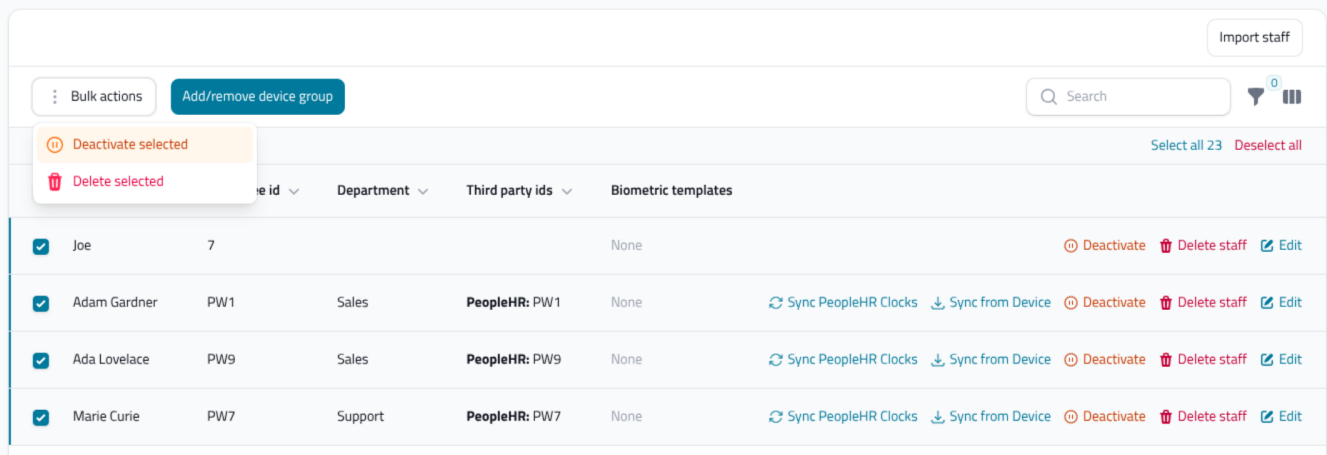
You can deactivate staff one at a time by selecting Deactivate on each staff member. To do it in bulk, select staff from the list on the left-hand side, then choose Bulk Actions och Deactivate Selected.
Setting staff as inactive has the following effects:
- Staff no longer count towards your current subscription level
- Inactive staff no longer sync down as part of the auto staff sync from your HR system
- Staff are removed from all readers they were assigned to, and all their biometrics are removed
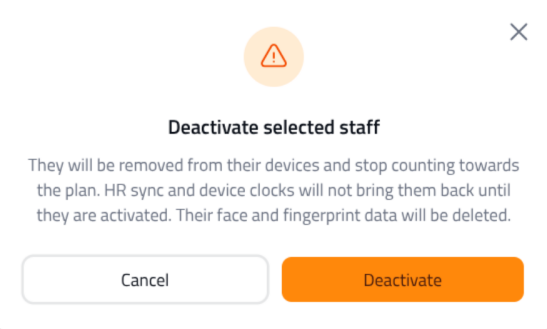
You’ll be asked to confirm before anything happens. Deactivating removes all templates and staff from your devices, and removes the templates from IdencyTime.
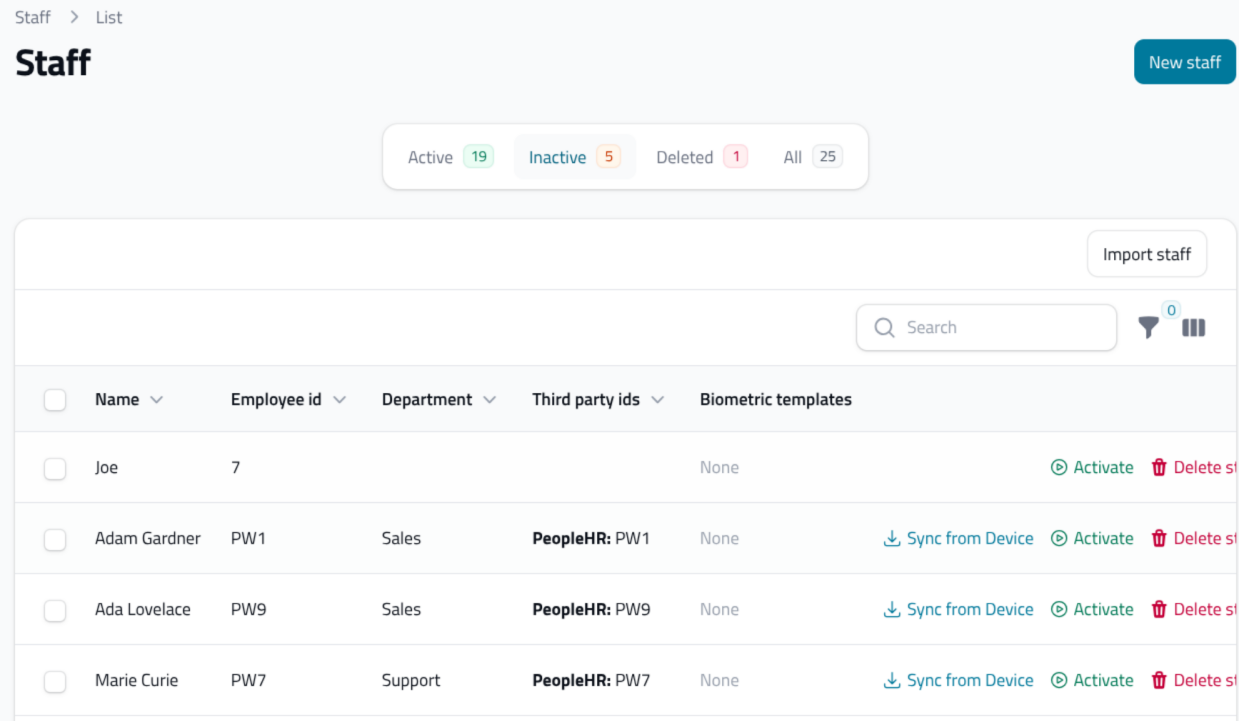
Deactivated staff are moved into the Inactive meny.
Section 2 | Reactivating Staff
Step 1: Activate Staff
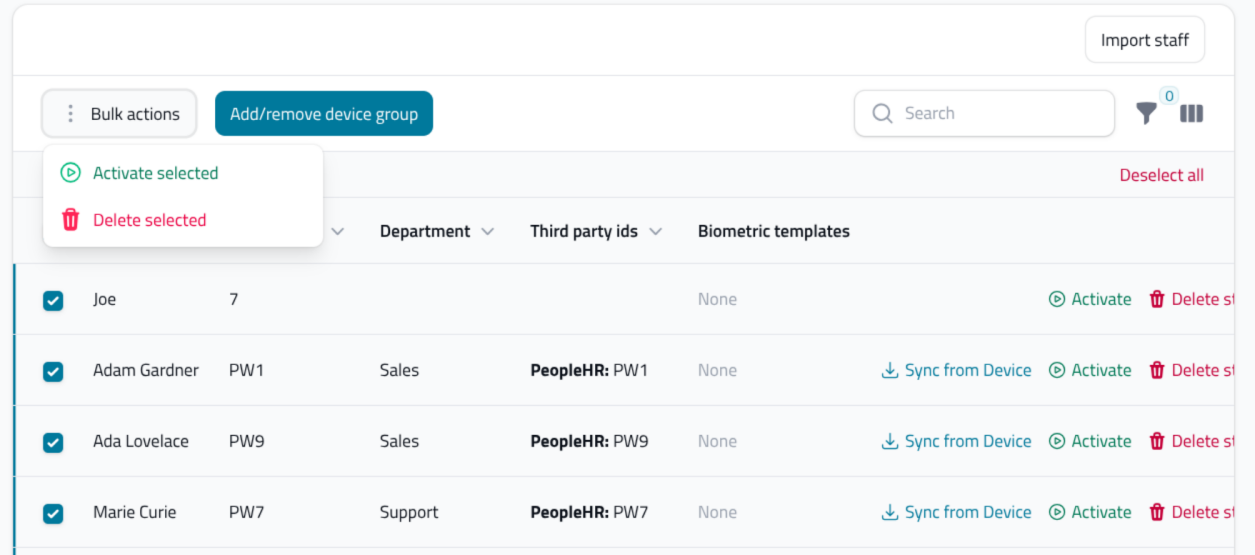
If staff need to start clocking in on the devices again, you can reactivate them. Find them in the Inactive menu and select Aktivera. To reactivate several at once, select multiple staff from the list and use the bulk action button.
Step 2: Confirm the Reactivation
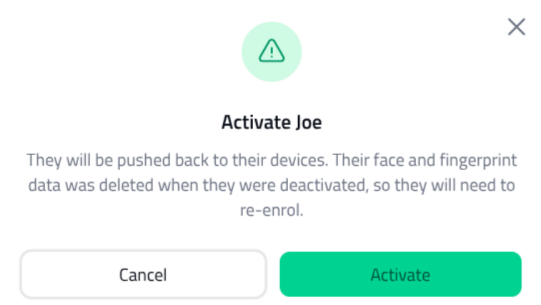
You’ll see a prompt to confirm. Once staff are reactivated:
- They are automatically assigned back to the default device group
- They sync down to the devices
- You’ll need to re-add their face or fingerprint templates on the device
- The templates then sync back to IdencyTime and down to all other devices in the group
- Their clocks go into your HR system again
Section 3 | Deleting Staff
Step 1: Delete Staff
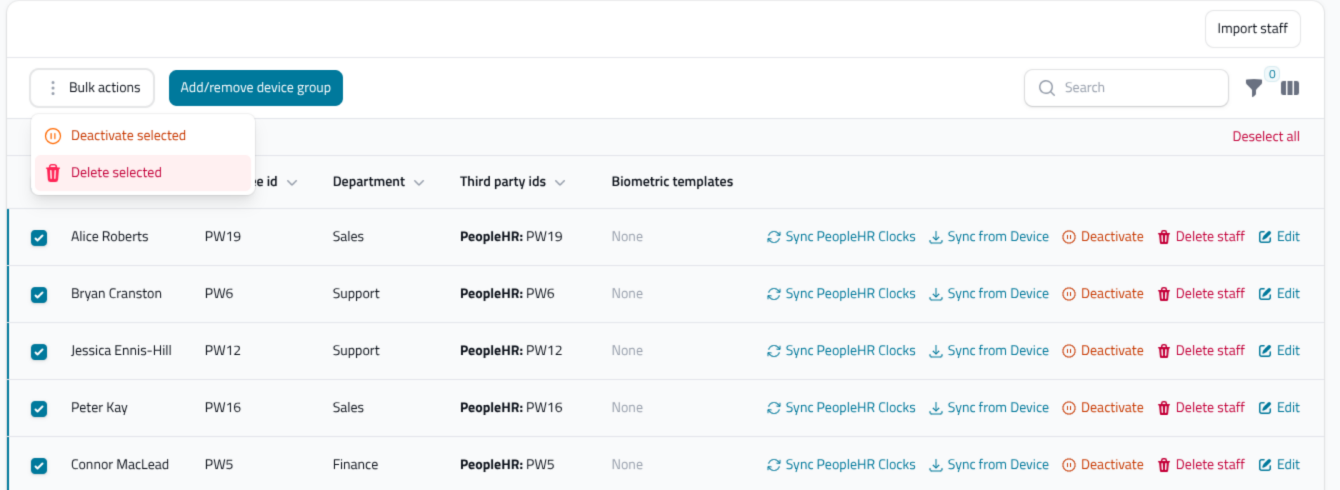
Deleting staff removes them from the staff list, and they can be restored if the deletion was a mistake.
To delete staff in bulk, select them and use the bulk action. To delete one at a time, use the Delete Staff option on each staff member.
Step 2: Restore or Force Delete From the Deleted Menu
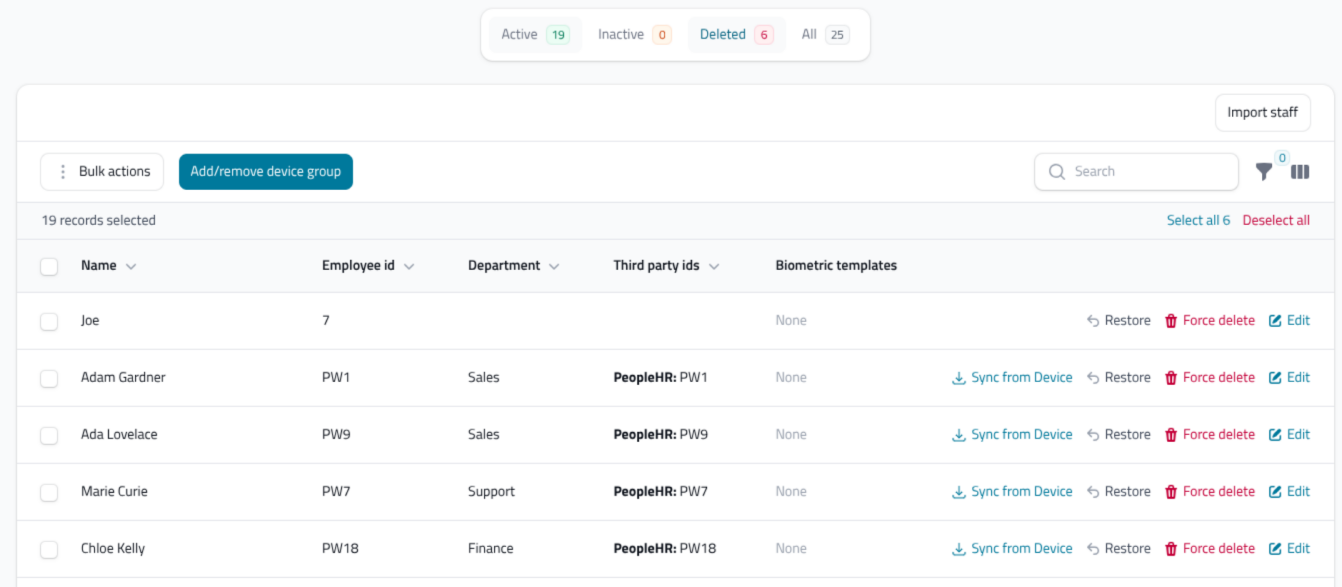
Deleted staff move to the Deleted menu. From here you can either Återställ them or Force Delete them.
- Restore: staff sync back to the devices and work as they did before
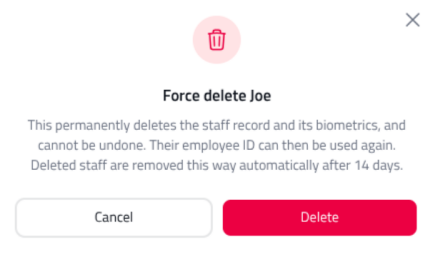
- Force Delete: staff are removed from the system completely, until they are added again
Step 3: Confirm a Force Delete
You’ll be prompted to confirm before a force delete goes ahead, to make sure you really want to do it.
Need a hand managing your staff in IdencyTime?
If you have any questions about inactive or deleted staff, our support team is happy to help.

IdencyTime – API för tid och närvaro samt T&A-integrationer

















 English (UK)
 English
 English (Canada)
 Français du Canada
 Svenska
 Português
 Nederlands
 Italiano
 Français
 Español
 Deutsch