


































Go2Clock: Upload Clock Records to PeopleHR
This article explains how to upload clock records from Go2Clock into PeopleHR planners, either manually or automatically.
Before using the PeopleHR Timesheet Export, make sure the PeopleHR API connection has been set up in Go2Clock. If it hasn’t, please refer to: How to Connect PeopleHR to Go2Clock
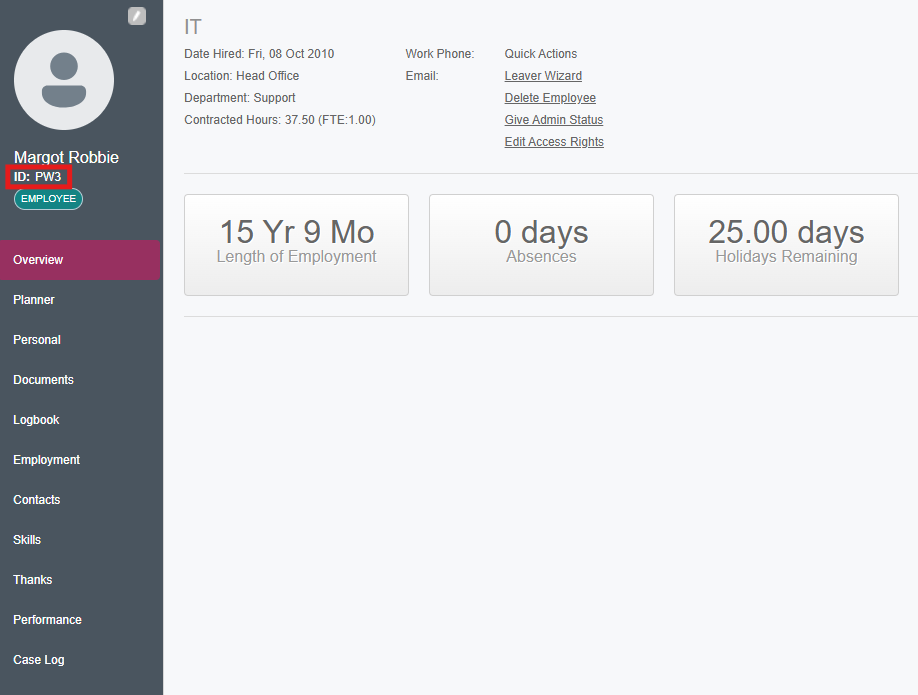
Employees also need to be linked to their PeopleHR ID, so their clock records are exported against the correct person. If they were originally imported into Go2Clock using the PeopleHR integration, this link is already in place. If you added them manually, follow Steps 1 and 2 to check it.
Step 1: Open the Employee Record
- Navigate to the Employee Dashboard
- Select View
- Find the employee and select Edit
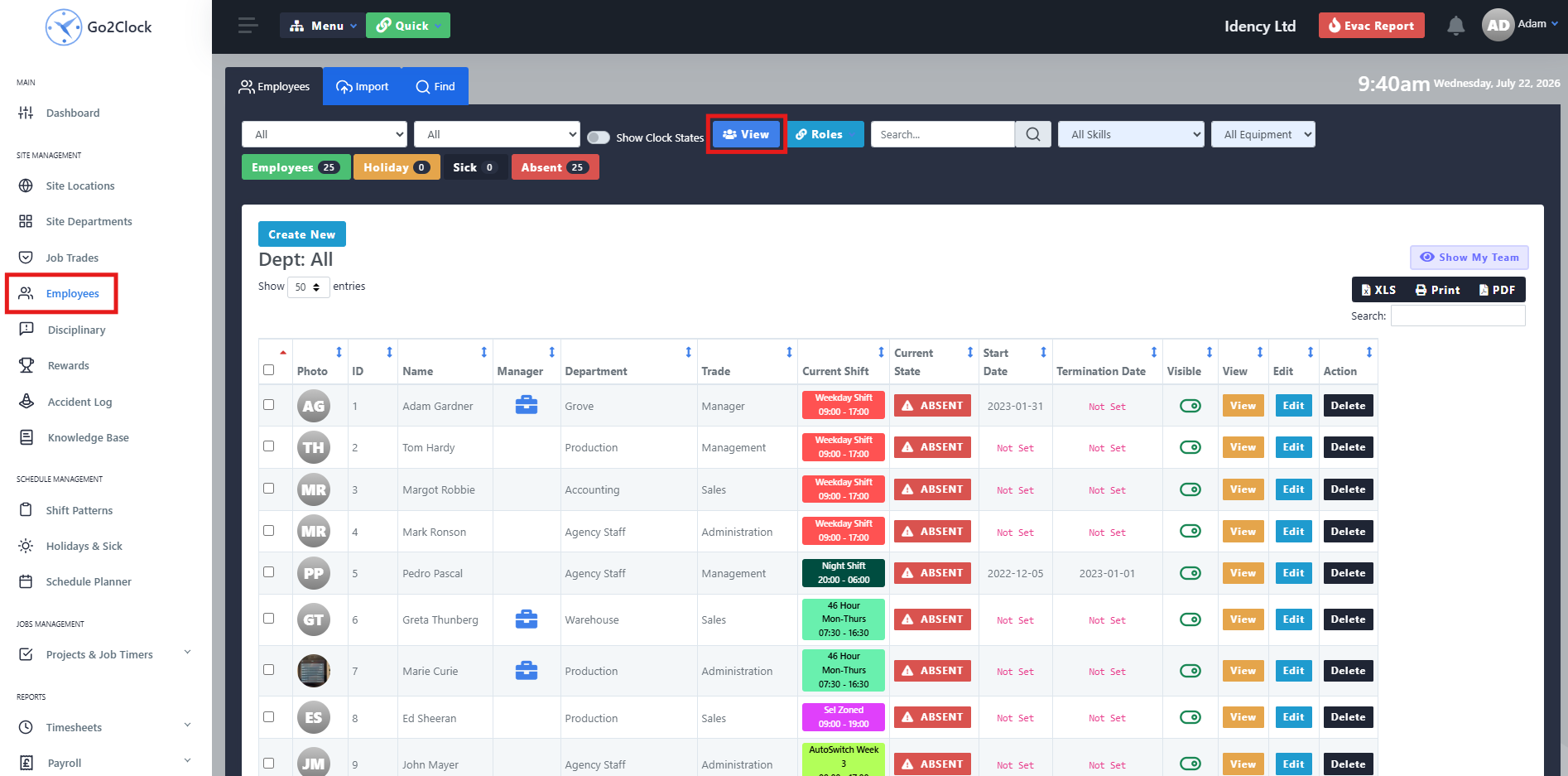
Step 2: Check the PeopleHR Employee ID
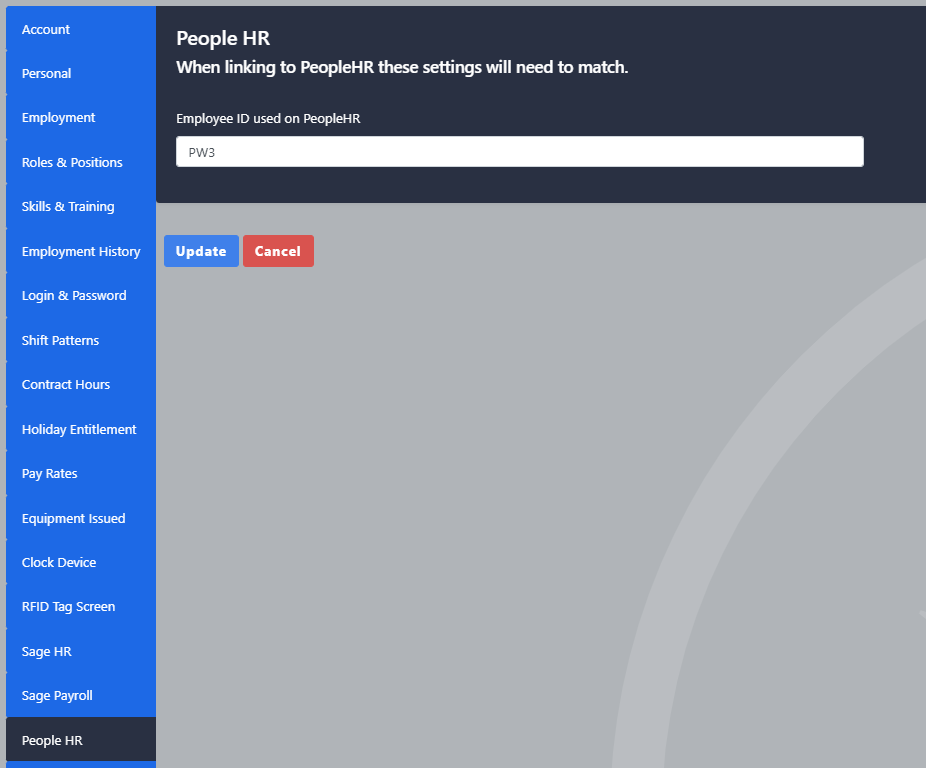
In the employee options, go to the People HR tab and check the People HR Employee ID field contains the correct ID from PeopleHR. If the field is blank, enter the correct Employee ID and update the employee.
Step 3: Export Clock Records Manually
Once the API connection is configured and employees are linked to their PeopleHR IDs, you can export clock records into PeopleHR planners.
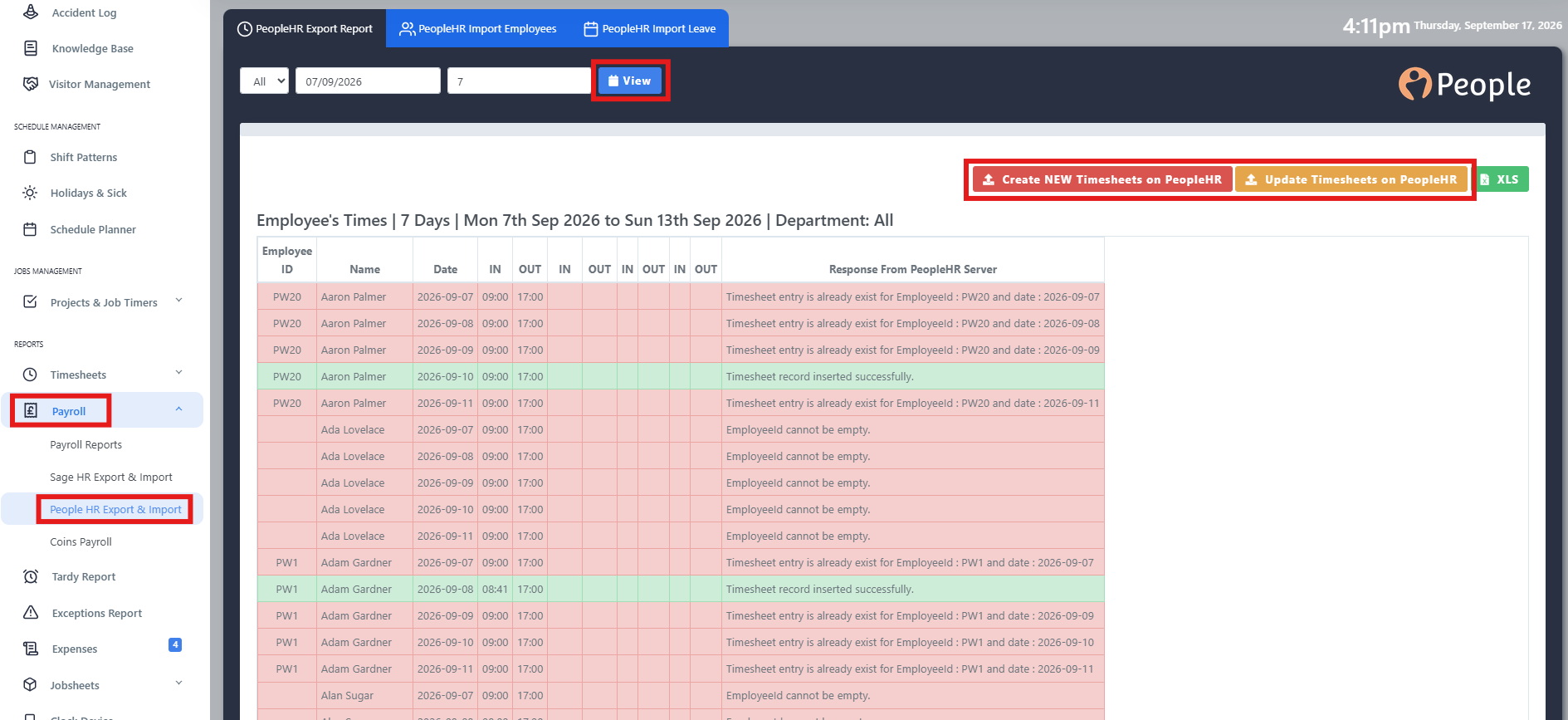
- Navigate to Payroll
- In the dropdown, select People HR Export & Import
- At the top, set the date range you want to export
- Select View
- Select Create New Timesheet on PeopleHR
- Once the create sync has finished, select Update Timesheets on PeopleHR
Go2Clock then creates and updates the employees’ planners in PeopleHR using the clock records in the selected date range. Each employee’s records show separately for each day.
Step 4: Understand Create and Update
The first time you export clock records into PeopleHR, use Create New Timesheet. This creates the planners in PeopleHR using the available clock records.
If an employee already has times in their PeopleHR planner, use Update Timesheet instead. This adds missing clock records and updates any times that have changed in Go2Clock. If an employee has clock records for a day but a create has never been run, the update will fail.
In most cases, the best approach is to run Create New Timesheet followed by Update Timesheet, so any missing clocks are exported.
You may see some entries with the message “Timesheet entry already exists”. You can ignore this, as it means the entry has already been created in PeopleHR. Run Update Timesheet afterwards to add any missing clock records or correct times that have changed in Go2Clock.
The export can also fail if an employee doesn’t have a valid PeopleHR Employee ID. If this happens, check their PeopleHR link using Steps 1 and 2.
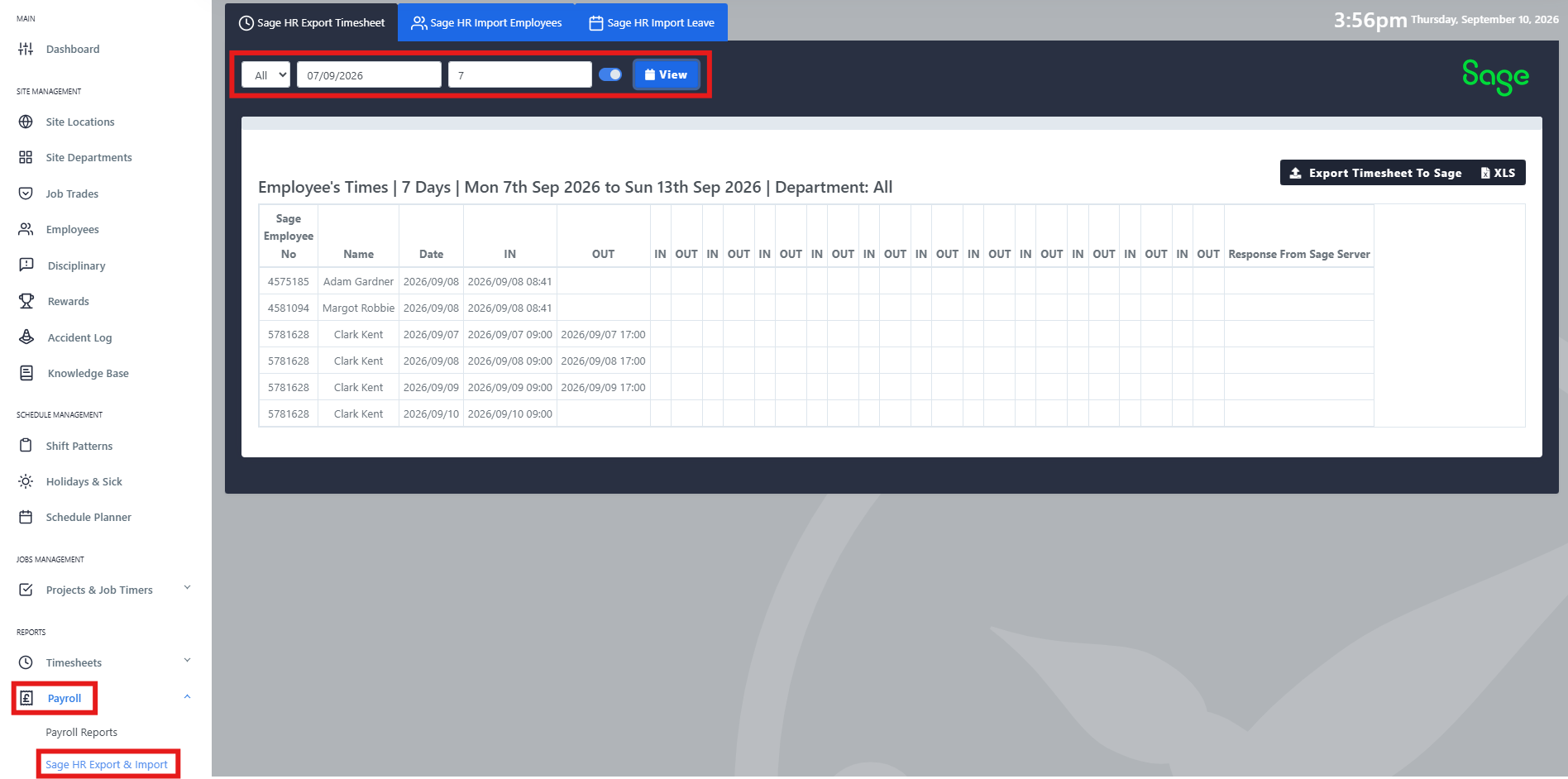
- Navigate to Payroll
- In the dropdown, select Sage HR Export & Import
- At the top, set the date range you want to export
- Select View
- Select Export Timesheet To Sage
Step 5: Upload Clock Records Automatically (Optional)
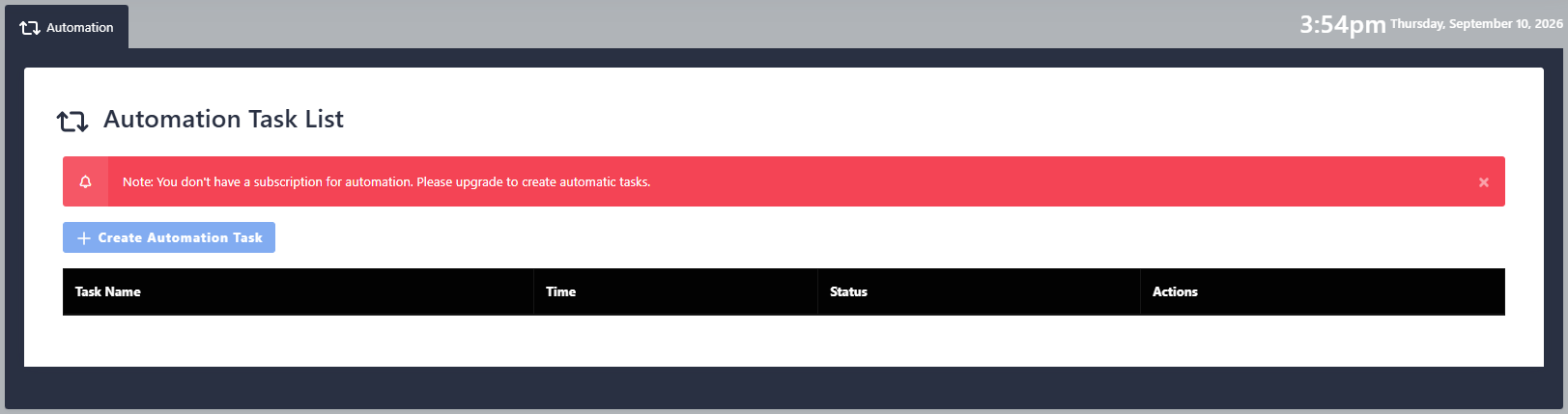
If you want clock records uploaded to PeopleHR without exporting them yourself, you can set this up as an Automation Task. The PeopleHR timesheet upload then runs automatically for each day, every 24 hours, at a scheduled time.
Automation Tasks are an additional cost and aren’t included in the standard Go2Clock subscription. Please contact finance@idency.com if you’d like to discuss this option. For more on how they work, see: Go2Clock: Automation Tasks
Need a hand uploading clock records to PeopleHR in Go2Clock?
If you run into any issues with the export or linking employees, our support team is happy to help.

Go2Clock Cloud Hosted Time & Attendance System

















 English (UK)
  English
  English (Canada)
  Français du Canada
  Svenska
  Português
  Nederlands
  Italiano
  Français
  Español
  Deutsch