


































Go2Clock: Mass Uploading Employees
The employee import feature lets you mass upload employees to Go2Clock, removing the need to add them one by one. You can prepare the employee information using the provided template, as either a CSV or Excel file.
Step 1: Create a New Site Department
Before importing employees, you first need to create the relevant site departments. This lets the import assign each employee to the correct department automatically.
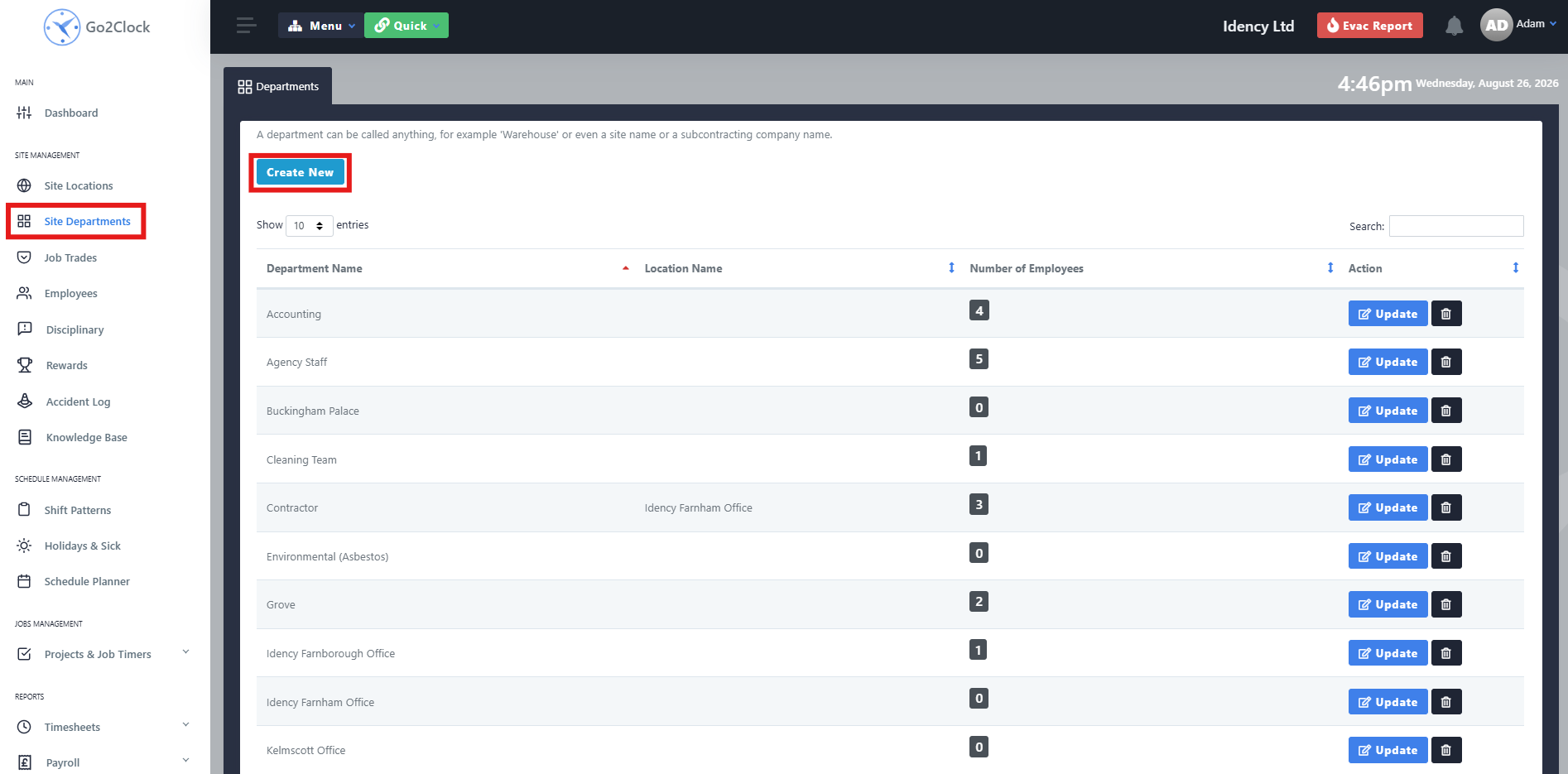
- Navigate to Site Departments
- Select Create New
Step 2: Name and Create the Department
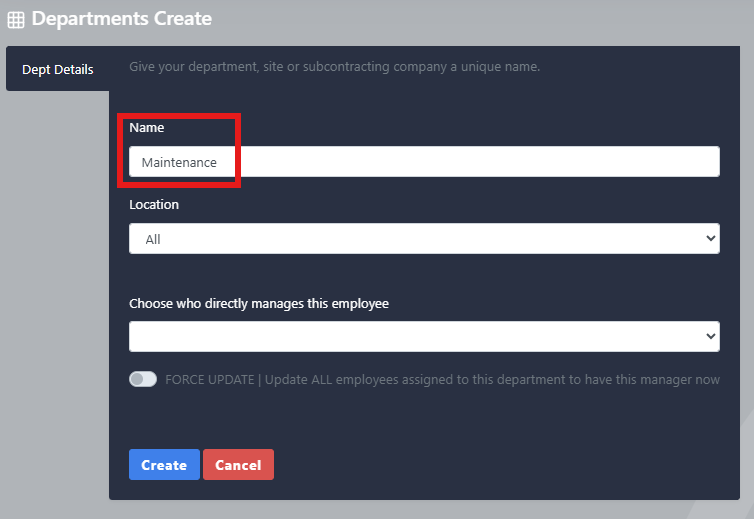
- Enter the department name
- Select Create
Repeat this process until all the required departments have been created.
Step 3: Download the Upload Template
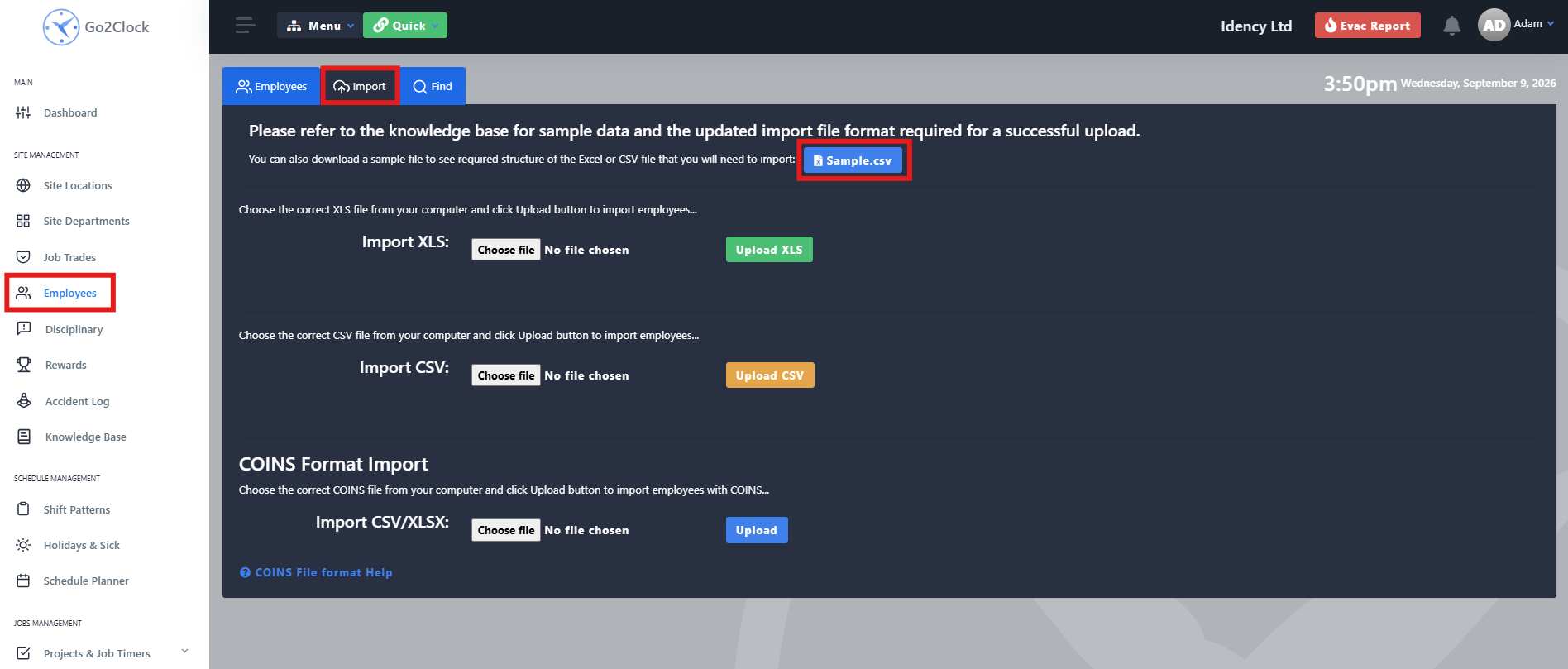
- Navigate to the Employees tab
- Select the Import section at the top
- Download the sample CSV
Step 4: Complete the Template
Open the template and enter the relevant information for each employee. Many of the fields can be left blank if you don’t need that information for reporting, so complete only the ones you want. Leave the column headers unchanged, as changing them will cause the import to fail.
Three fields are required for a successful import:
- Navigate to the Employees tab
- Select the Import section at the top
- Download the sample CSV

If you’re importing payroll numbers into Go2Clock, we recommend using each employee’s payroll number as their ID where possible. Employee IDs must always be unique, so this helps prevent future conflicts.
Step 5: Upload the Employee File
Once the file is complete and saved, check that the information is correct before uploading.
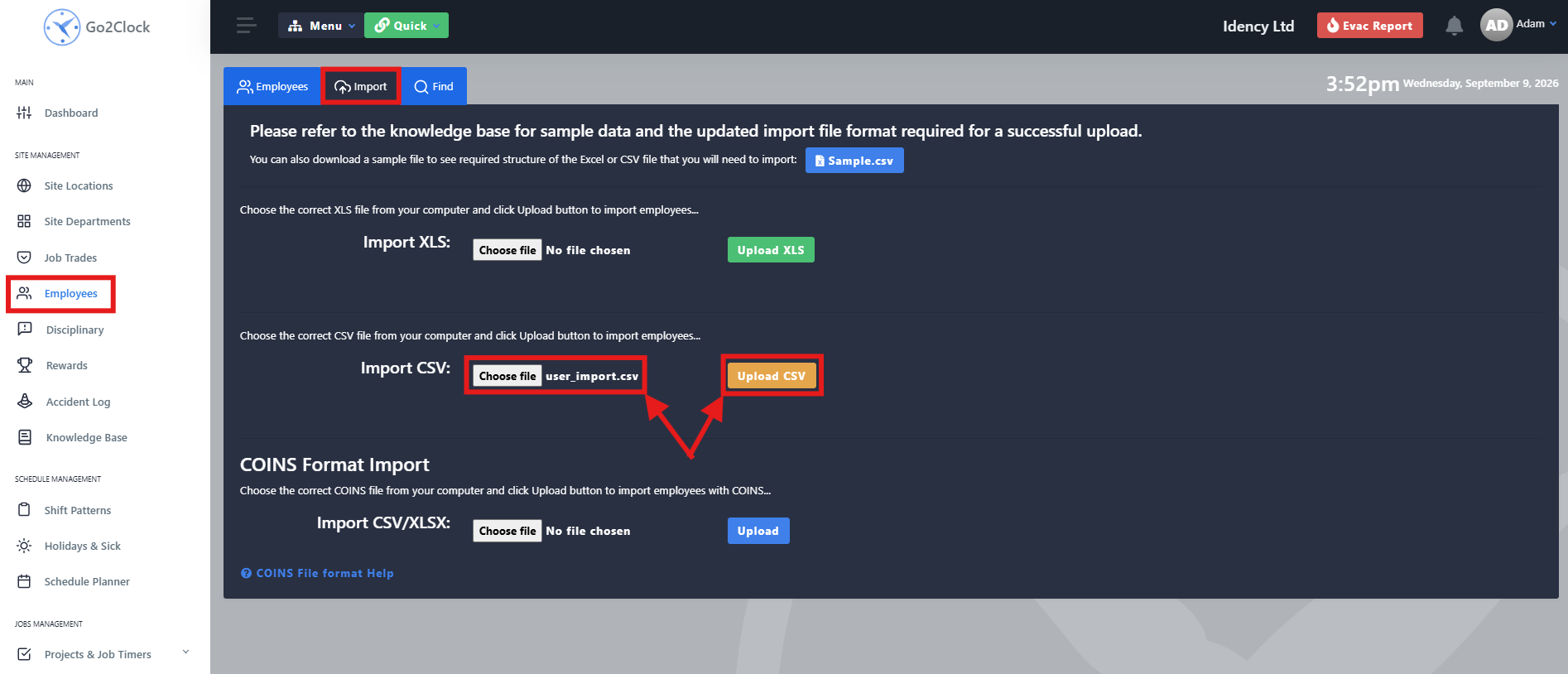
- Navigate to the Employees tab
- Select the Import section at the top
- Select Choose File
- Find and select your completed CSV file
- Select Upload CSV
Go2Clock then uploads the file and adds the employees to the system. Once it’s finished, go to the Employees tab to confirm they’ve been added.
Before uploading a large employee list, check the CSV carefully to make sure the employee IDs, names and department names have all been entered correctly.
Need a hand mass uploading employees in Go2Clock?
If you run into any issues preparing or uploading your employee file, our support team is happy to help.

Go2Clock Cloud Hosted Time & Attendance System

















 English (UK)
  English
  English (Canada)
  Français du Canada
  Svenska
  Português
  Nederlands
  Italiano
  Français
  Español
  Deutsch