


































Go2Clock: Configurazione della geolocalizzazione
La geolocalizzazione consente di impostare un raggio di riferimento attorno alla posizione del sito, così che i registri dell’orologio mobile vengano automaticamente assegnati al sito pertinente quando un dipendente effettua il rilevamento durante il raggio di riferimento. I dipendenti possono comunque effettuare il rilevamento al di fuori del raggio di riferimento configurato — la geolocalizzazione non impedisce il rilevamento mobile, ma aiuta solo a identificare dove si trovavano i dipendenti al momento del rilevamento. Queste informazioni possono quindi essere utilizzate nei report.
Passo 1: Crea una nuova posizione del sito
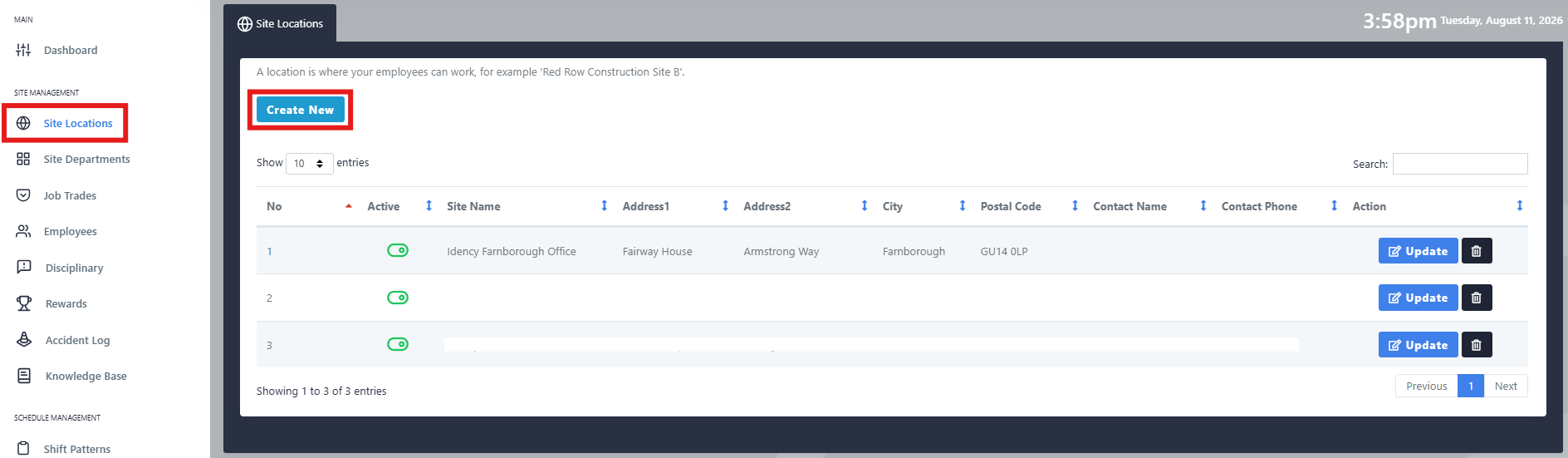
Navigare su "Posizioni del sito" e quindi selezionare Crea nuovo, o Aggiorna contro una location già esistente.
Passo 2: Inserire i dettagli del sito
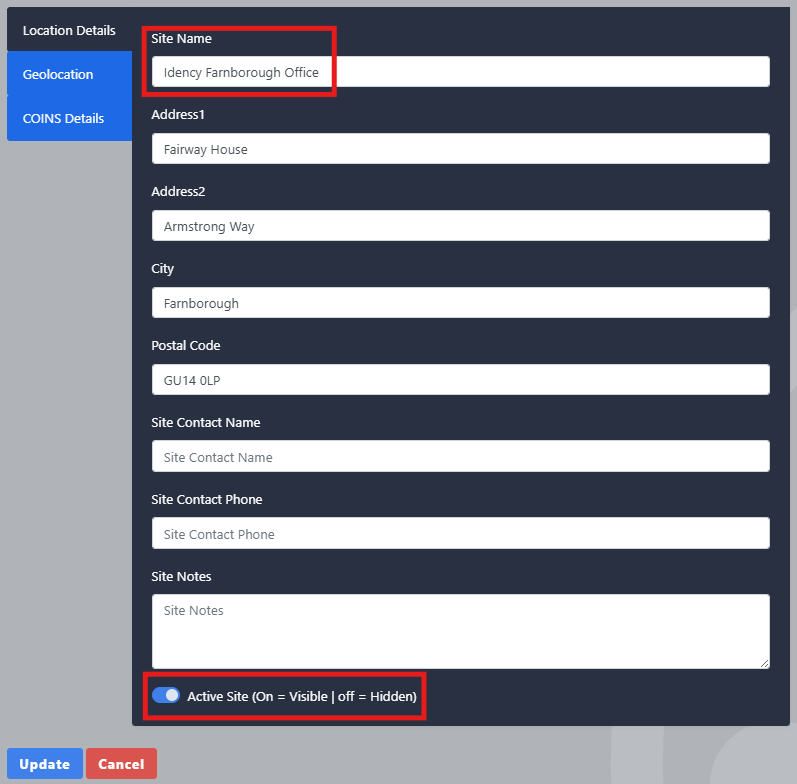
- Inserisci il Nome della posizione del sito. I dettagli dell'indirizzo sono opzionali
- Assicuratevi che la posizione sia impostata su Sito attivo in fondo
Passo 3: Imposta la posizione e il raggio di azione
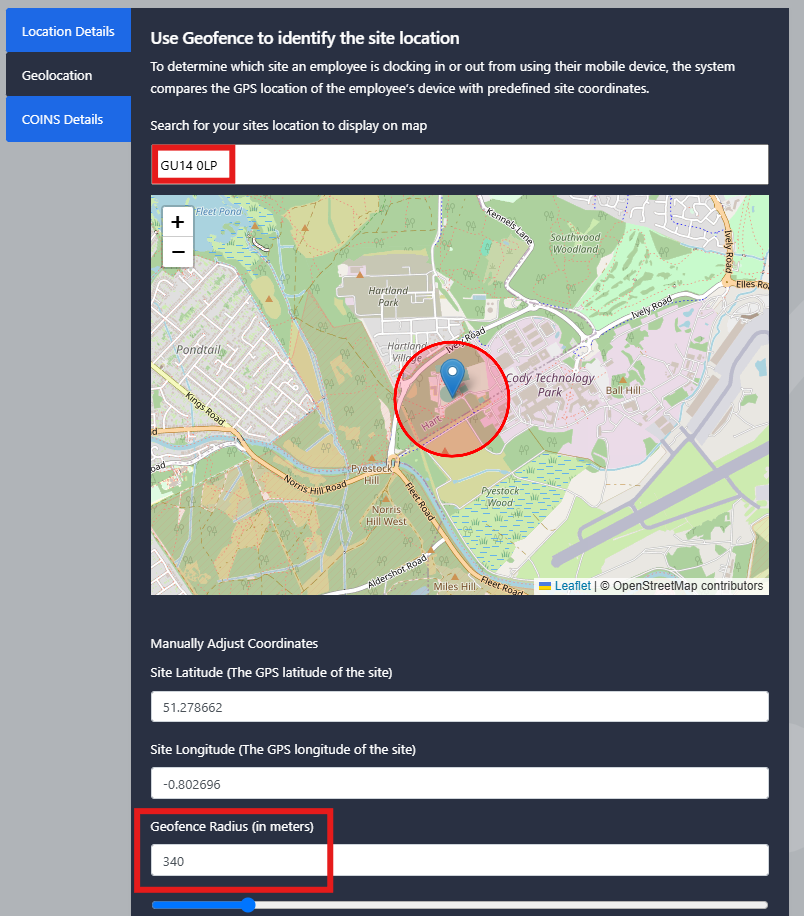
Seleziona Geolocalizzazione Premi il tasto "tab", quindi utilizza la funzione di ricerca in alto per trovare l'indirizzo del sito desiderato.
- Verificare che il puntatore della posizione sia posizionato correttamente sulla mappa, regolando il punto se necessario
- Modifichi il raggio della geofence ridimensionando il cerchio intorno alla posizione selezionata, coprendo l’area in cui i dipendenti devono poter registrare il proprio tempo di lavoro.
Una volta che la posizione e il raggio sono corretti, selezionare Crea o Aggiorna per salvare la posizione del sito.
Hai bisogno di aiuto per configurare le geolocalizzazioni su Go2Clock?
Se riscontrate problemi nella configurazione delle posizioni del sito o della geofencing, il nostro team di supporto sarà lieto di aiutarti.

Sistema di presenze e assenze Go2Clock Cloud Hosted

















 English (UK)
  English
  English (Canada)
  Français du Canada
  Svenska
  Português
  Nederlands
  Italiano
  Français
  Español
  Deutsch