


































Go2Clock: Setting up Geolocation
Geolocation lets you set a radius around a site location so mobile clock records are automatically assigned to the relevant site when an employee clocks within that radius. Employees can still clock outside the configured radius — geolocation does not prevent mobile clocking, it only helps identify where employees were when they clocked. This information can then be used within reports.
Step 1: Create a New Site Location
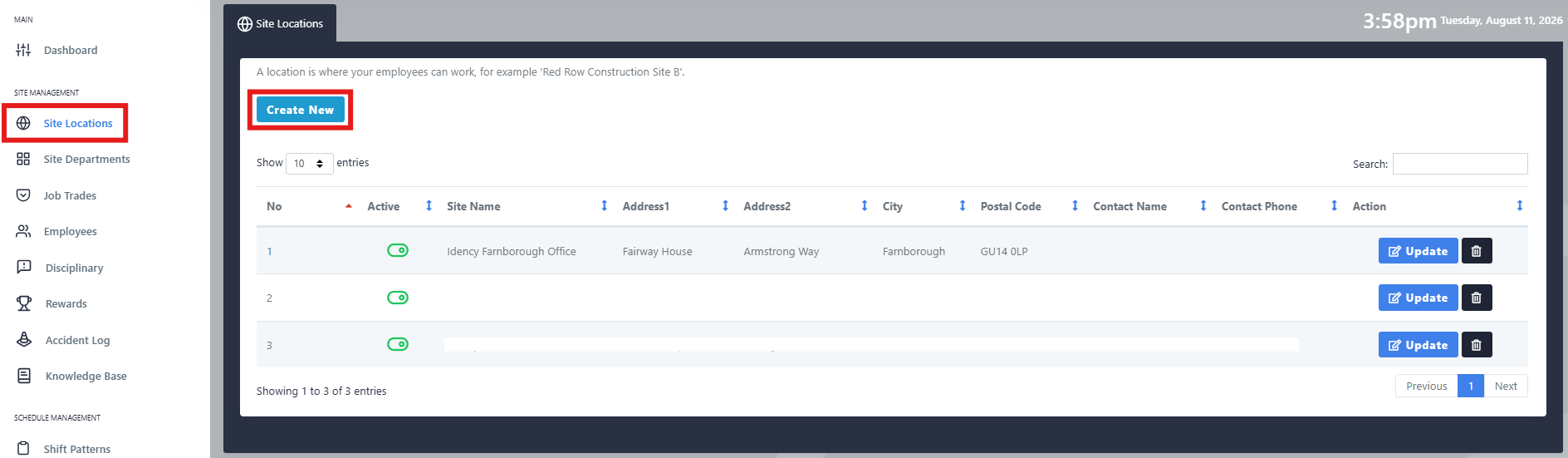
Navigate to Site Locations, then select Create New, or Update against an existing location.
Step 2: Enter the Site Details
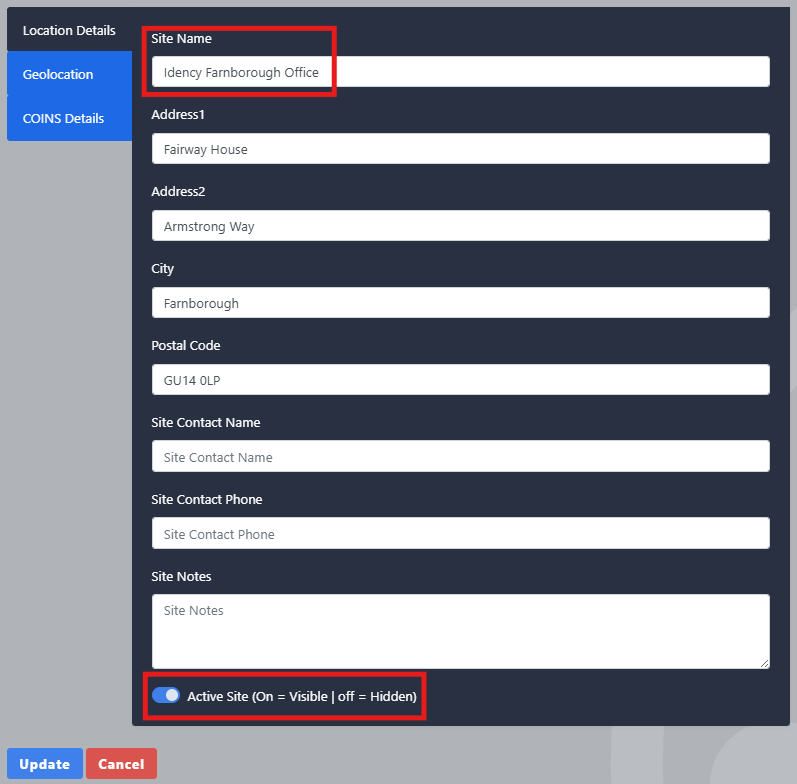
- Enter the Site Location Name. Address details are optional
- Make sure the location is set as Active Site at the bottom
Step 3: Set the Location and Radius
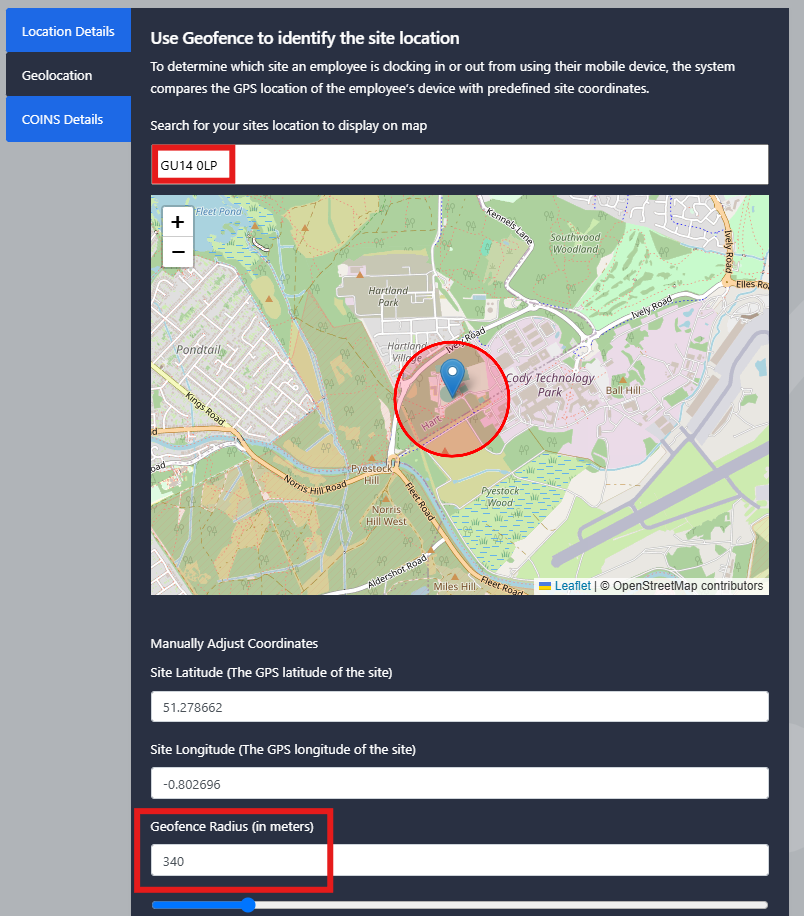
Select the Geolocation tab, then use the search function at the top to find the required site address.
- Check the location marker is positioned correctly on the map, adjusting it if needed
- Adjust the radius of the geofence by resizing the circle around the selected location, covering the area where employees should be permitted to clock
Once the location and radius are correct, select Create or Update to save the site location.
Need a hand setting up geolocations on Go2Clock?
If you run into any issues configuring site locations or geofencing, our support team is happy to help.

Go2Clock Cloud Hosted Time & Attendance System

















 English (UK)
  English
  English (Canada)
  Français du Canada
  Svenska
  Português
  Nederlands
  Italiano
  Français
  Español
  Deutsch