



































How to Factory Reset a Uni-Ubi Device
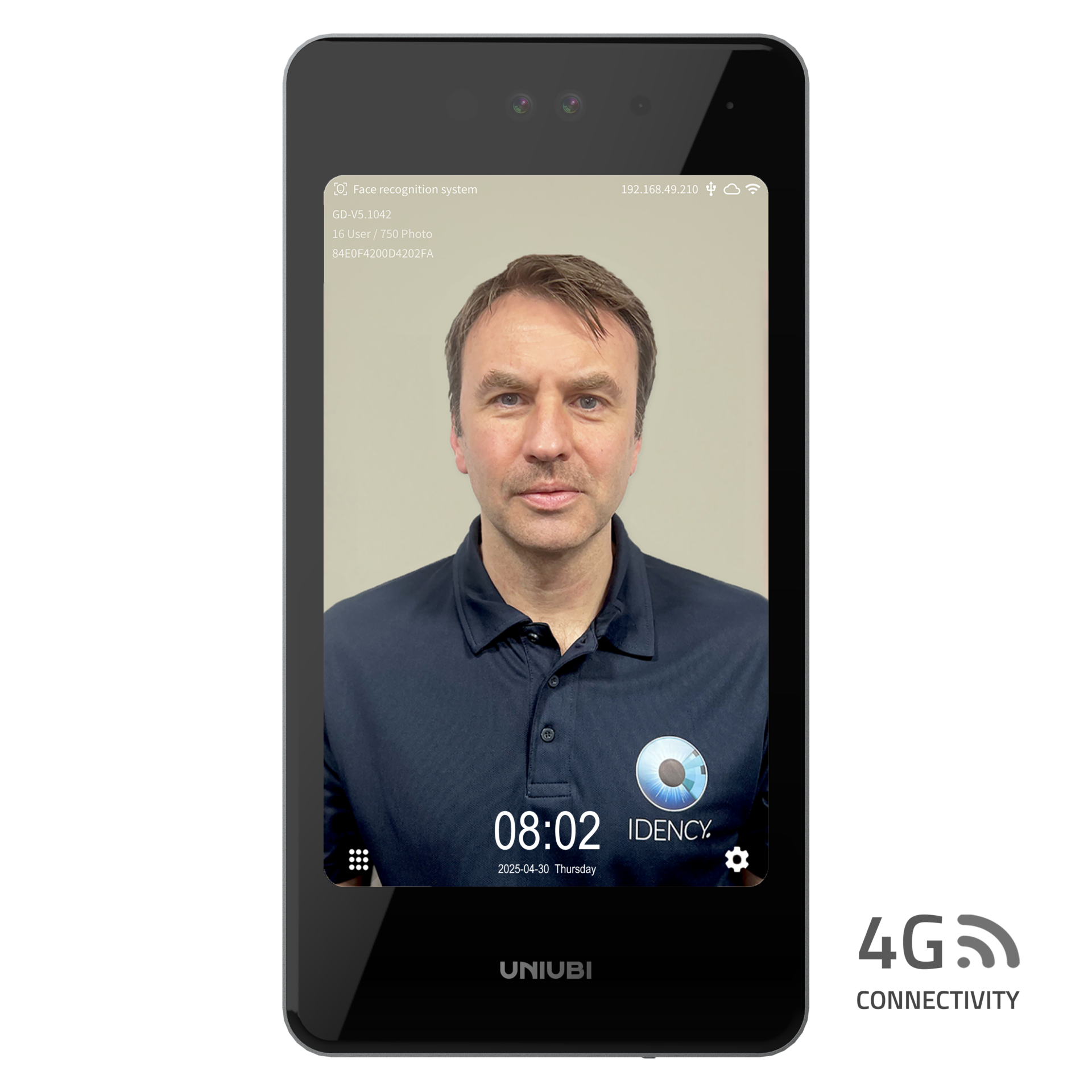
This article covers how to factory reset a Uni-Ubi UFace terminal. There are 2 ways to do this – directly at the device or remotely via the terminal web portal.
Section 1 | Factory Reset at the Device
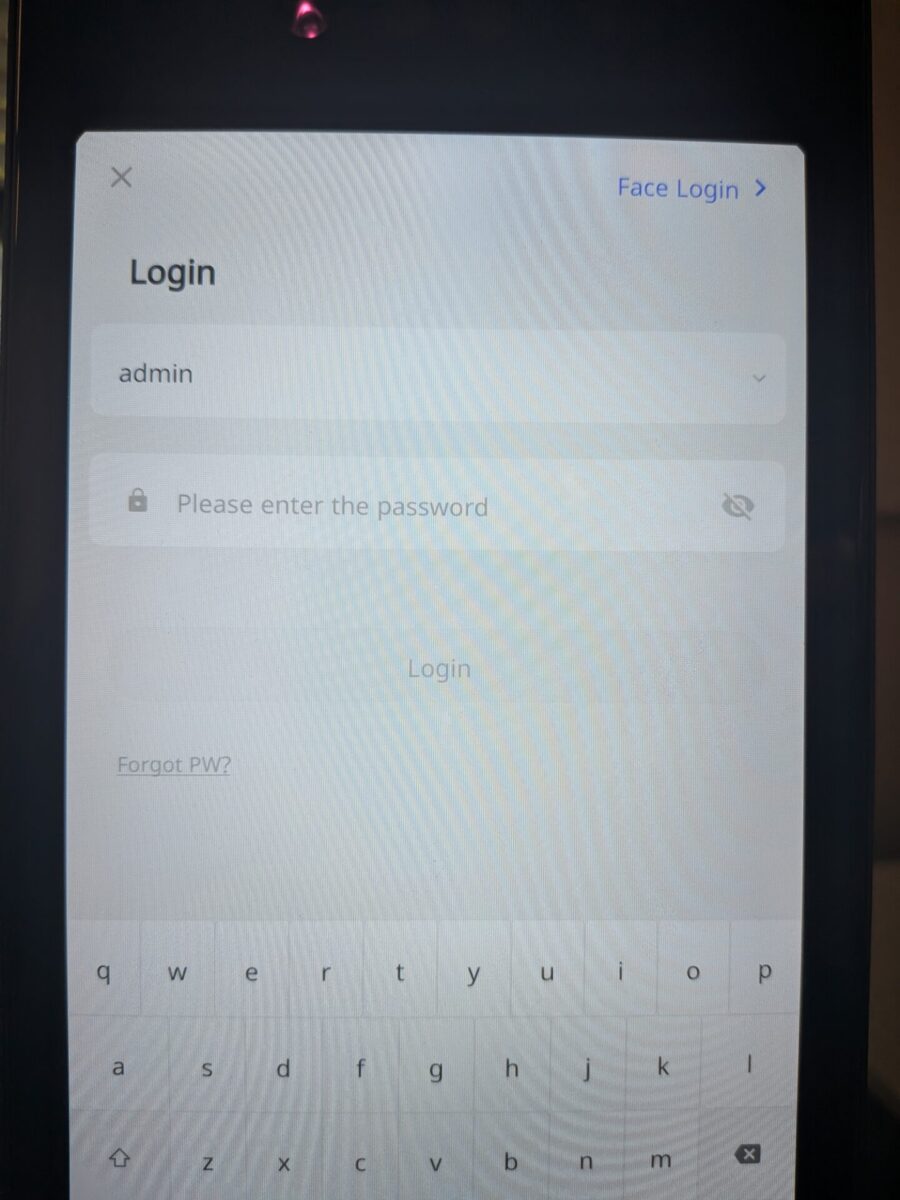
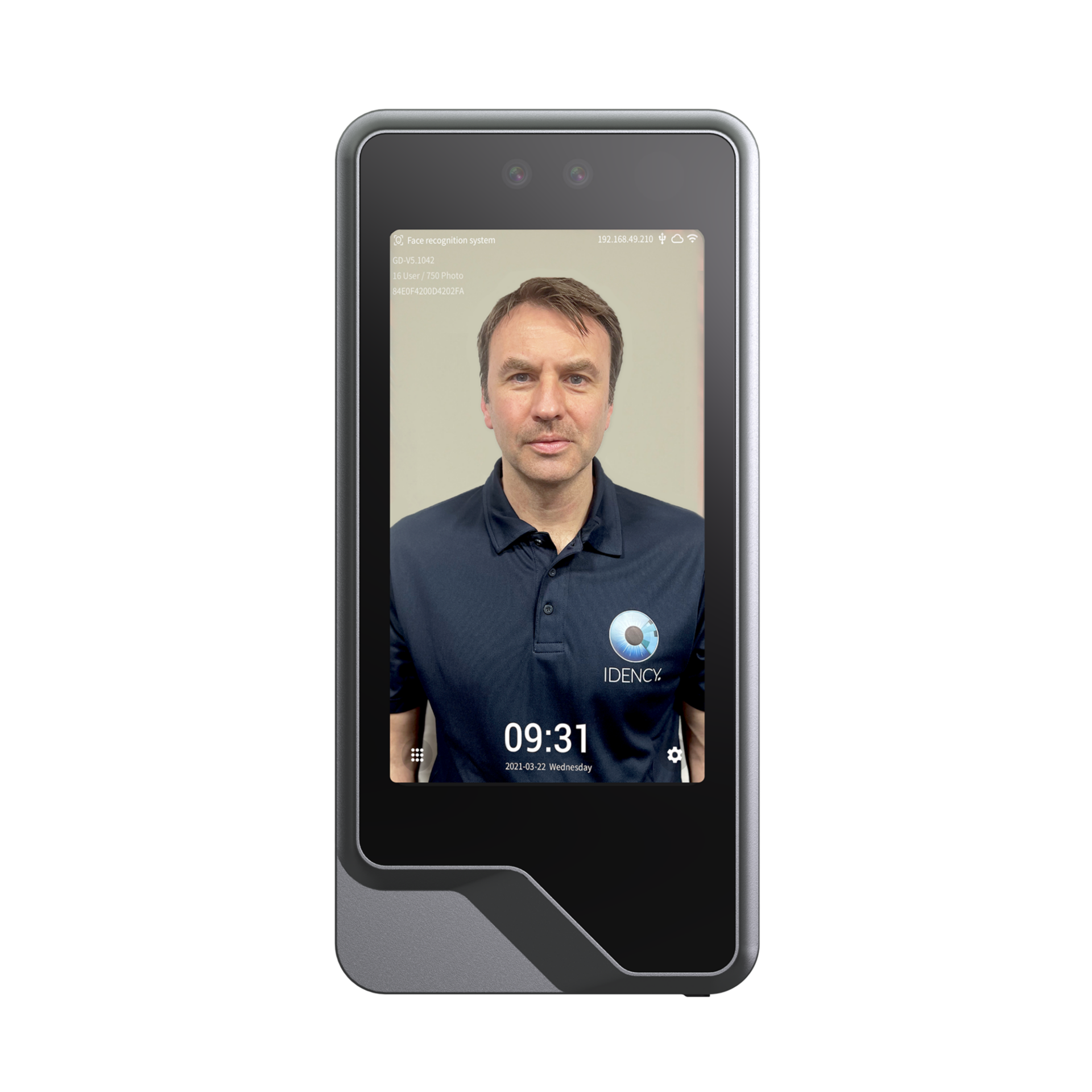
Press the cog icon in the bottom right of the screen and enter your admin password then press Login.
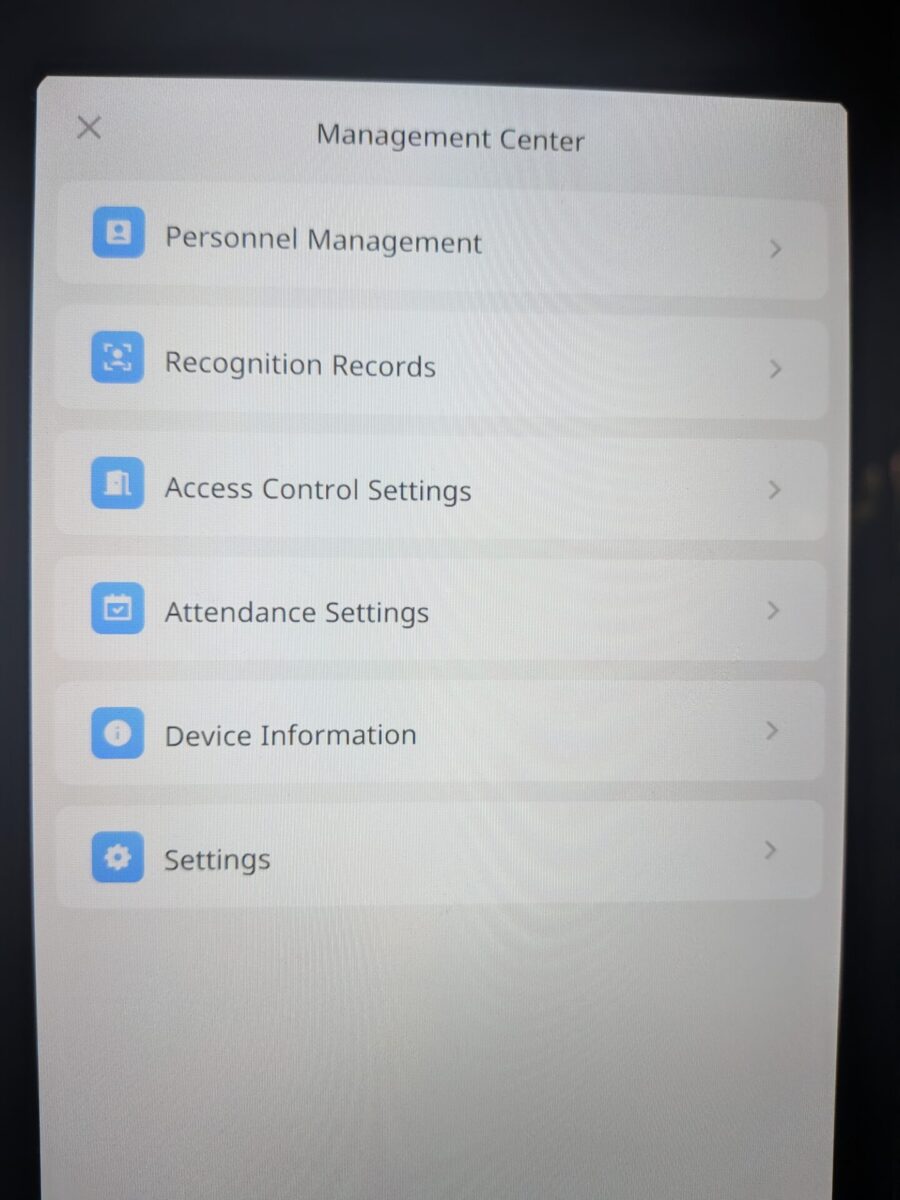
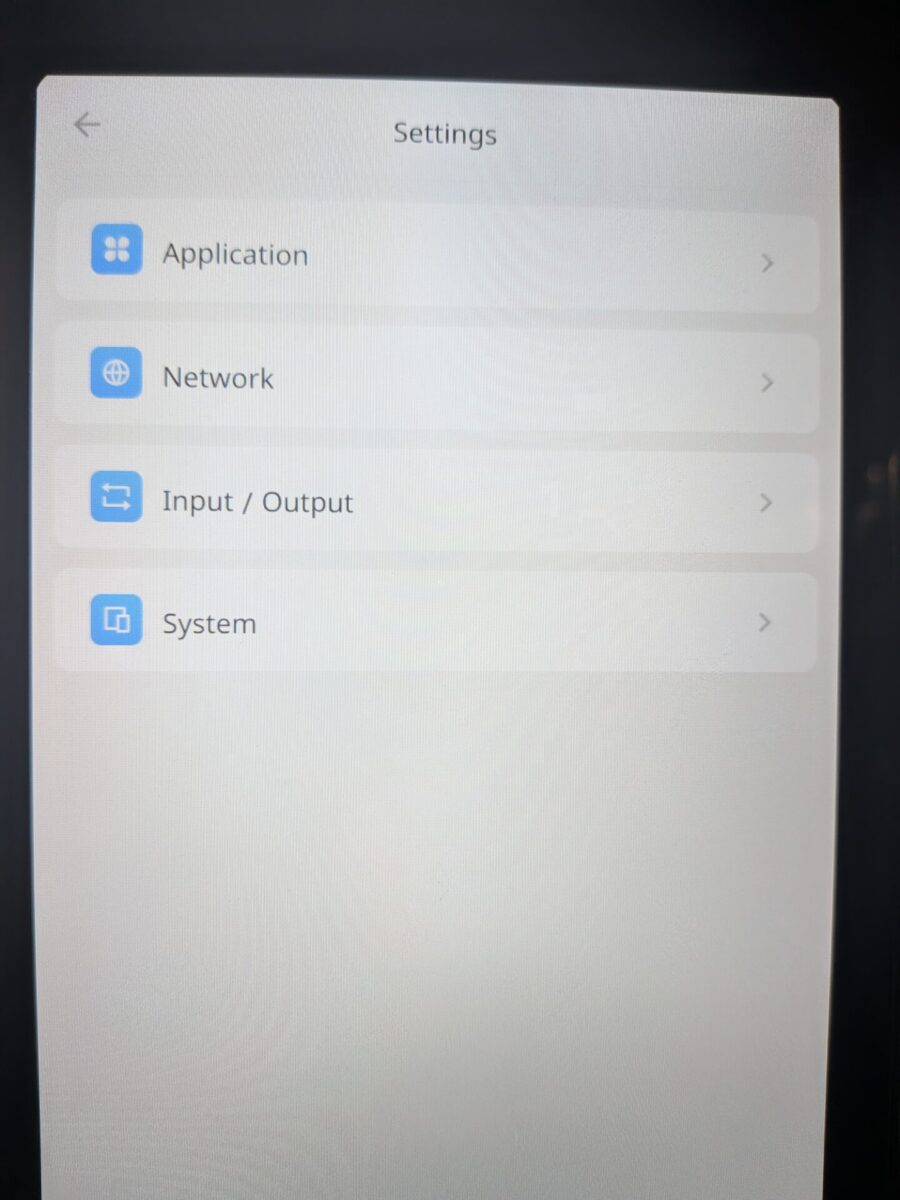
Navigate to Settings and select System.
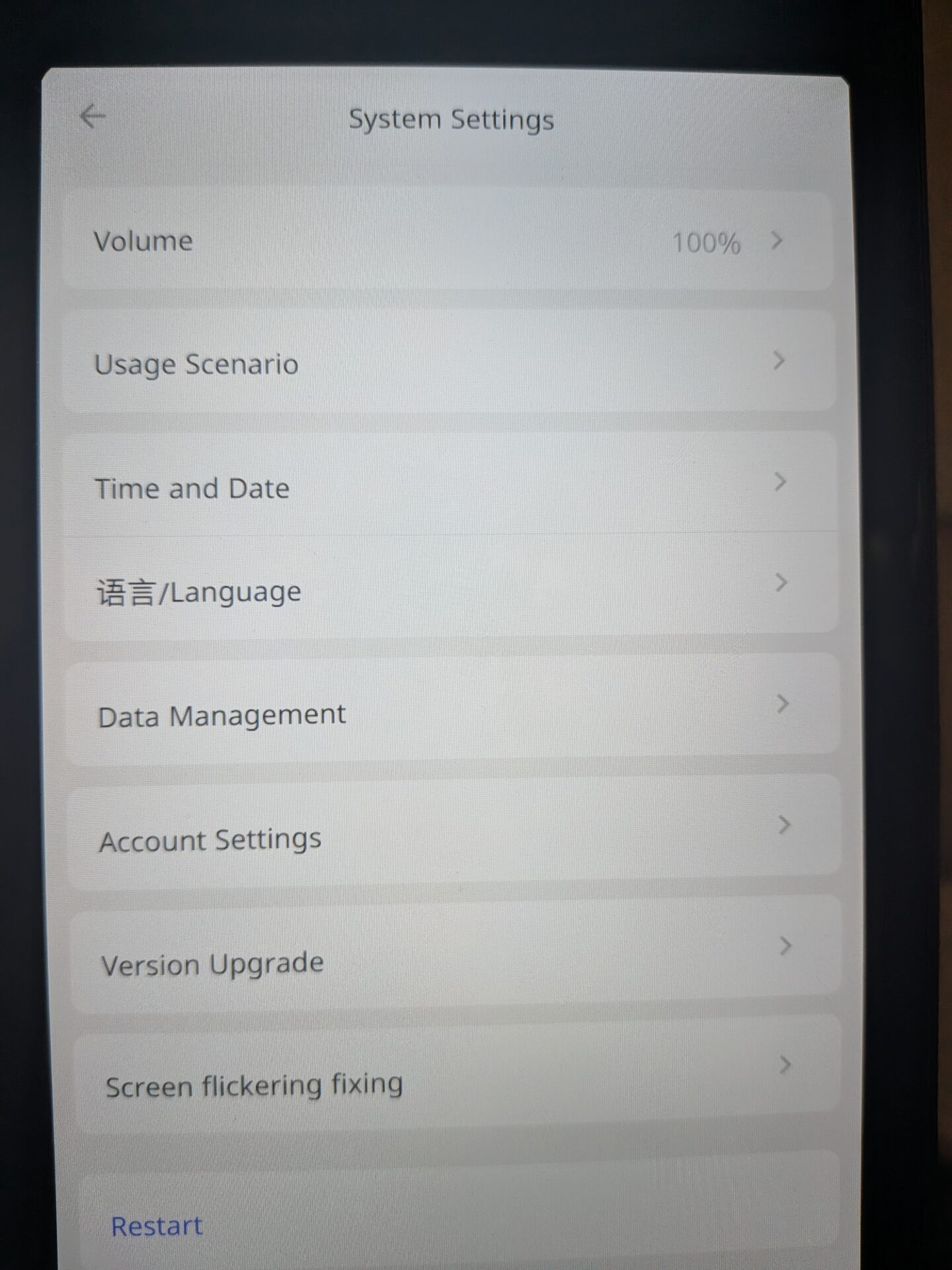
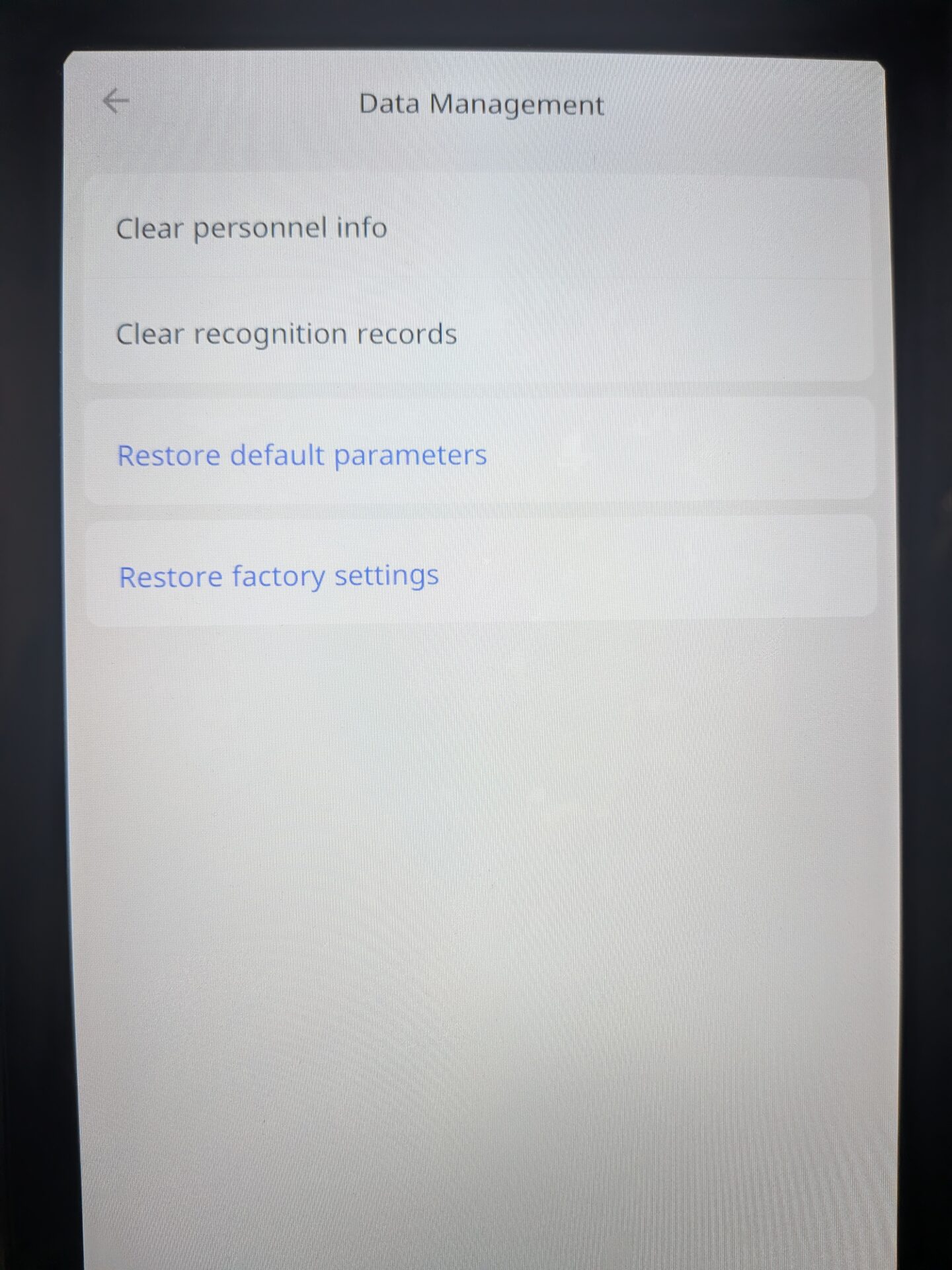
Step 3: Open Data Management
Navigate to Data Management
Step 4: Select Restore Factory Settings
Inside Data Management you will see the following options:
- Clear Personnel Info — removes all users and biometric templates from the device
- Clear Recognition Records — removes all clocking records from the device
- Restore Default Parameters — restores all terminal settings back to default
- Restore Factory Settings — fully resets the device, removing everything and returning it to the original state it was shipped in
Select Restore Factory Settings to proceed.
The reset will take a few minutes to complete. Once the device comes back online it will be restored to its original factory settings.
Section 2 | Factory Reset via the Terminal Web Portal
To factory reset via the web portal you will need the device’s internal IP address and be connected to the same network as the device. Enter the device IP followed by :8090 into a browser to access the portal. For example: http://192.168.0.46:8090.
Step 1: Login to the Web Portal
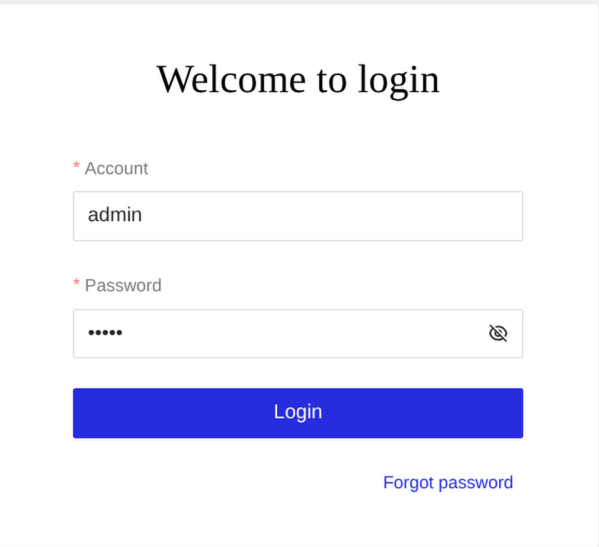
Enter the device admin password at the login screen to access the web portal
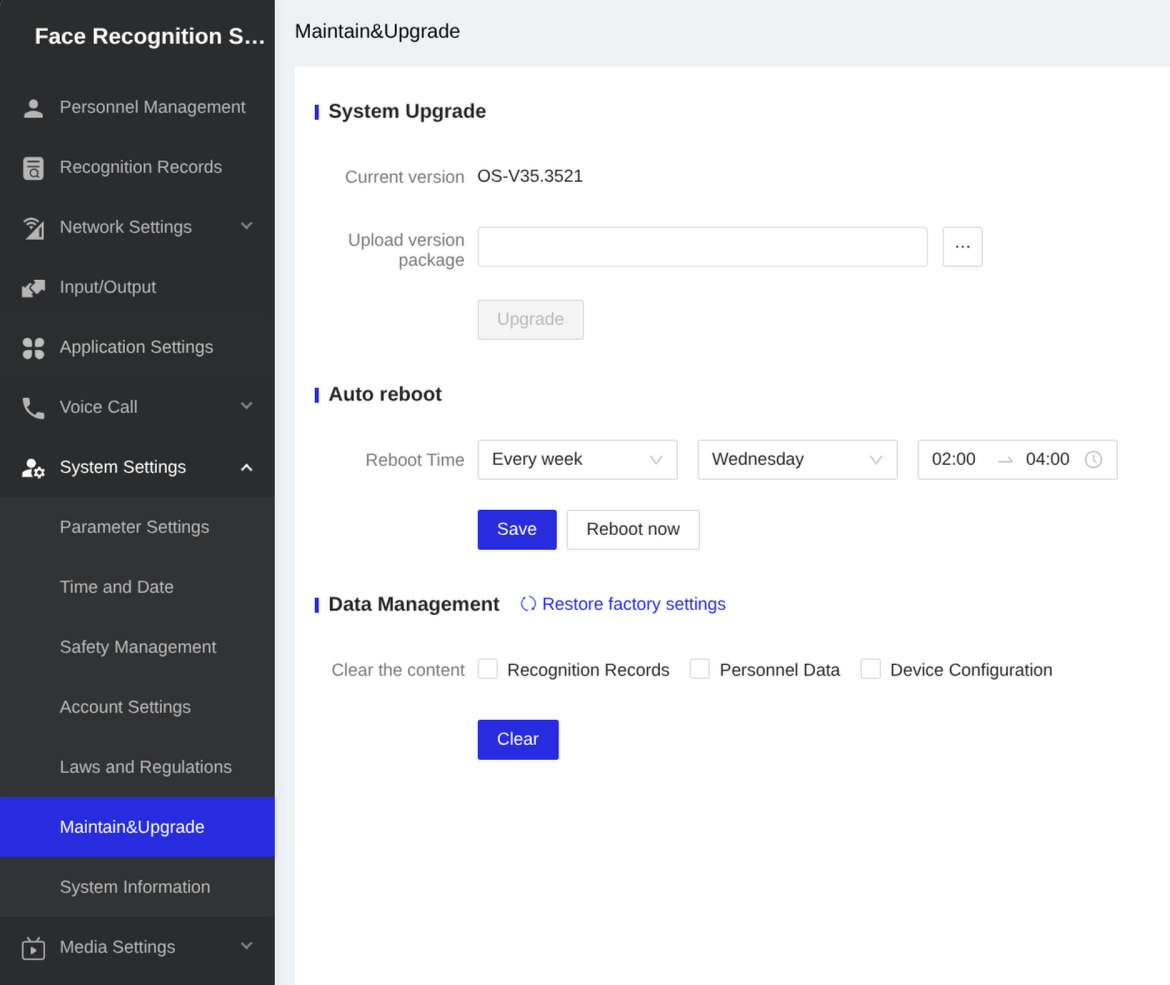
Navigate to System Settings then Maintain & Upgrade and open the Data Management section.
Inside Data Management you will see the following options:
- Clear Personnel Info — removes all users and biometric templates from the device
- Clear Recognition Records — removes all clocking records from the device
- Restore Default Parameters — restores all terminal settings back to default
- Restore Factory Settings — fully resets the device, removing everything and returning it to the original state it was shipped in
Select Restore Factory Settings to proceed. The reset will take a few minutes to complete. Once the device comes back online it will be restored to its original factory settings.
If your device was connected to any of our cloud platforms prior to the reset, please contact support@idency.com to get it reconnected once the reset is complete.

















 English (UK)
  English
  English (Canada)
  Français du Canada
  Svenska
  Português
  Nederlands
  Italiano
  Français
  Español
  Deutsch