


































Assign Leave to Multiple Employees
To assign leave to multiple employees at once, such as Bank Holidays or compulsory business closure days, you must first create the appropriate leave pattern before assigning it to employees.
Step 1: Create the Leave Pattern
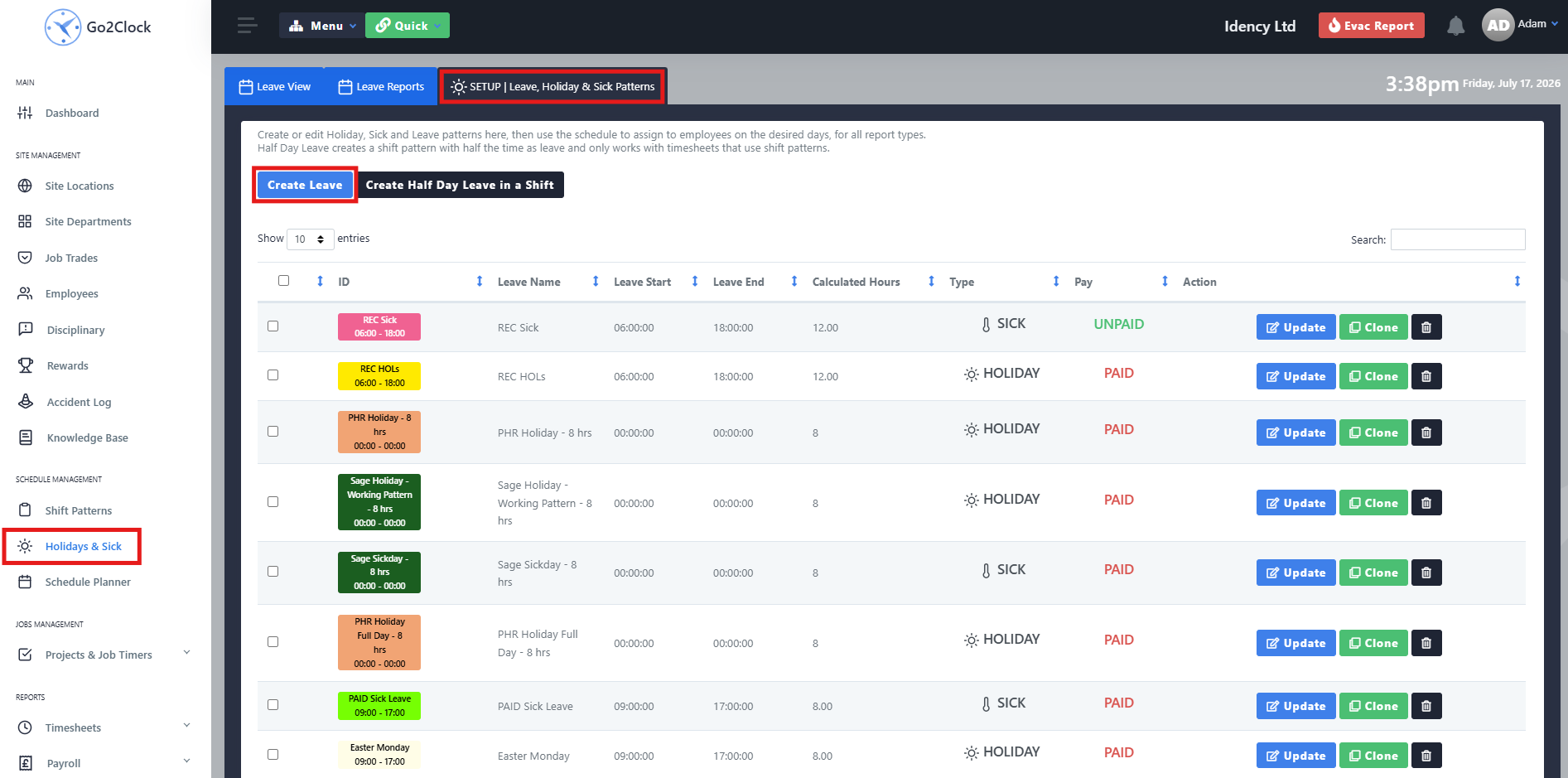
Navigate to the Holiday & Sick tab and select Setup | Leave, Holiday & Sick Patterns at the top of the screen. Press Create Leave and set up the leave pattern based on your company requirements.
Navigate to the Holiday & Sick tab and make sure you have the Leave View selected. Find any employee that is entitled to the leave type and press the plus icon on an empty day within their week pattern.
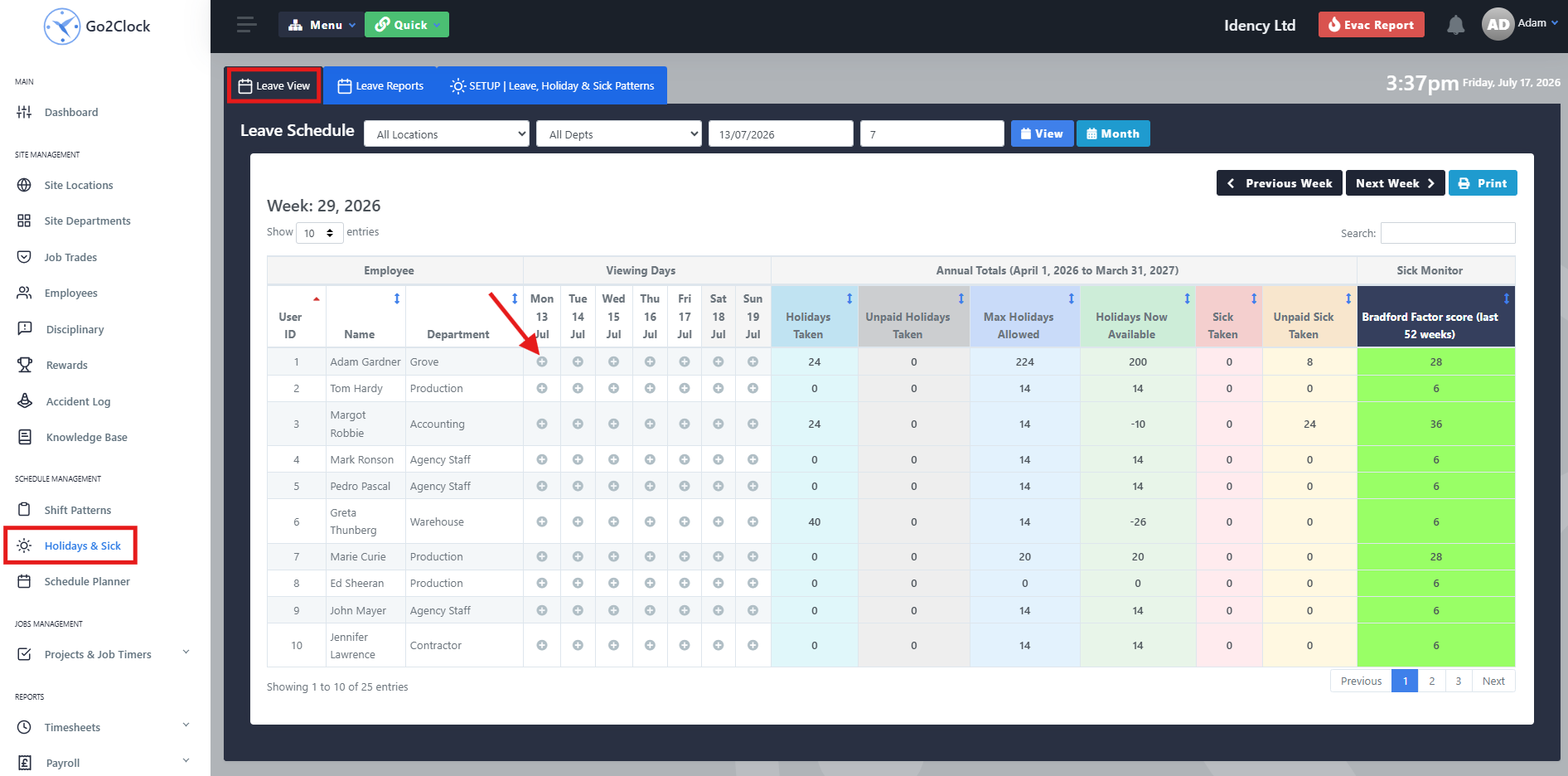
Step 3: Assign the Leave to Employees
Selecting the plus icon will open the employee’s calendar. In the top right, select the leave pattern you want to apply. Click the start date and then the end date to set the date range — this will populate the fields on the right. If the leave is for a single day, click the same day twice until both fields are filled in correctly.
In the bottom right, choose which department the leave should apply to. By default the switch will apply leave to all departments, or you can select a specific department from the dropdown. When ready, press Create Schedule to apply the leave across the selected employees.
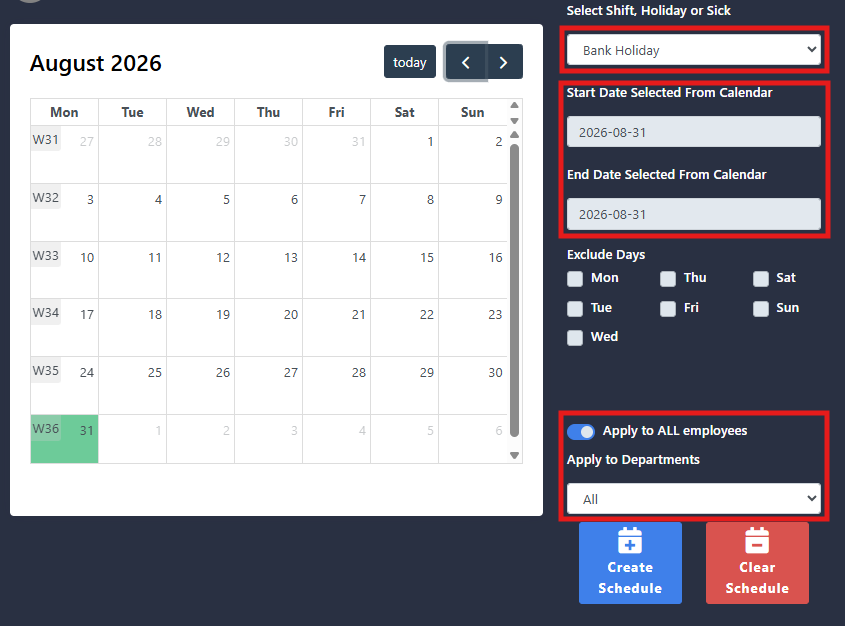
Leave will only be assigned to employees within the selected department who are entitled to the chosen leave type. Always double check the leave pattern and date range before pressing Create Schedule.

Go2Clock Cloud Hosted Time & Attendance System

















 English (UK)
  English
  English (Canada)
  Français du Canada
  Svenska
  Português
  Nederlands
  Italiano
  Français
  Español
  Deutsch