


































Go2Clock: Enabling and Setting up Geofencing
Geofencing allows Go2Clock to restrict mobile clocking to a defined area around a Site Location. The geofence area is configured separately for each Site Location, so different locations can have their own permitted areas.
Before enabling geofencing, you need to set up the location and radius for each Site Location where it should apply. For instructions, please refer to: Go2Clock: Setting up Geolocation
Step 1: Enable Geofencing
Once your Site Locations and their geofence areas have been configured, you can enable geofencing to restrict mobile clocking to those areas.
- Navigate to System Settings
- Select System Config Settings
- Navigate to the Employee Dashboard tab
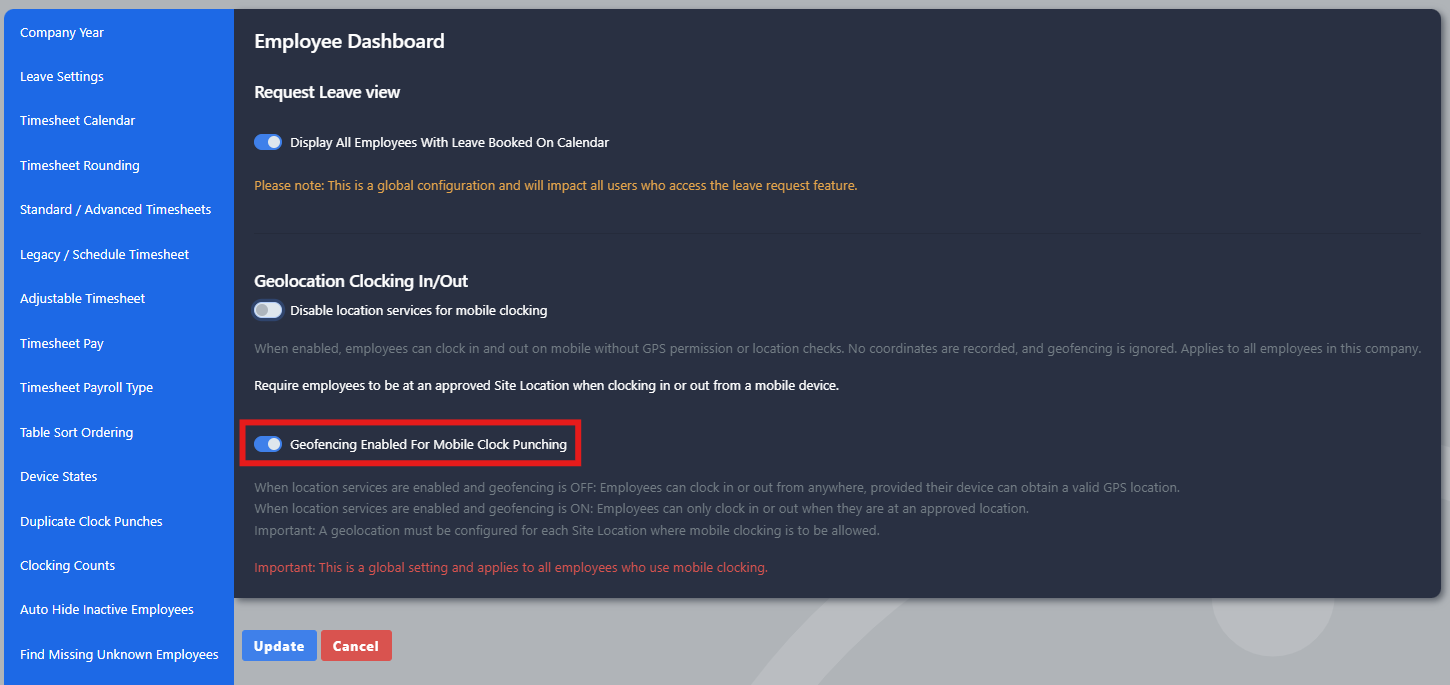
- Locate Geofencing enabled for mobile clocking punching
- Enable the switch
- Select Update to save the settings
Step 2: Check What Employees See
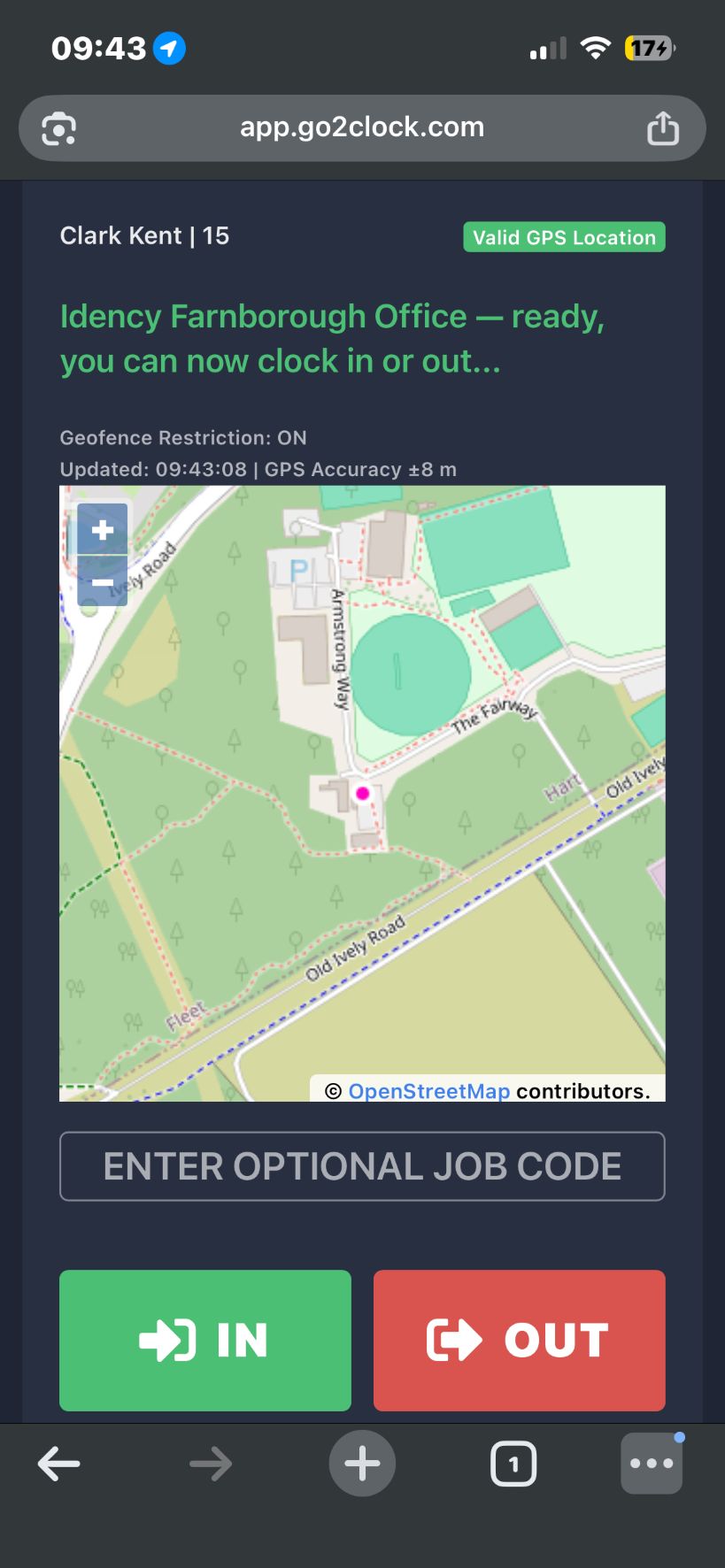
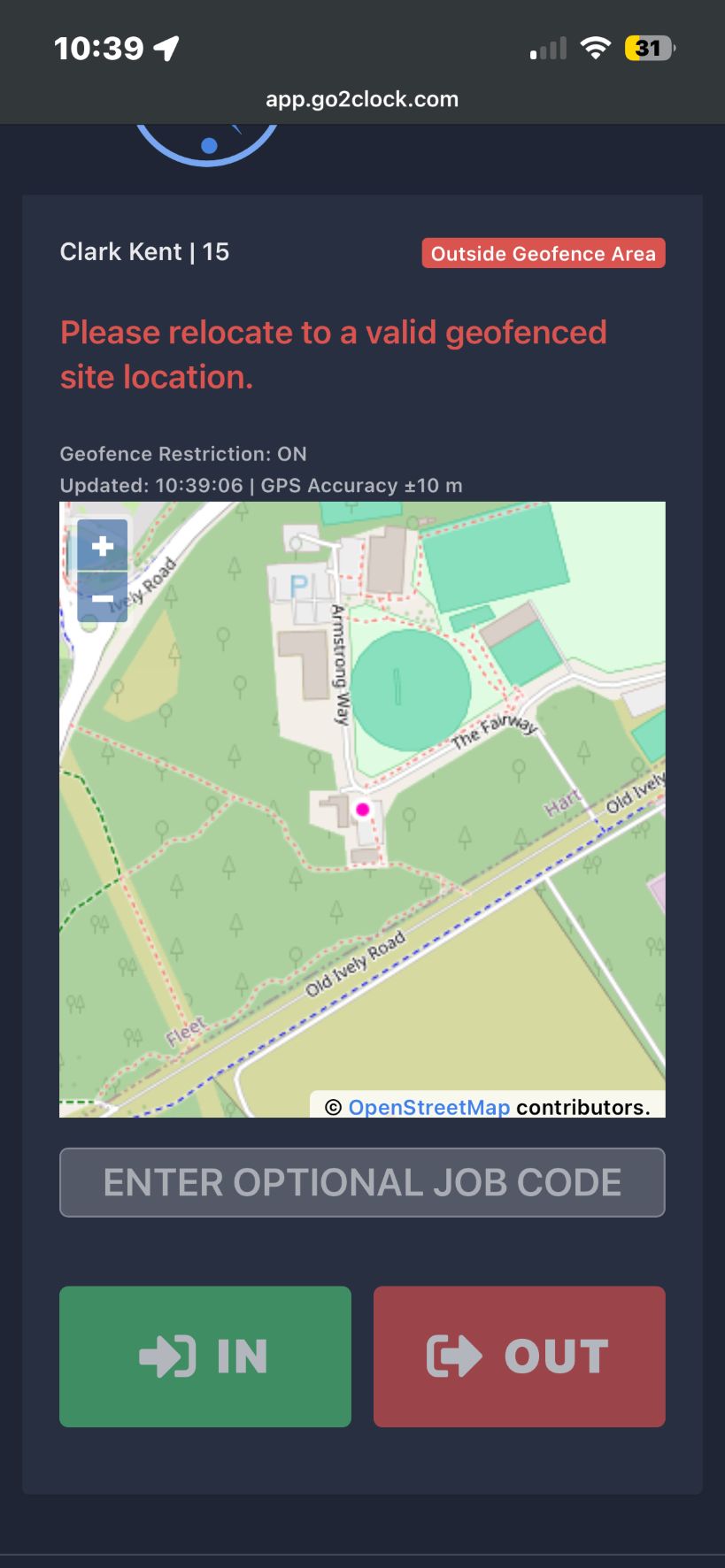
Once enabled, Go2Clock uses the geofence configured against the relevant Site Location whenever an employee clocks on mobile. Employees inside the radius can clock as normal. If an employee is outside the radius, they’re blocked from clocking and see the relevant message on their screen.
Need a hand setting up 2FA in Go2Clock?
If you have any questions about enabling 2FA or managing your IP whitelist, our support team is happy to help.

Go2Clock Cloud Hosted Time & Attendance System

















 English (UK)
  English
  English (Canada)
  Français du Canada
  Svenska
  Português
  Nederlands
  Italiano
  Français
  Español
  Deutsch