


































Das Verständnis des PeopleHR-Urlaubsimports in Go2Clock
Bevor Sie den PeopleHR-Urlaubsimport verwenden, stellen Sie sicher, dass die PeopleHR-API-Verbindung in Go2Clock eingerichtet ist und die Mitarbeiter mit ihrer PeopleHR-ID verknüpft sind. Wenn die API-Verbindung noch nicht konfiguriert wurde, lesen Sie bitte diesen Wissensdatenbankartikel: Wie man PeopleHR mit Go2Clock verbindet
Abschnitt 1 | Mitarbeiter-Link zu PeopleHR
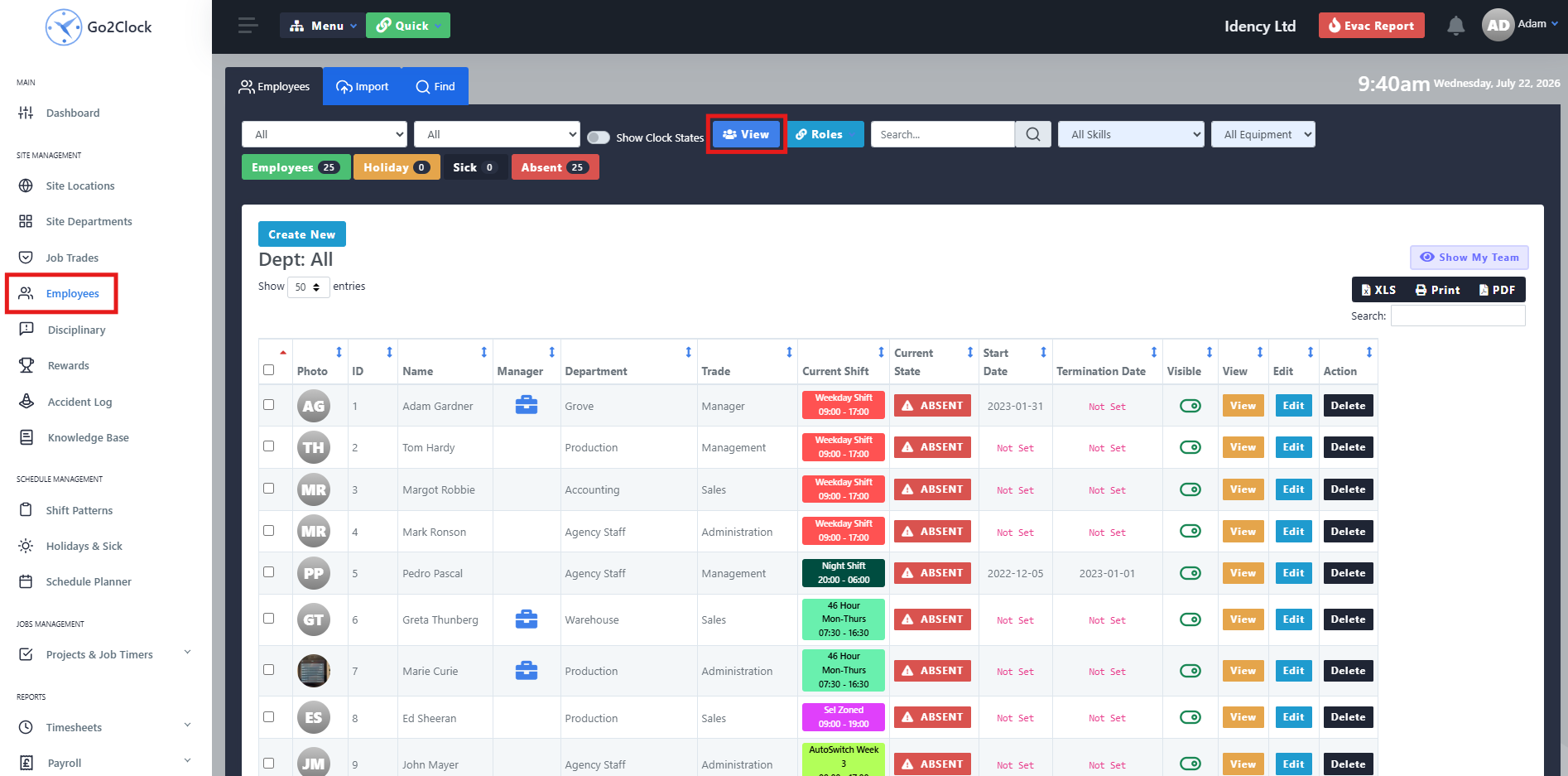
Navigieren Sie zum Mitarbeiter-Dashboard und wählen Sie Anzeigen. Suchen Sie den Mitarbeiter, den Sie überprüfen möchten, und wählen Sie Bearbeiten.
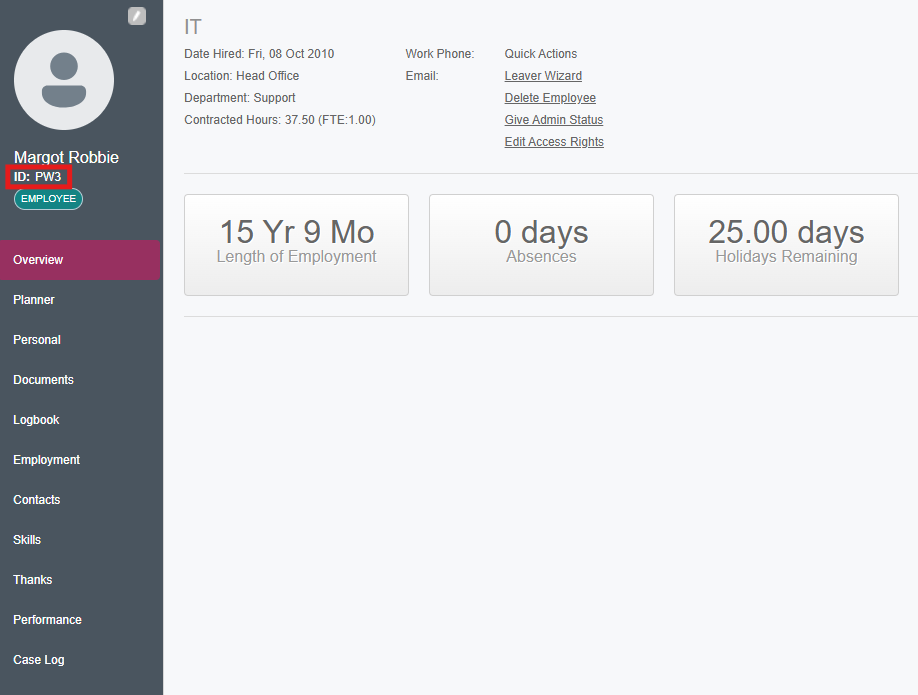
Schritt 2: Überprüfen Sie die PeopleHR-Mitarbeiter-ID
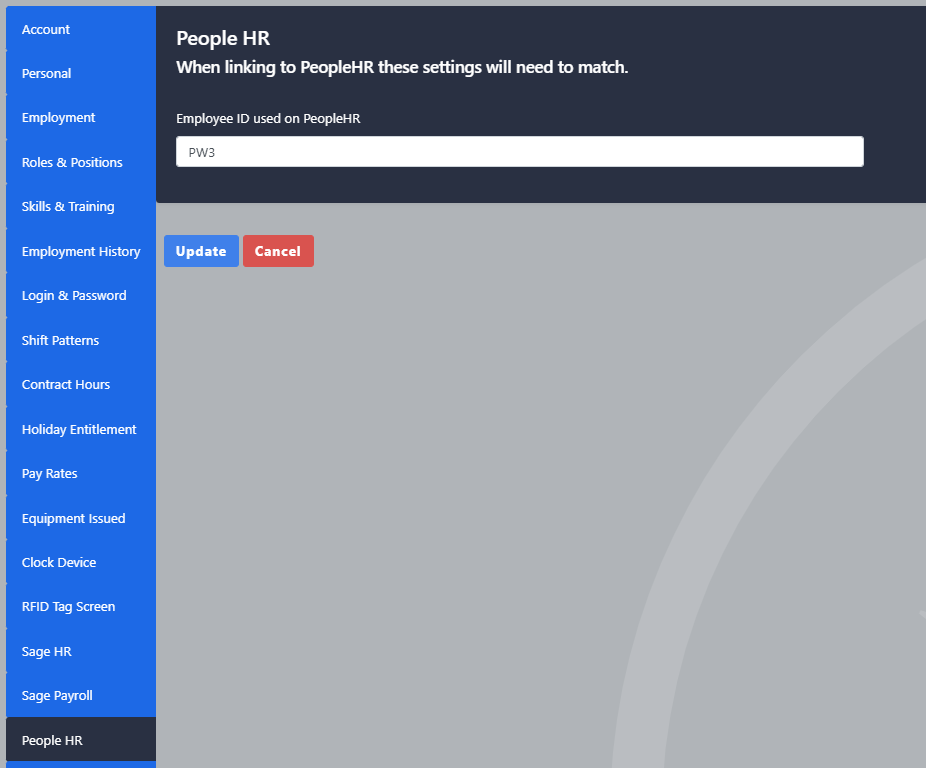
Navigieren Sie in den Mitarbeiteroptionen zum Reiter PeopleHR. Stellen Sie sicher, dass das Feld „PeopleHR Employee ID“ die korrekte ID aus PeopleHR enthält. Wenn das Feld leer ist, geben Sie die korrekte Mitarbeiter-ID ein und aktualisieren Sie den Mitarbeiter.
Abschnitt 2 | Abwesenheiten in Go2Clock importieren
Schritt 1: Abwesenheiten von PeopleHR importieren
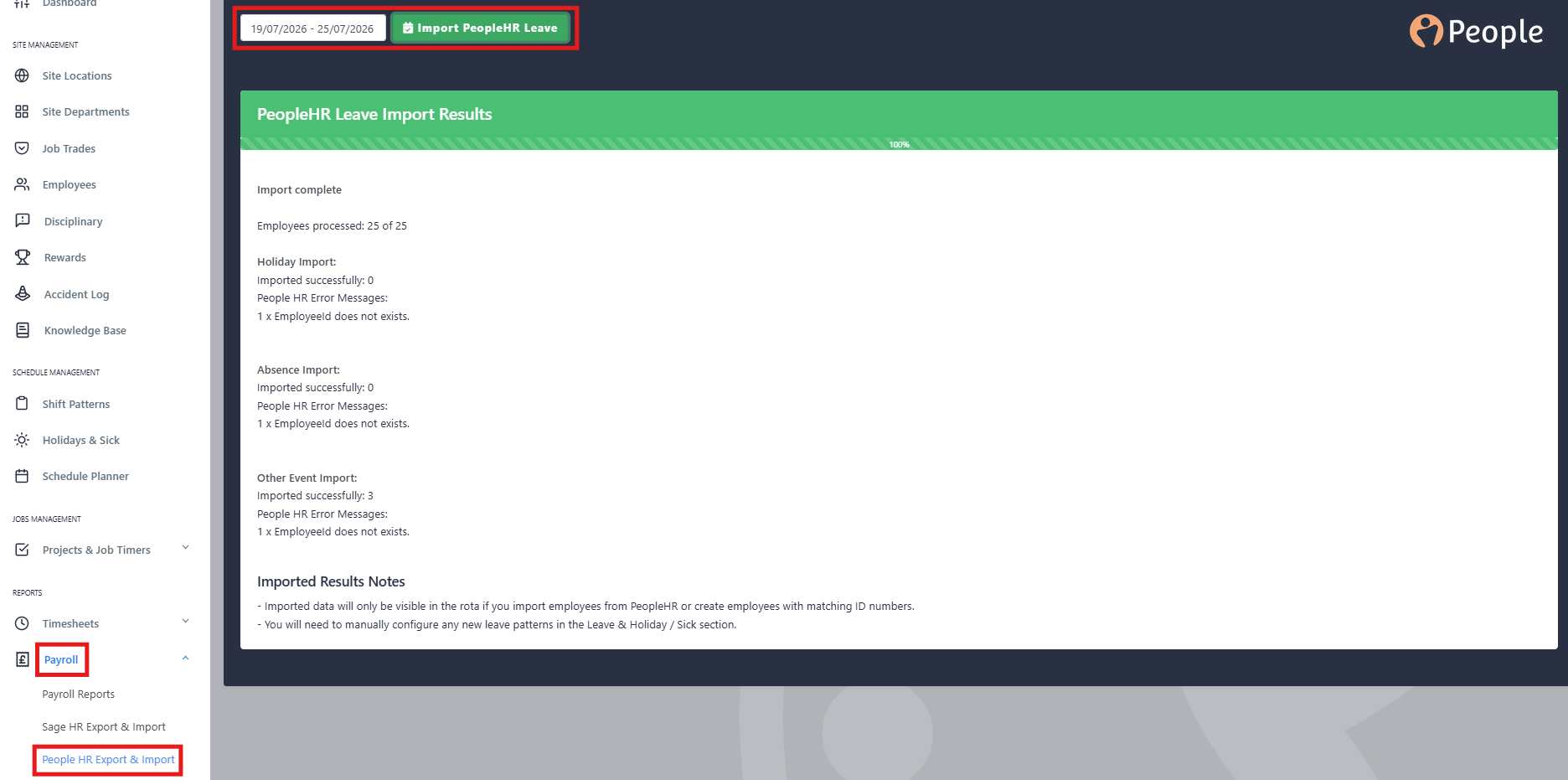
Navigieren Sie zu Lohn und Gehalt und wählen Sie PeopleHR Import & Export aus. Wählen Sie oben auf der Seite PeopleHR-Abwesenheiten importieren aus. Wählen Sie den Datumsbereich aus, für den Sie Abwesenheiten abrufen möchten. Bitte beachten Sie, dass Abwesenheiten nur für jeweils einen Monat importiert werden können. Klicken Sie nach der Auswahl auf PeopleHR-Abwesenheiten importieren. Ein Fortschrittsbalken zeigt den Importstatus an.
Nach Abschluss sehen Sie die Anzahl der erfolgreich importierten Abwesenheitsdatensätze und eine Liste der übersprungenen Feiertage, die noch nicht genehmigt wurden. Alle neuen Abwesenheitsarten, die noch nicht in Go2Clock importiert wurden, müssen korrigiert werden.
Schritt 2: Überprüfen Sie die Importergebnisse
Nach Abschluss sehen Sie die Anzahl der erfolgreich importierten Abwesenheitsdatensätze und eine Liste der übersprungenen Feiertage, die noch nicht genehmigt wurden. Alle neuen Abwesenheitsarten, die noch nicht in Go2Clock importiert wurden, müssen korrigiert werden.
Abschnitt 3 | Ganztägigen Urlaub einrichten
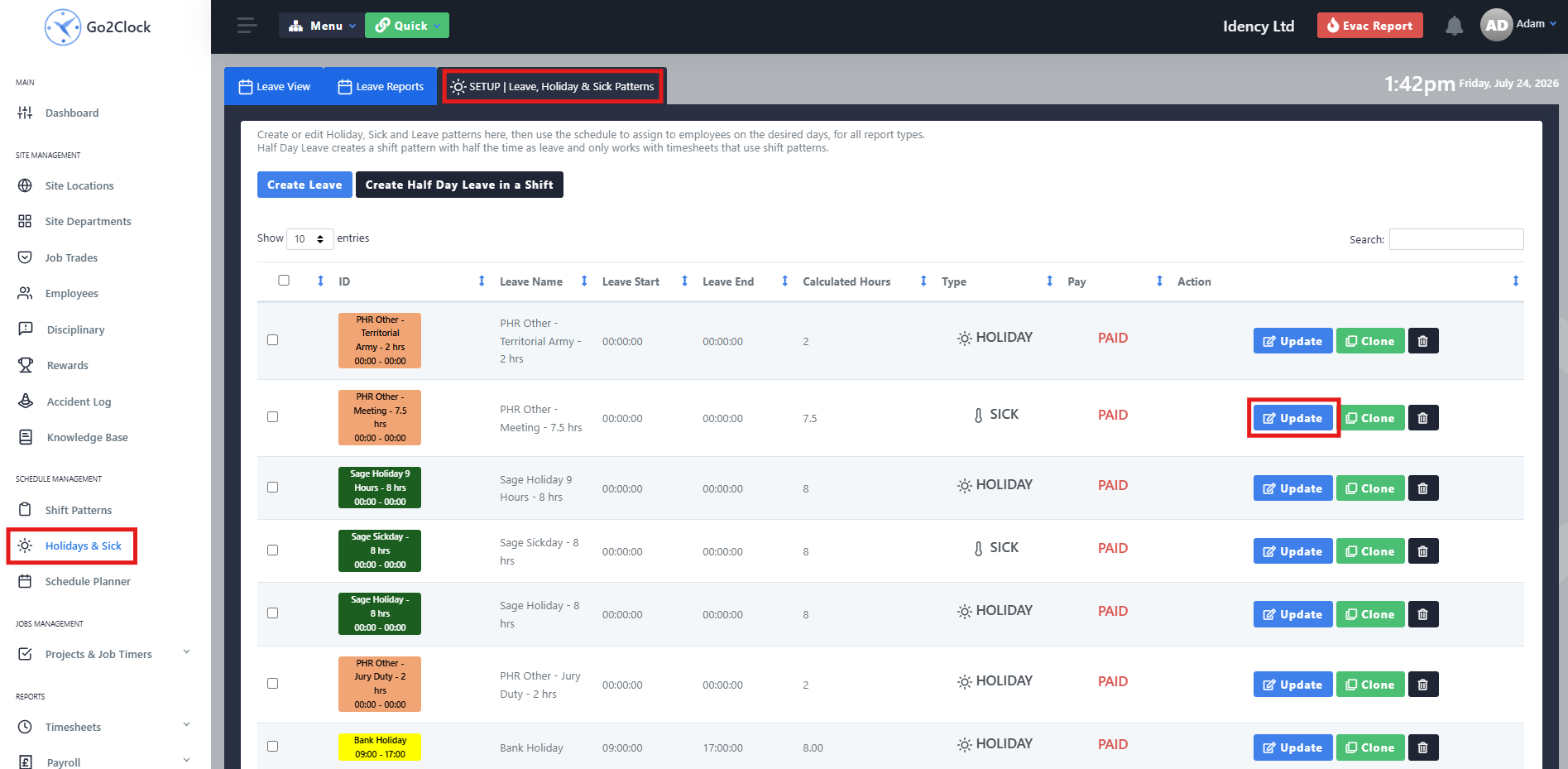
Navigieren Sie zum Reiter „Urlaub & Krankheit“ (Holiday & Sick) und wählen Sie Setup | Abwesenheits-, Urlaubs- und Krankheitsschemata (Leave, Holiday & Sick Patterns). Suchen Sie das erstellte Abwesenheitsschema und wählen Sie „Aktualisieren“ (Update). Hinweis: Andere Ereignisse aus PeopleHR werden ebenfalls als Abwesenheitsschema übernommen.
Schritt 2: Konfigurieren Sie das Muster für ganztägigen Urlaub
Ändern Sie nicht den Namen des Musters, da dies zu unbeabsichtigten Problemen führen kann. Wählen Sie die Registerkarte „Schichtzeiten“ und überprüfen Sie die Schichtzeiten. Wählen Sie die Registerkarte „Abwesenheitsart“ und bestätigen Sie, ob die Abwesenheit bezahlt oder unbezahlt sein soll, und stellen Sie sicher, dass die richtige Abwesenheitsart (Urlaub oder Krankheit) ausgewählt wurde.

Schritt 3: Festlegen des Gehaltssatzes für den ganzen Tag
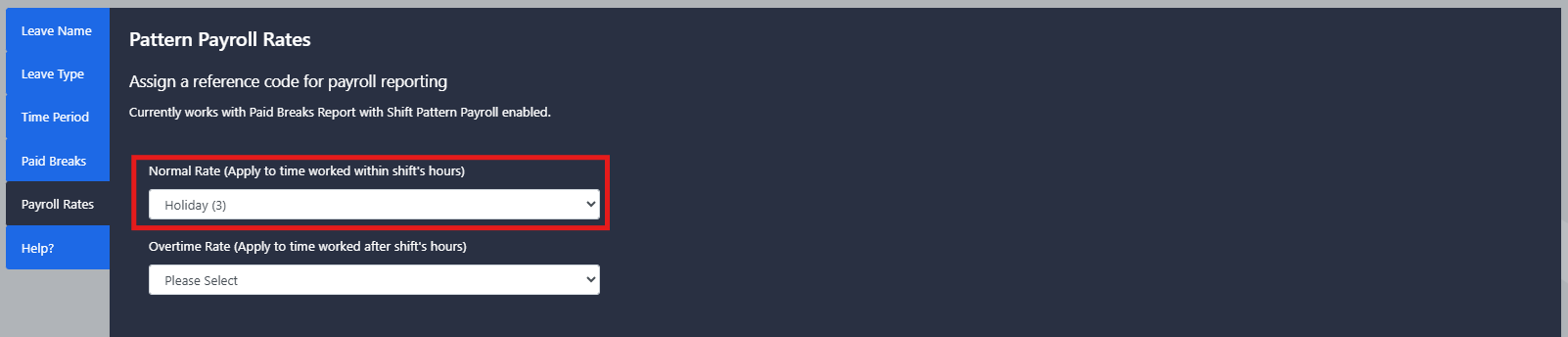
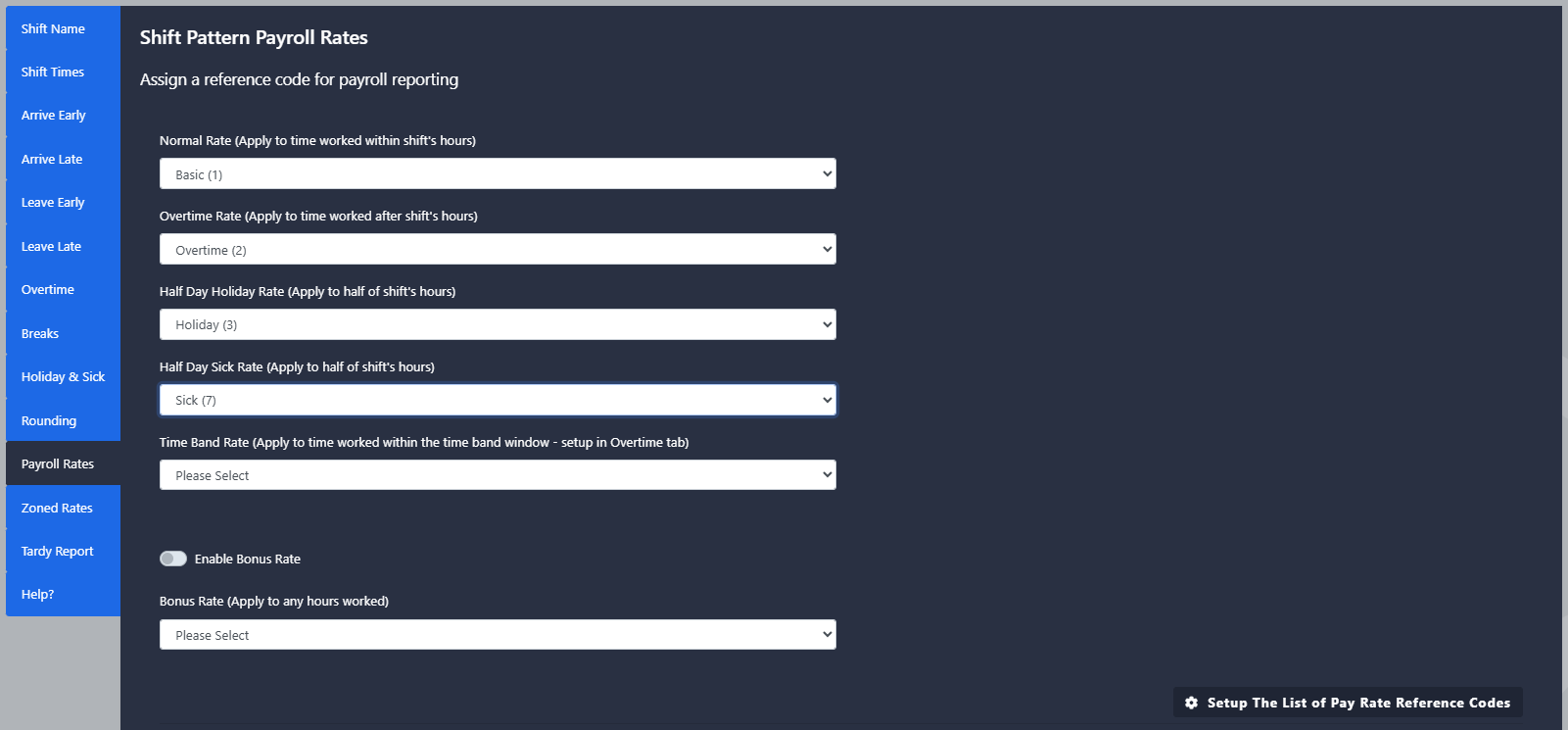
Wenn Sie Sage Lohn und Gehalt verwenden, wählen Sie die Registerkarte Lohnart. Wählen Sie unter dem Normalsatz den entsprechenden anzuwendenden Lohnartcode aus.
Abschnitt 4 | Einrichten von halbtägigem Urlaub
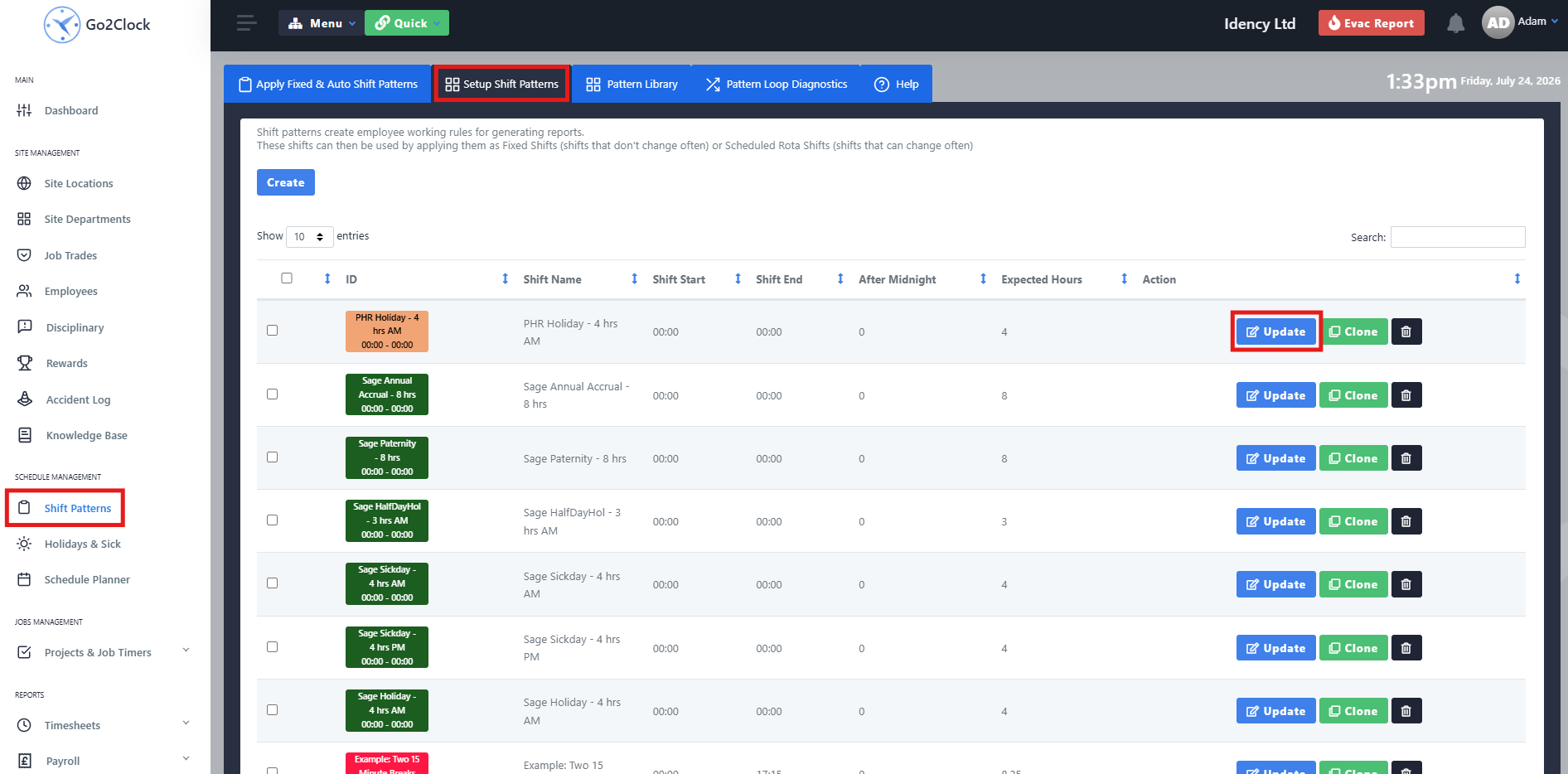
Navigieren Sie zu Schichtmuster und wählen Sie Schichtmuster einrichten. Suchen Sie das erstellte Urlaubs- oder Krankheitsschichtmuster und wählen Sie Aktualisieren. Ändern Sie nicht den Namen des Musters, da dies zu unbeabsichtigten Problemen führen kann.
Schritt 2: Konfigurieren Sie die Regeln für halbe Urlaubstage und Krankheitstage
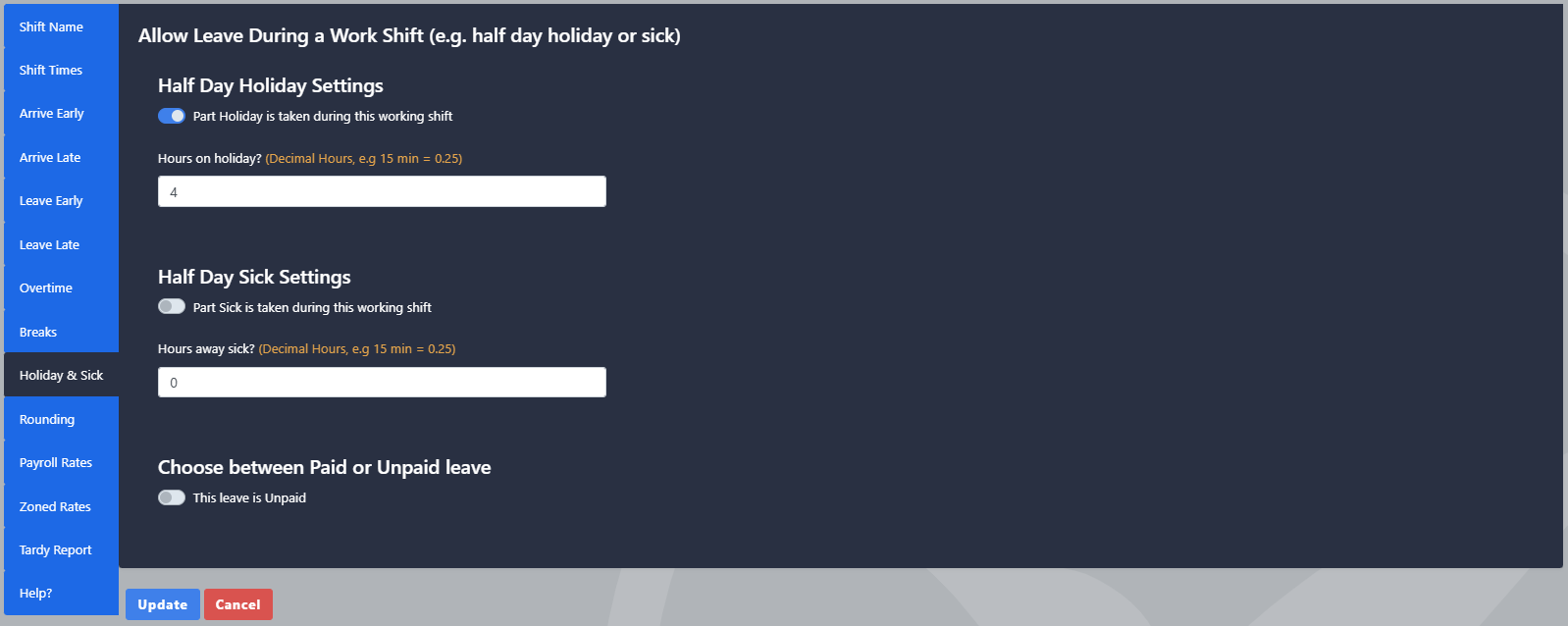
Öffnen Sie die Registerkarte „Urlaubs- und Krankheitsregeln“ innerhalb des Schichtmodells. Geben Sie die entsprechenden Abwesenheitsstunden ein und aktivieren Sie, ob es sich um Krankheit oder Urlaub handelt. Geben Sie an, ob der Urlaub bezahlt oder unbezahlt ist.
Schritt 3: Legen Sie die Lohnsätze für den halben Tag fest
Wenn Sie Sage Payroll verwenden, navigieren Sie zur Registerkarte für die Abrechnungssatzregeln (Payroll Rates rules). Wählen Sie den Satz für den halben Urlaubstag oder den Krankheitssatz aus und wenden Sie den korrekten Lohnsatzcode (Pay Rate Code) an.
Fehlerbehebung
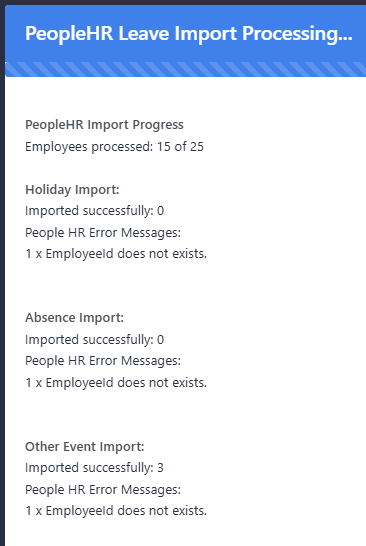
Fehlermeldung: Die Mitarbeiter-ID existiert nicht
Dieser Fehler tritt auf, wenn ein Mitarbeiter in PeopleHR mit niemandem in Go2Clock verknüpft ist. Um dieses Problem zu beheben, fügen Sie die PeopleHR-ID dem bestehenden Mitarbeiter in Go2Clock hinzu oder importieren Sie den Mitarbeiter direkt aus PeopleHR.
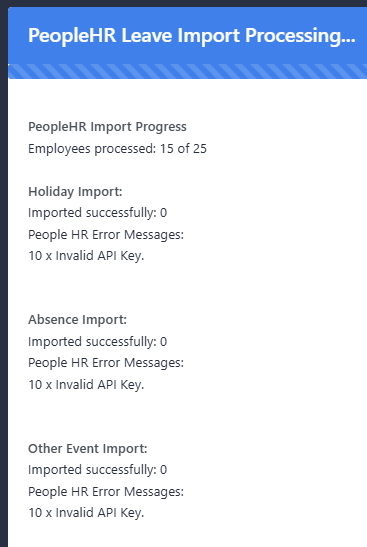
Fehlermeldung: Ungültiger API-Schlüssel
Dieser Fehler tritt auf, wenn ein Problem mit dem PeopleHR-API-Schlüssel vorliegt. Entweder wurde der API-Schlüssel nicht mit den richtigen Berechtigungen eingerichtet, oder der PeopleHR-API-Schlüssel und der Server sind in Go2Clock falsch konfiguriert.

Go2Clock Cloud-basiertes Zeiterfassungssystem

















 English (UK)
  English
  English (Canada)
  Français du Canada
  Svenska
  Português
  Nederlands
  Italiano
  Français
  Español
  Deutsch