



































How to create a API key in PeopleHR (for ClockReports Sync)
Generating an API Key in PeopleHR
Firstly, make sure that you are signed into your PeopleHR account as an administrator.
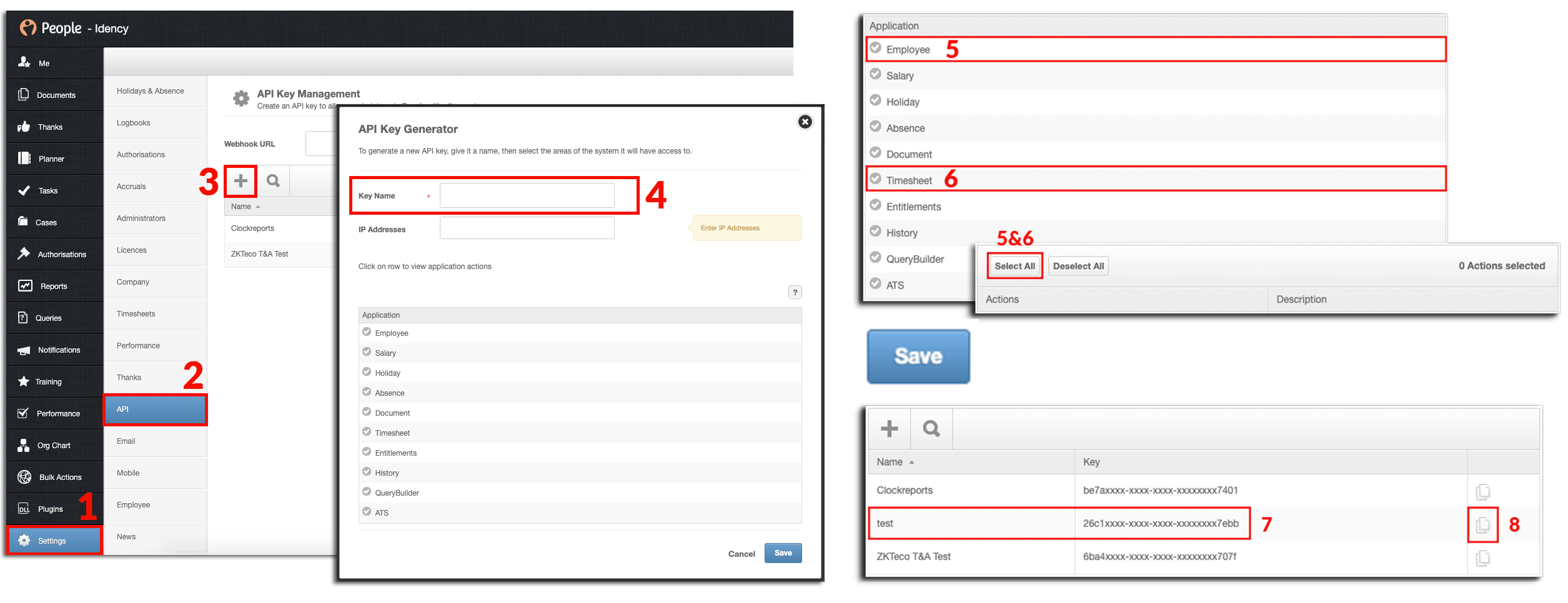
- On the dashboard, go to the ‘Settings’ tab at the bottom of the page (image step 1)
- Once in the settings, click on the grey ‘API’ tab (image step 2)
- The API Key Management page will pop up, click the ‘+’ button near the top (image step 3)
- Enter your API Key Name – this can be anything such as T&A Sync (image step 4)
- Under the Application title, click the ‘Employee’ button, select all and save (image step 5)
- Now click the ‘Timesheet‘ button and select all and save (image step 6)
- Once both have been selected and saved, save the API key
- The newly generated API key will then appear in the API Key list (image step 7)
- Copy the API key by clicking the paper icon to the right of the API Key (image step 8)
- The API key is now saved to your computers clipboard
Adding the generated API key to ClockReports
Firstly, make sure you run the ClockReports software as administrator by right clicking the software (when closed) and selecting ‘run as administrator’.
- Once ClockReports is open and running as administrator, navigate to the top menu bar
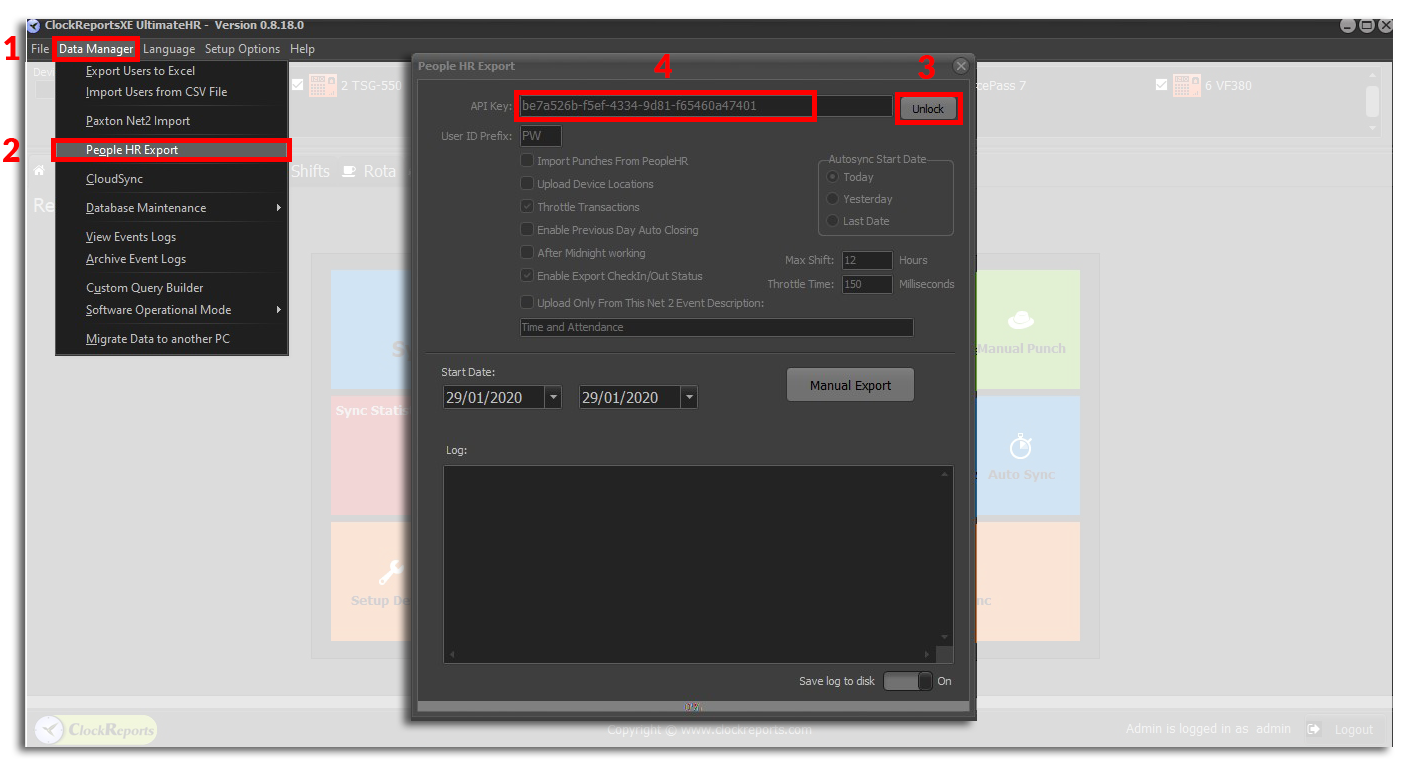
- Click the ‘Data Manager’ tab (image step 1)
- Click the ‘People HR Export’ button (image step 2)
- This will automatically open up the ‘People HR Export’ window
- Click the ‘Unlock’ button next to the API key field (image step 3)
- You will now be able edit the API key field
- In the API key field, paste the API key that you generated from PeopleHR in the earlier steps
- Close the window and the API key will automatically save
- You have now successfully generated a PeopleHR API key and added it to ClockReports
 For more information and general guidance on our products & services, please contact us.
Require further support?
Search all Knowledgebase articles
Send a Support Request to The Idency Support Team

















 English (UK)
  English
  English (Canada)
  Français du Canada
  Svenska
  Português
  Nederlands
  Italiano
  Français
  Español
  Deutsch