


































How to Connect Sage HR to Go2Clock
Within Go2Clock, you can establish a connection to Sage HR using their API Key. Once set up, the connection allows for the import of staff and their leave, as well as the export of clock records into Sage HR employee timesheets.
Step 1: Enable the Sage HR API Key
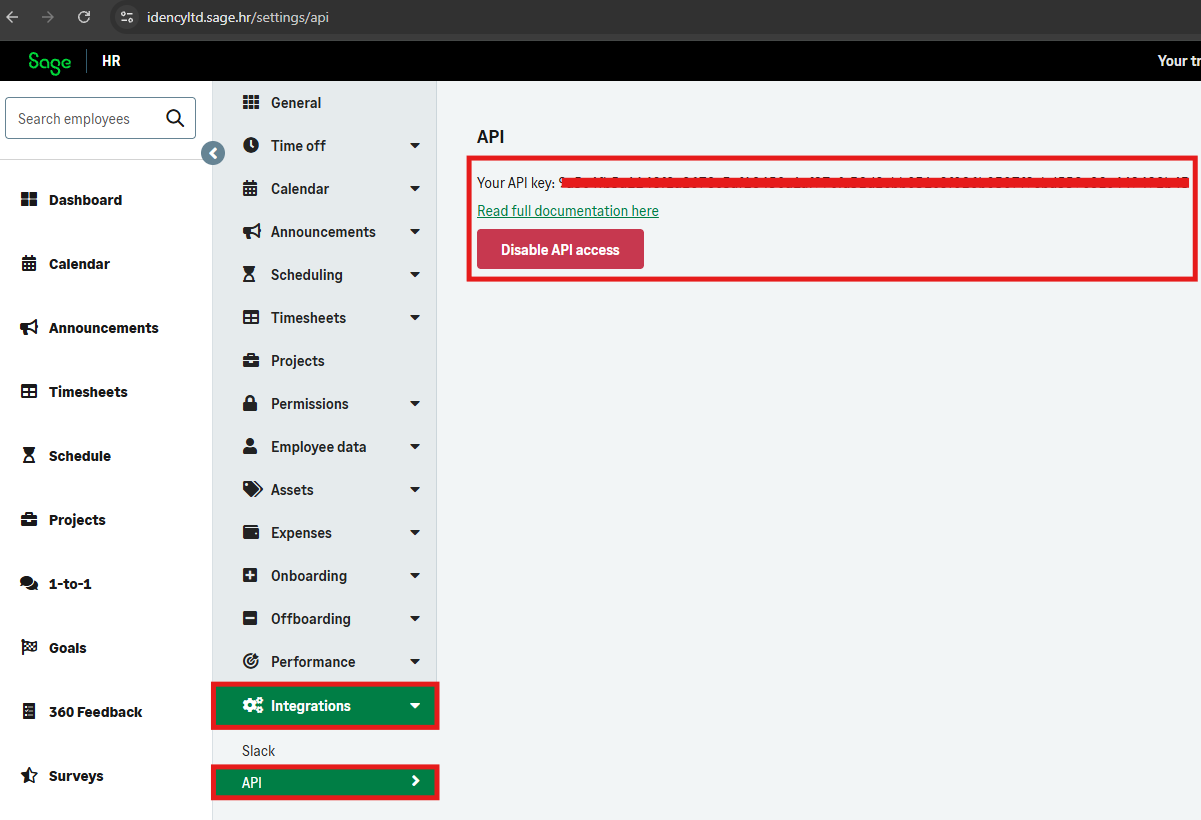
Within Sage HR navigate to Settings and select Integrations. In the dropdown select API. Enable the API Key and copy it ready for the next step.
Step 2: Enter the API Key in Go2Clock
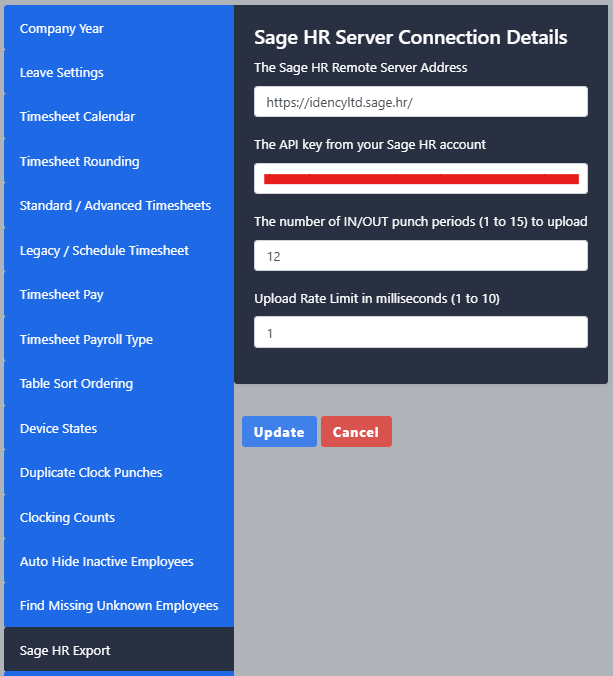
Open Go2Clock in a second window and login as the Super admin account. Navigate to System Settings > System Config Settings and select the Sage HR tab. Paste the Sage HR API Key into the API Key field.
Step 3: Enter the Sage HR Company URL
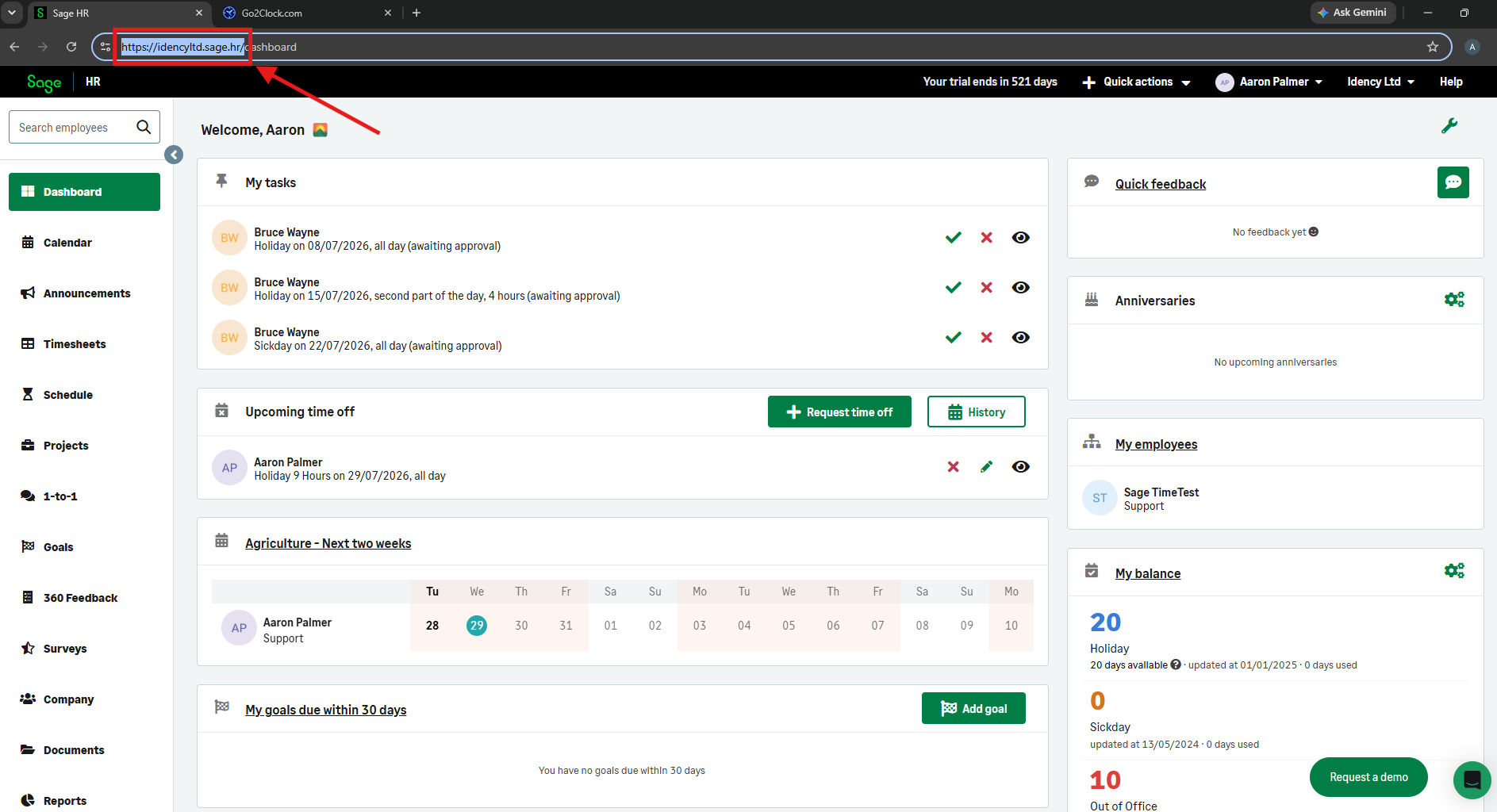
Within Sage HR, copy your company URL including https:// at the start up until the first forward slash — for example: https://examplecompany.sage.hr/ — and paste this into the Sage HR Remote Server Address field.
Set the number of IN/OUT punch periods to match how many clock pairs your employees make per day. If employees clock in and out for breaks, increase this value accordingly. The maximum is 15 and Sage HR will not accept incomplete clock pairs.
Set the Upload Rate Delay in milliseconds to control export speed — 1 is the fastest and 10 is the slowest. Once all fields are completed, select Update to save.
Once connected, if you need to import staff or leave from Sage HR refer to the knowledge base article: Understanding the Sage HR Leave Import.

Go2Clock Cloud Hosted Time & Attendance System

















 English (UK)
  English
  English (Canada)
  Français du Canada
  Svenska
  Português
  Nederlands
  Italiano
  Français
  Español
  Deutsch