


































Go2Clock: How to Create and Apply Shift Patterns
Shift patterns allow employees to stay on the same weekly pattern without requiring the shifts to be repeatedly applied.
Step 1: Create the Shift Pattern
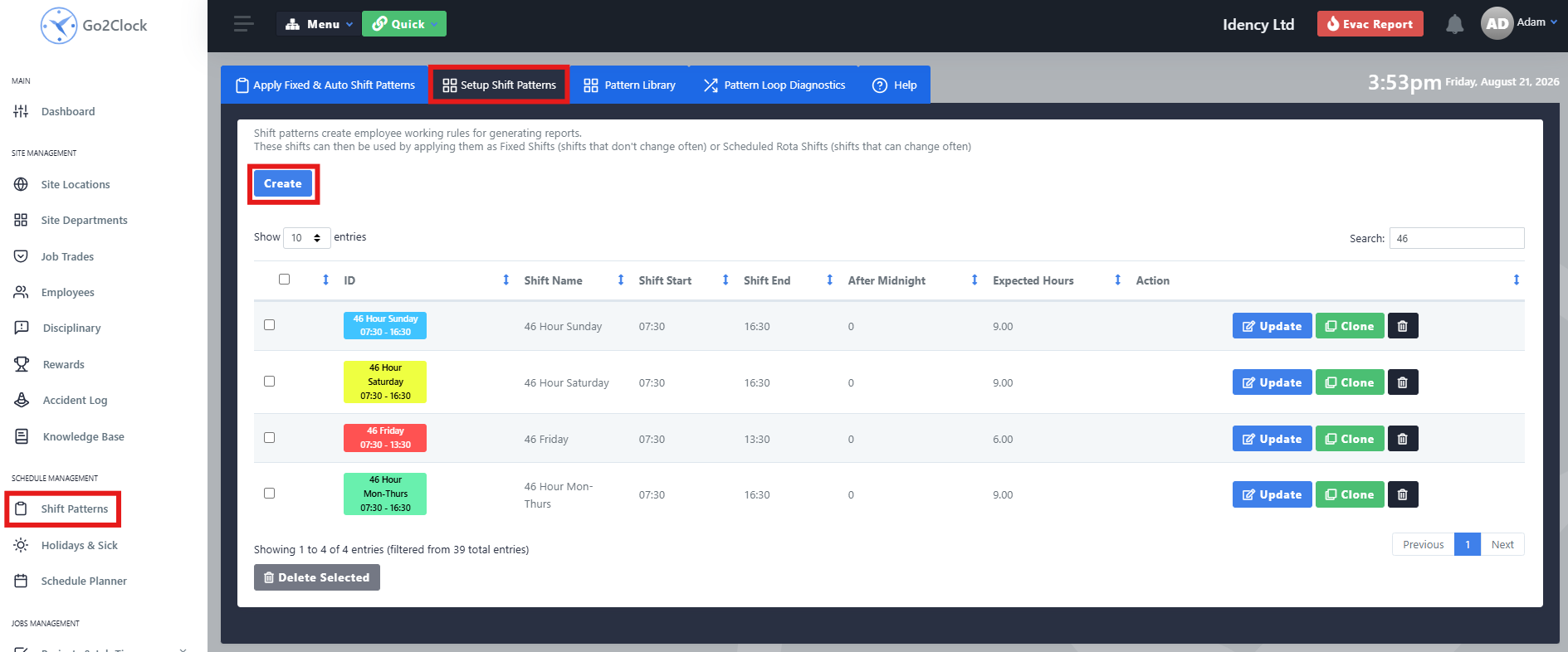
Before applying a shift pattern to an employee, you must first create the pattern and configure the required working hours and rules.
- Navigate to Shift Patterns
- Select Setup Shift Patterns
- Select Create
- Configure the shift pattern as required
- Select Create to save it
Repeat this process if you require multiple shift patterns for different working arrangements.
Step 2: Add the Shift Pattern to the Pattern Library
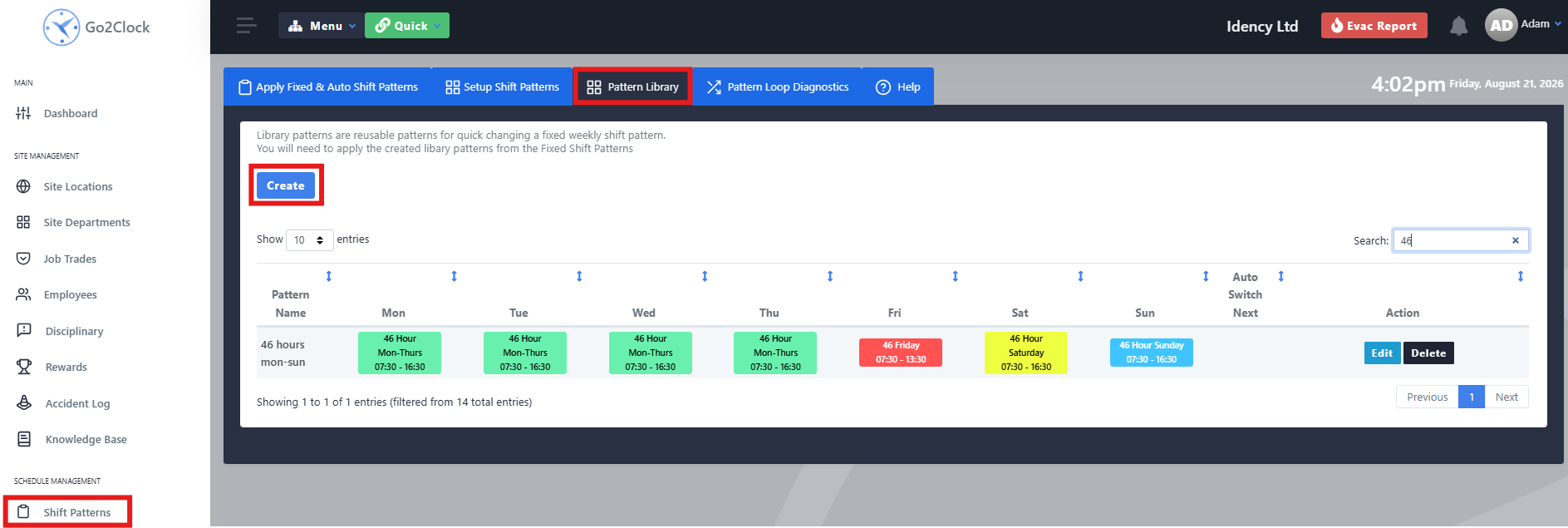
Once the shift pattern has been created, it needs to be added to the Pattern Library. This determines which shift pattern is applied on each day of the employee’s working schedule.
- Navigate to Shift Patterns
- Select Patterns Library
- Select Create
- Create the regular week by assigning the shift patterns to each day, and name it clearly so it can be easily identified.
Step 3: Apply the Shift Pattern to Employees
Once the Pattern Library has been created, you can assign it to the relevant employees.
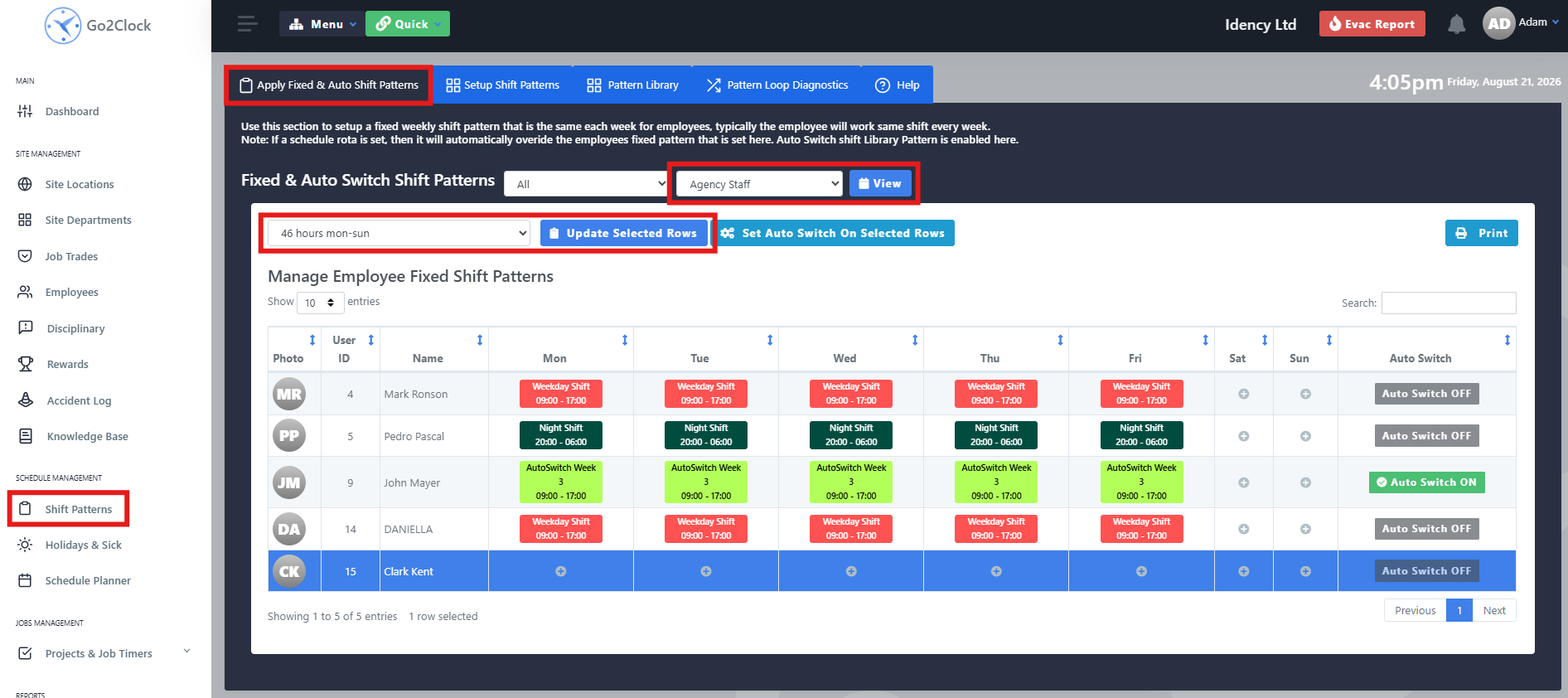
- Navigate to Shift Patterns
- Select Apply Fixed & Auto Shift Patterns
- Use the department filter to find the employees who should be assigned the Shift Pattern
- Select View
- In the employee list, select an employee by clicking once on their name. The selected row will turn blue, and multiple employees can be selected at once.
- From the dropdown in the top-left, select the Pattern Library you want to apply to the employees
- Select Update Selected Rows
Step 4: Confirm the Shift Pattern Has Been Applied
Check the employee’s row to confirm the Shift Pattern has been applied successfully. The employee should show Auto Switch Off and the relevant shift patterns displayed against them for the current week.

Need help setting up shift patterns?
If you run into any issues creating or applying your rotation, our support team is happy tIf you run into any issues creating or applying a shift pattern, our support team is happy to help.

Go2Clock Cloud Hosted Time & Attendance System

















 English (UK)
  English
  English (Canada)
  Français du Canada
  Svenska
  Português
  Nederlands
  Italiano
  Français
  Español
  Deutsch