



































First Time Logging into IdencyTime
You can login to your account at the following URL: https://app.idencytime.com/. Once logged in it will ask you to set up 2-Factor authentication, this is a requirement for Customer Administrators, it is not required for Fire Marshall’s. This is to make sure Fire Marshall’s can quickly access the evacuation report.
Step 1: Enable 2FA
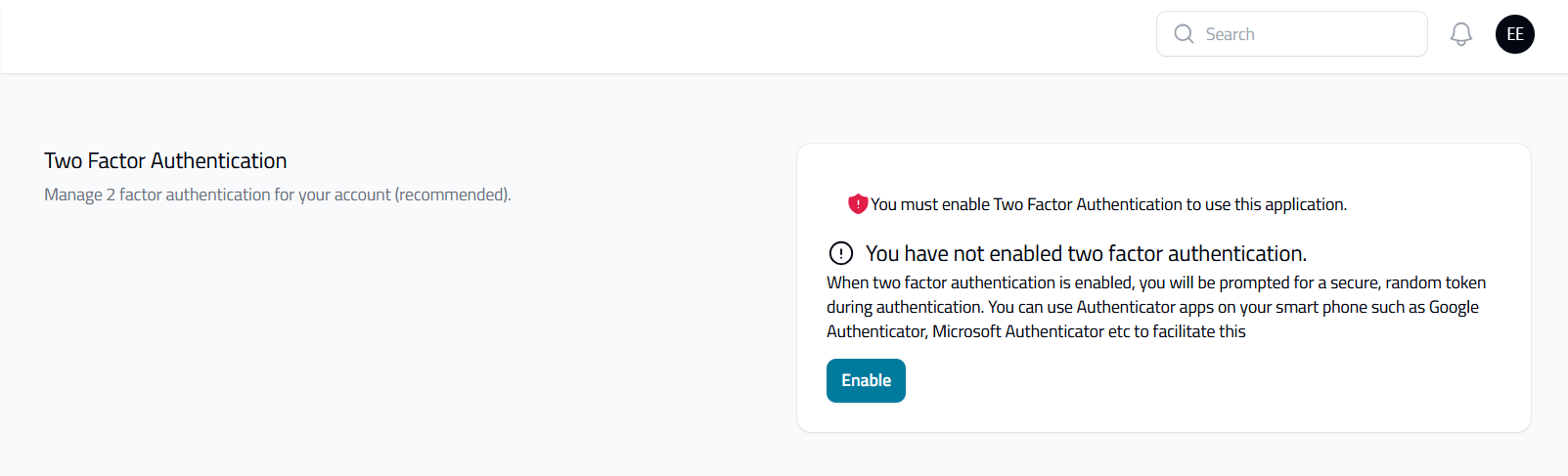
To set up 2FA follow the instructions when you first login, Click on the Enable button:
Step 2: Confirm Password
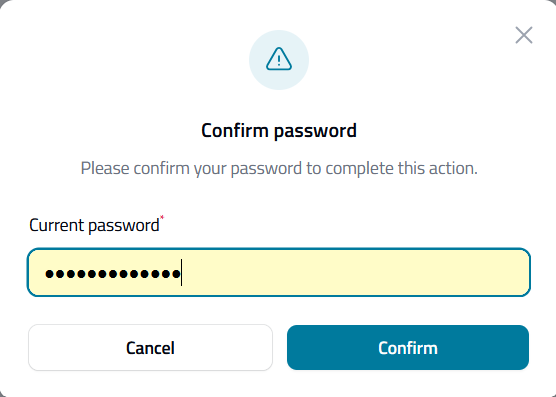
Enter your current password and press the Confirm button:
Step 3: Scan QR Code
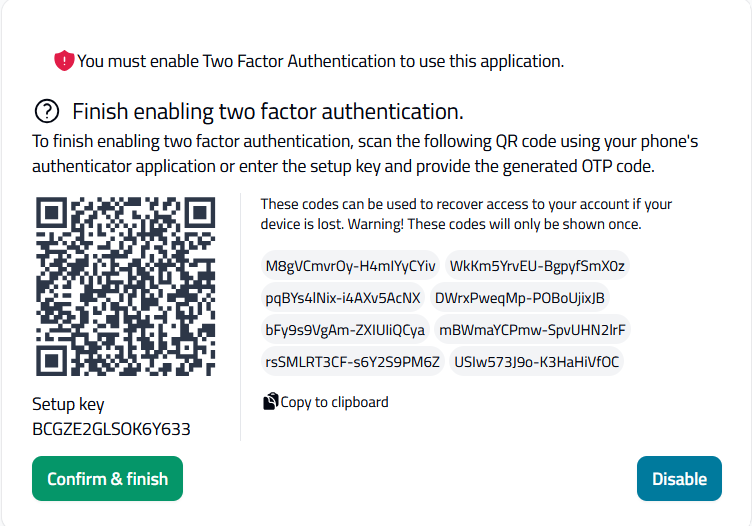
Either use your phone or a web based authenticator to register your 2FA codes by scanning the QR Code. If you are using a web based authenticator, you will need to copy the setup key and then use the backup codes to register your 2FA Codes.
Step 4: Save Recovery Codes & Enter 2FA Code
Click confirm and finish once you have it setup, note down your recovery keys if you don’t want to lose access.
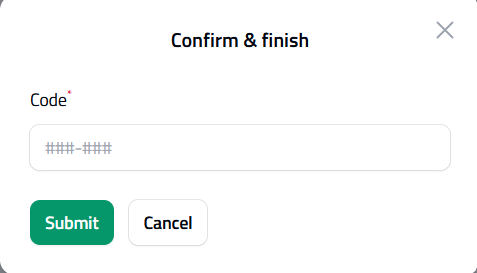
Now enter the 2FA code from your authenticator into the Confirm & Finish window, you may need to enter 2 codes.
2FA is now setup, and you can start to use the system, if you lose your codes, you will need to email support@idency.com to get us to this remove your 2FA so you can set it up again.
Need a hand adding users to IdencyTime?
If you run into any issues setting up new users or assigning roles, our support team is happy to help.

IdencyTime – Time & Attendance API and T&A Integrations

















 English (UK)
  English
  English (Canada)
  Français du Canada
  Svenska
  Português
  Nederlands
  Italiano
  Français
  Español
  Deutsch