


































Go2Clock: Monitoring Manager Activity
Go2Clock provides different methods to monitor user activity within the system. The logs created can be useful when auditing changes, investigating unexpected activity, or reviewing how users are accessing and using Go2Clock.
Step 1: Review the System Activity Log
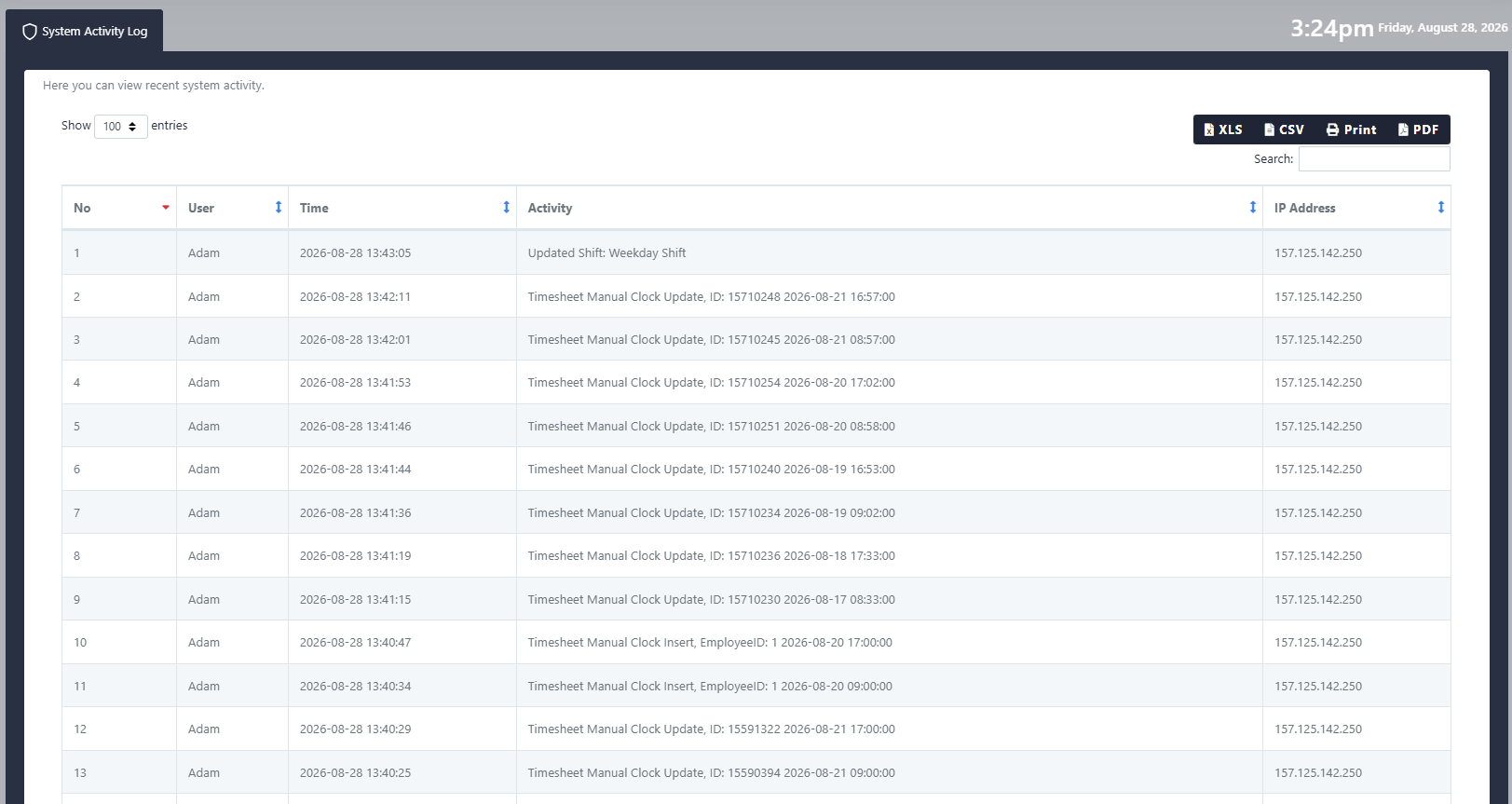
The System Activity Log records changes and actions made within Go2Clock, providing an audit trail that can be used to identify irregular or problematic activity. It can also be used to investigate changes that may have been made intentionally or accidentally.
You can open it in one of two ways:
- Select your profile in the top-right of the screen and choose System Activity Log from the dropdown
- Use the menu on the left-hand side and select System Activity Log
The log shows actions carried out by users, whether they’ve created, updated, edited or deleted data.
Step 2: View a User’s Login Activity
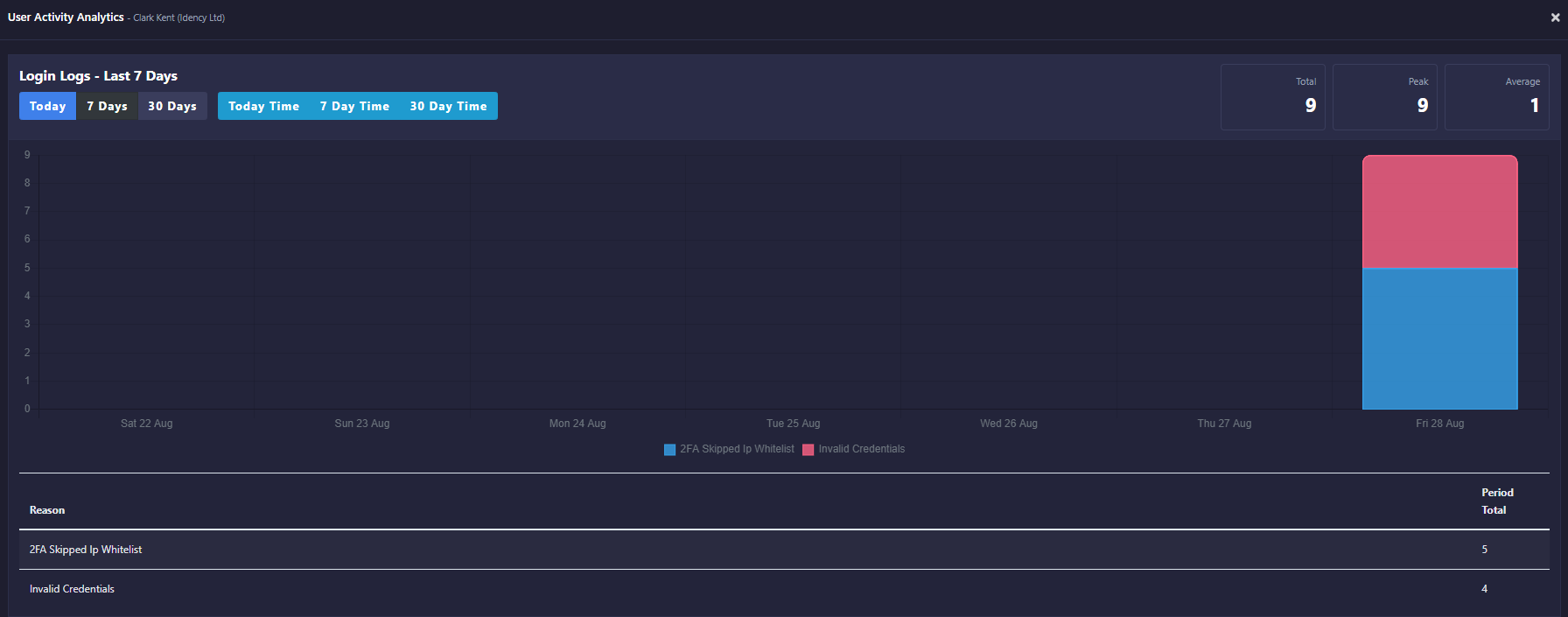
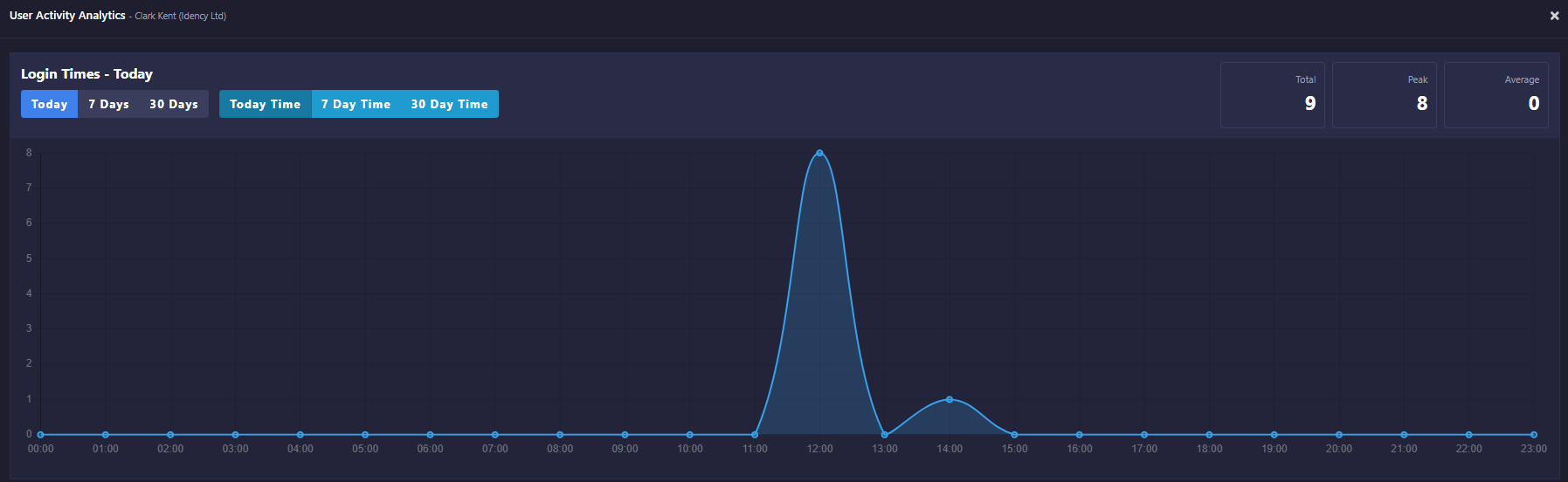
The User Activity Logins section lets you review login and usage activity for individual users.
- Navigate to System User Login Accounts
- Find the relevant user
- Select Activity against the user
This shows login attempts, successful logins and the amount of time spent within Go2Clock. Activity can be reviewed over a day, week or month, which is useful for monitoring user access and spotting unusual or unexpected logins.
Need a hand monitoring activity in Go2Clock?
If you have any questions about the System Activity Log or user login activity, our support team is happy to help.

Go2Clock Cloud Hosted Time & Attendance System

















 English (UK)
  English
  English (Canada)
  Français du Canada
  Svenska
  Português
  Nederlands
  Italiano
  Français
  Español
  Deutsch