



































Uni-Ubi: Daylight Saving Time
This article covers how to set up Daylight Saving Time (DST) on a Uni-Ubi device, either directly at the device or via the terminal web portal. Before starting, make sure the device is powered on and connected to your network.
Setting DST via the web portal is recommended over the device method. The web portal lets you set DST once using a weekly rule, so it automatically applies to the last weekend in March and October every year. The on-device method uses fixed dates that must be updated manually each year.
Section 1 | Setting DST at the Device
On the device, log into the Admin menu using the default credentials below.
- Username: Admin
- Password: 12354
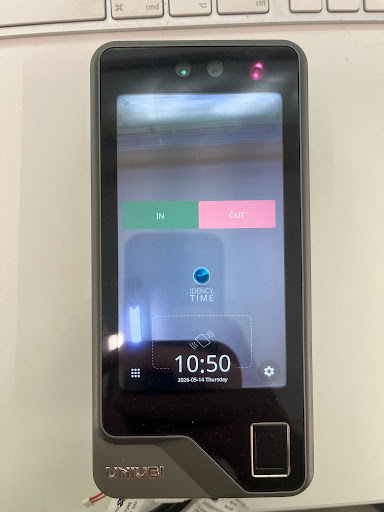
Step 2: Set the Timezone
Navigate to Settings → System → Time and Date. Set the Timezone to match your location — for example, GMT+0 for the UK. The date and time should already be correct, as the device connects to an NTP server by default.
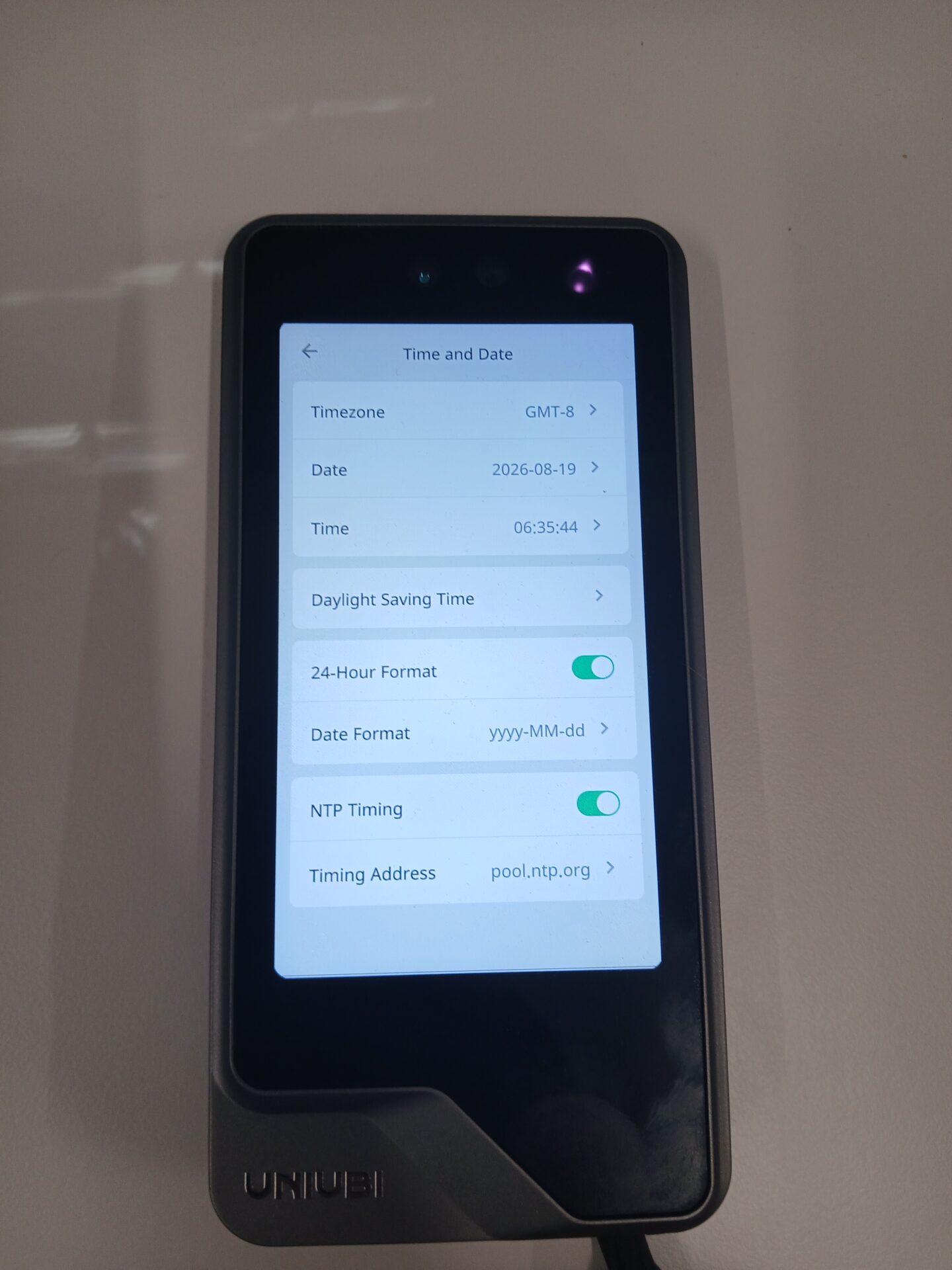
Step 3: Enable DST and Set the Timezone Interval
Enable Daylight Saving Time, then set the Timezone Interval to this year’s DST dates, using the format MM-DD (start) – MM-DD (end).
- 2024: 03-31 to 10-27
- 2025: 03-30 to 10-26
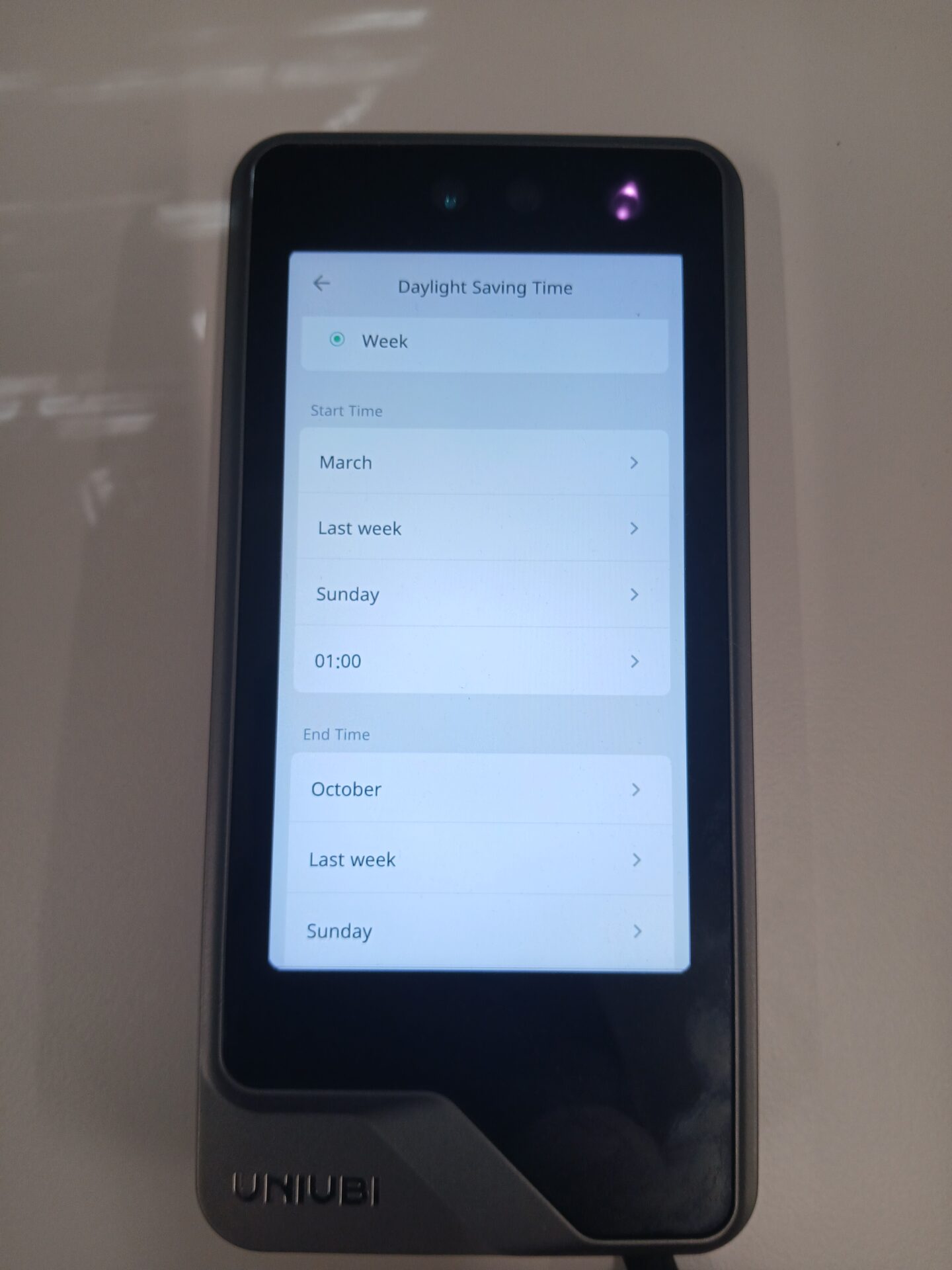
Because the Timezone Interval uses fixed dates, this must be manually updated every year. Consider using the web portal method below instead, which only needs to be set once.
Section 2 | Setting DST via the Web Portal (Recommend)
Step 1: Log Into the Web Portal
You’ll need to be on the same network as the device. In your browser, go to the device’s IP address on port 8090, for example http://192.168.1.121:8090/. Log in using the same Admin credentials as the device — by default:
- Username: Admin
- Password: 12354
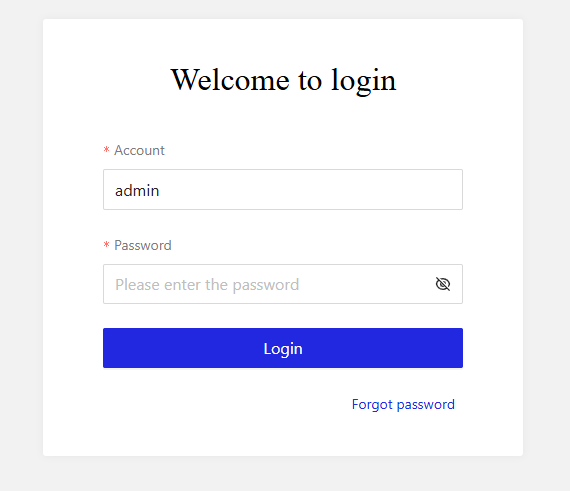
Step 2: Enable DST and Set the Format to Week
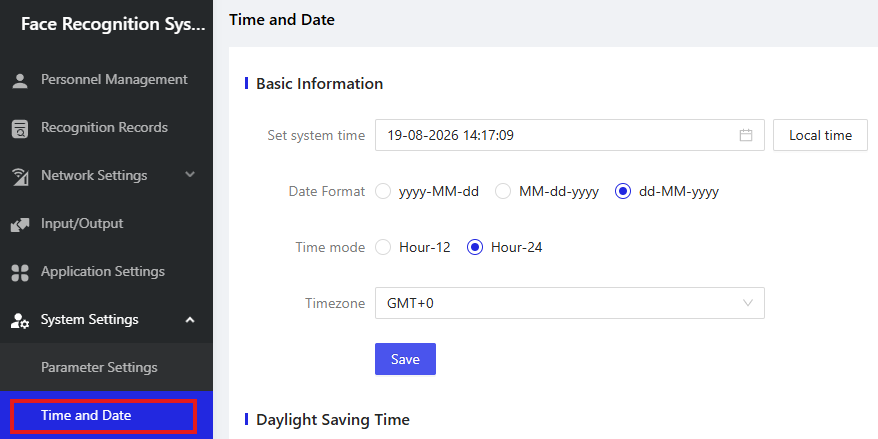
Go to System Settings → Time and Date and find Daylight Saving Time. Enable it and set the format to Week.
Step 3: Set the Start. End, and Offset Times
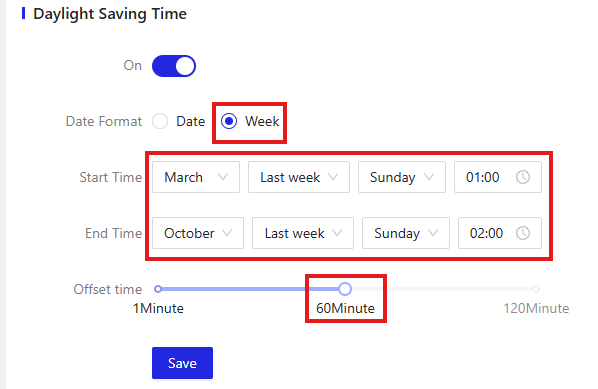
Configure the following settings:
- Start Time: March, Last Week, Sunday, 01:00
- End Time: October, Last Week, Sunday, 02:00
- Offset: 60 minutes, so the clock moves forward and back by one hour
Select Save to apply the settings.
Need a hand setting up DST on your Uni-Ubi device?
If you run into any issues setting up DST or other device settings, our support team is happy to help.

















 English (UK)
  English
  English (Canada)
  Français du Canada
  Svenska
  Português
  Nederlands
  Italiano
  Français
  Español
  Deutsch