


































Go2Clock: Clock Device Report
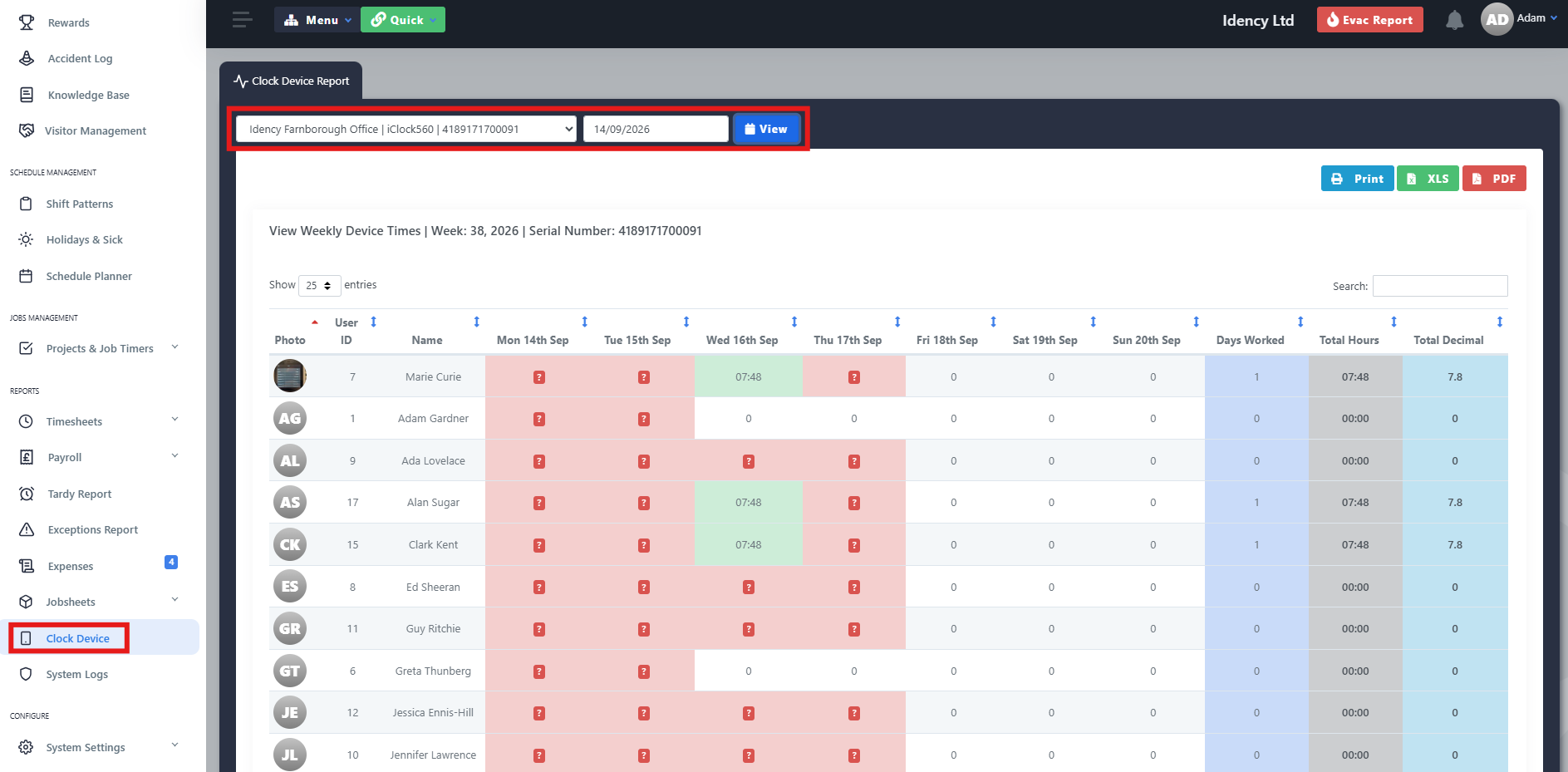
The Clock Device Report shows the total hours an employee has clocked using an individual time clock device in Go2Clock.
How to Run the Clock Device Report
- Navigate to Clock Device
- Select the device you want to report on
- Set the Start Date
- Enable the 2FA switch
- Select View to run the report
The report displays each employee and their total hours recorded on the selected device, over a one-week period from the start date.
When the Report Can Be Inaccurate
The report is only useful when employees consistently clock on the same device. If an employee has used more than one device during the reporting period, their clock records may be split between those devices. This can leave incomplete IN/OUT pairs on the individual device report, so their total hours can’t be calculated accurately.
For example, if an employee clocks IN on Device A and OUT on Device B, the Clock Device Report for Device A will only contain the IN record, and the report for Device B will only contain the OUT record.
Need a hand with Go2Clock reports?
If you have any questions about the Clock Device Report or your clock records, our support team is happy to help.

Go2Clock Cloud Hosted Time & Attendance System

















 English (UK)
  English
  English (Canada)
  Français du Canada
  Svenska
  Português
  Nederlands
  Italiano
  Français
  Español
  Deutsch